Products and selections · Add products
Add a product directly
Create a single product in a room as a private draft, with photos, pricing, vendor and order details.
Why use it
Not every product needs a client vote. A replacement faucet, a rug you already agreed on, or a piece you are still researching just needs a home with its price and vendor. Adding it directly keeps it in the right room, private to your team, until you decide what to do with it.
When to use it
- The choice is made. Add it, then approve it directly into the final selection.
- One product needs a yes. Add it, then send it to your client for approval.
- You are still collecting details. Keep it as a draft while you wait for a quote.
When your client should choose between two or three options, add a product section instead.
Before you start
- Open the project and the space, then choose View all on the Products card.
- Have the product cost and vendor to hand. You can fill the rest later.
Steps
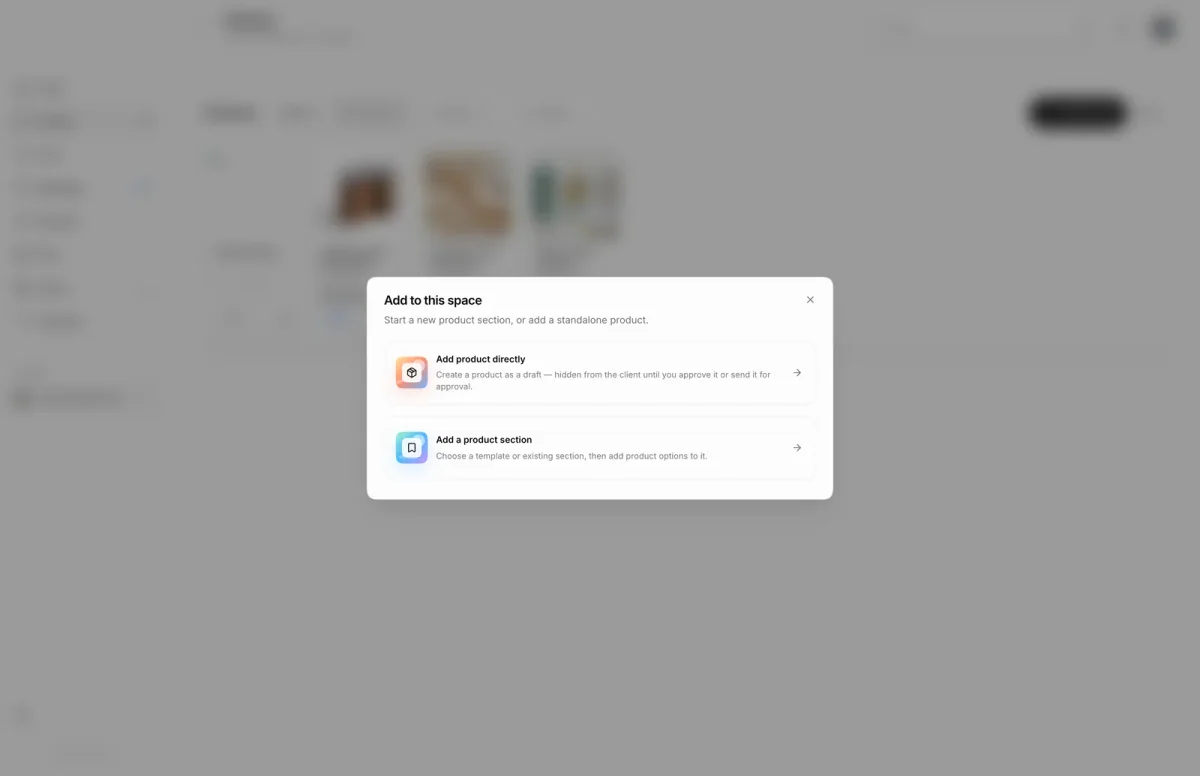
- 1Add product directly
- On the Kitchen products page, choose Add product to open the Add to this space chooser.
- Choose Add product directly for a single product your client is not choosing between.
- Type the Product title, for example Kitchen island pendant.
- Pick a Category, such as Lighting. Every product needs one.
- Choose Source link to paste the vendor's product page and fetch its photos and details.
- Enter the Product cost and Quantity. Two at $420 with a 30% Markup % comes to $1,092.00 for the client.
- Under Vendor, choose who you buy from, such as Ann Sacks, or Add vendor if they are new.
- Choose Add product to save the draft. Tick Add another first if you have more to enter.
What happens next
- The product appears on the Sections view as a draft, hidden from your client.
- Open it to see its product page, where you can add quotes, adjust pricing and set client visibility.
- When you are ready, send it for approval, approve it directly, or file it into a section.
Limits
Limits
- A directly added product is a draft, hidden from the client until you approve it or send it for approval.
- Product title and Category are required.
- Photos must be JPEG, PNG or WebP, up to 5 MB each. A product holds up to 20 photos.
- Files under Files & receipts can be attached only after the product is saved.
- Only admins can create a new vendor from the form. Members can pick an existing vendor, or ask an admin to add it first.
Troubleshooting
- Too many scrapes this hour. Try again later. The firm has used its hourly link lookups. Fill in the details by hand, or try again later.
- This site blocked access. Try copying details manually. Some vendor sites refuse automatic lookups. Type the details in yourself.
Questions
Why can't I add a new vendor here?
Creating a vendor needs the admin role. Members can pick an existing vendor, or ask an admin to add the vendor first.
Where do I attach the quote or receipt?
Save the product first. Then edit it and use Files & receipts, or open the product page and use Quotes & receipts.
Next
Product pageProducts and selectionsSend a product for approval or approve it directlyProducts and selectionsAdd a product sectionProducts and selections
Was this page helpful?
Thanks, noted.