Products in a space
See every product section and selection in a room, filter by stage or visibility, and export the list.
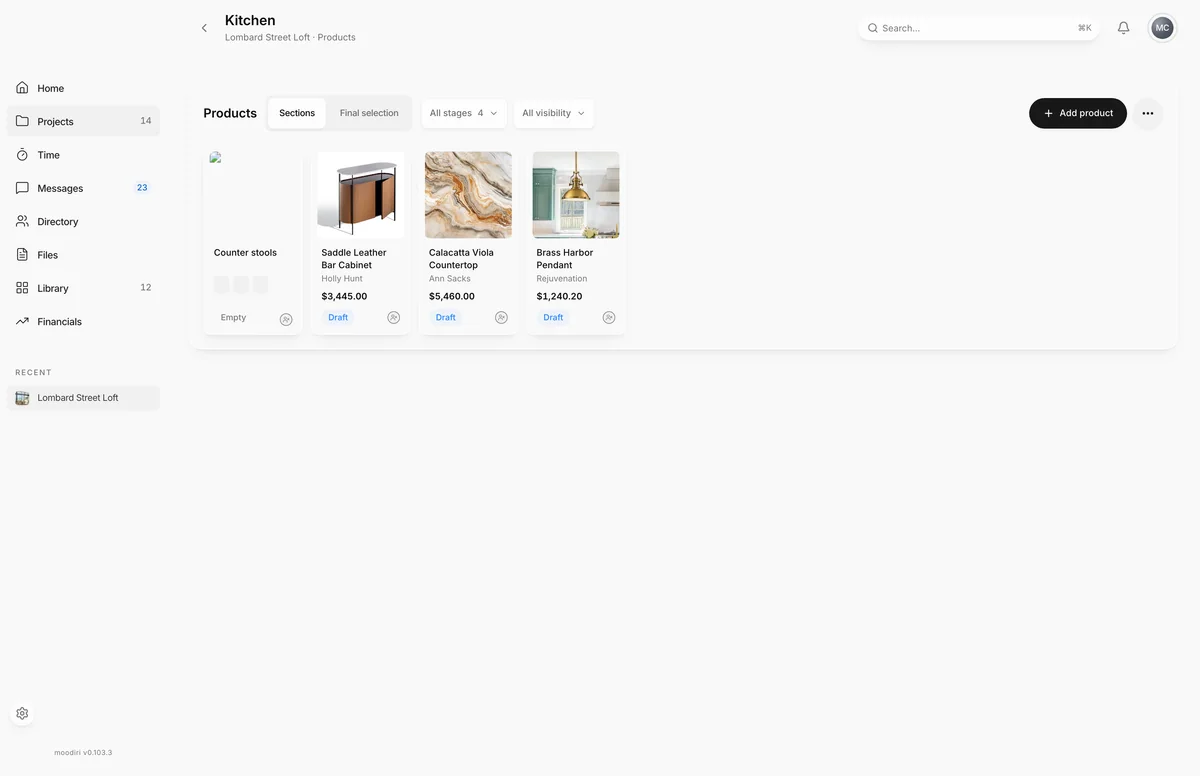
- 1Sections / Final selection view toggle
- 2Add product
- 3More product actions
The products page is where a room's furniture, fixtures and finishes live while you work on them. It splits the room into two views: the product sections you are still deciding, and the final selection your client has approved or you have chosen.
To open it, open a project, open a space, and on the Products card choose View all (the arrow next to Add product).
What you see here
- Sections and Final selection, the two views, side by side at the top.
- Add product, which opens the chooser for a new section or a draft product. See Add products.
- Filters for stage, procurement status, family and client visibility.
- More product actions, the menu with Save as template, the exports and Spec sheet PDF.
- A strip of the project's spaces, so you can switch rooms without going back.
Sections view vs. Final selection view
Sections shows each product section as a card, for example Pendant lighting or Dining table, with up to three option thumbnails. It also shows draft products you added directly. Open a card to work on that section's options.
Final selection shows the products that are decided: approved by your client or selected as final by you. This is where you track ordering and delivery.
Approved items leave the Sections view and appear only under Final selection.
During a session, Moodiri remembers the view and filters you last used in each room, so you come back to the same place.
Filters: stage, procurement status, family, client visibility
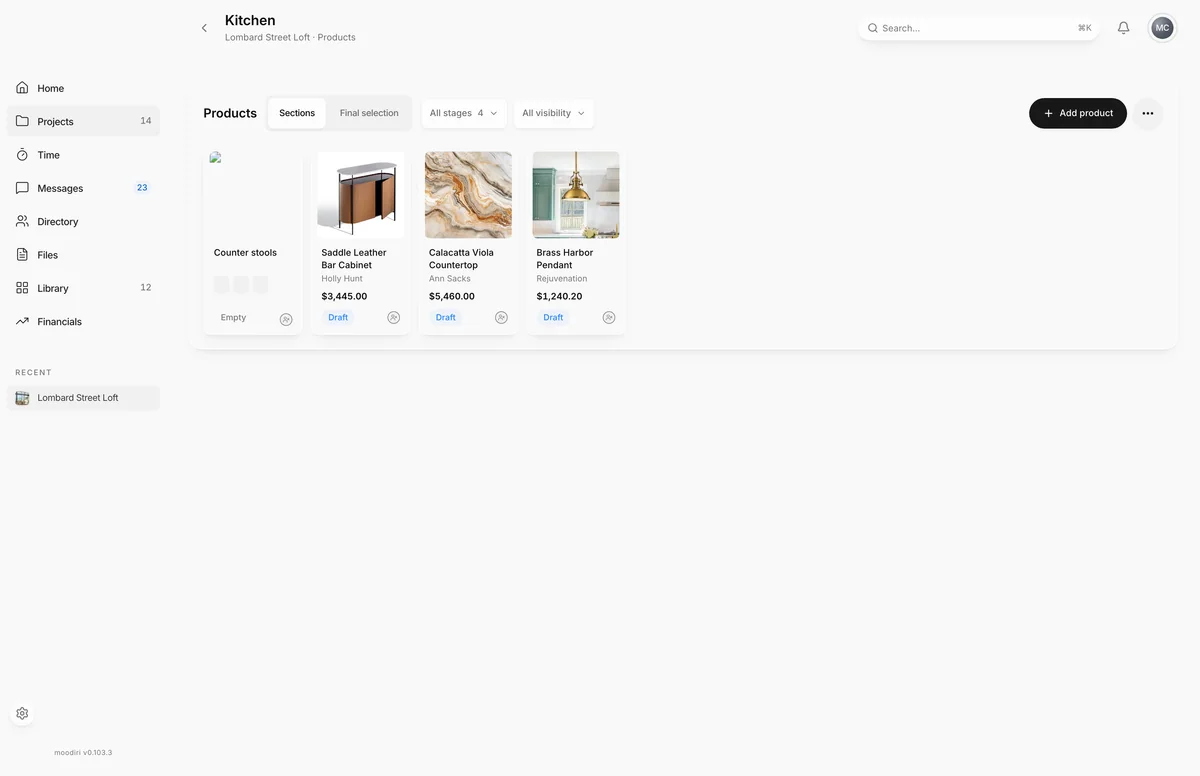
- 1Stage filter
- 2Client visibility filter
- Stage (Sections view): All stages, Empty sections, Draft, Sent, In review or Approved. Each shows a count.
- Procurement status (Final selection view): All statuses or one status, such as Ordered or Delivered. See procurement statuses.
- Family: All families, Families or Standalone. It shows only when the room has product families.
- Client visibility: All visibility, Shared with client or Hidden from client.
Table view and inline editing
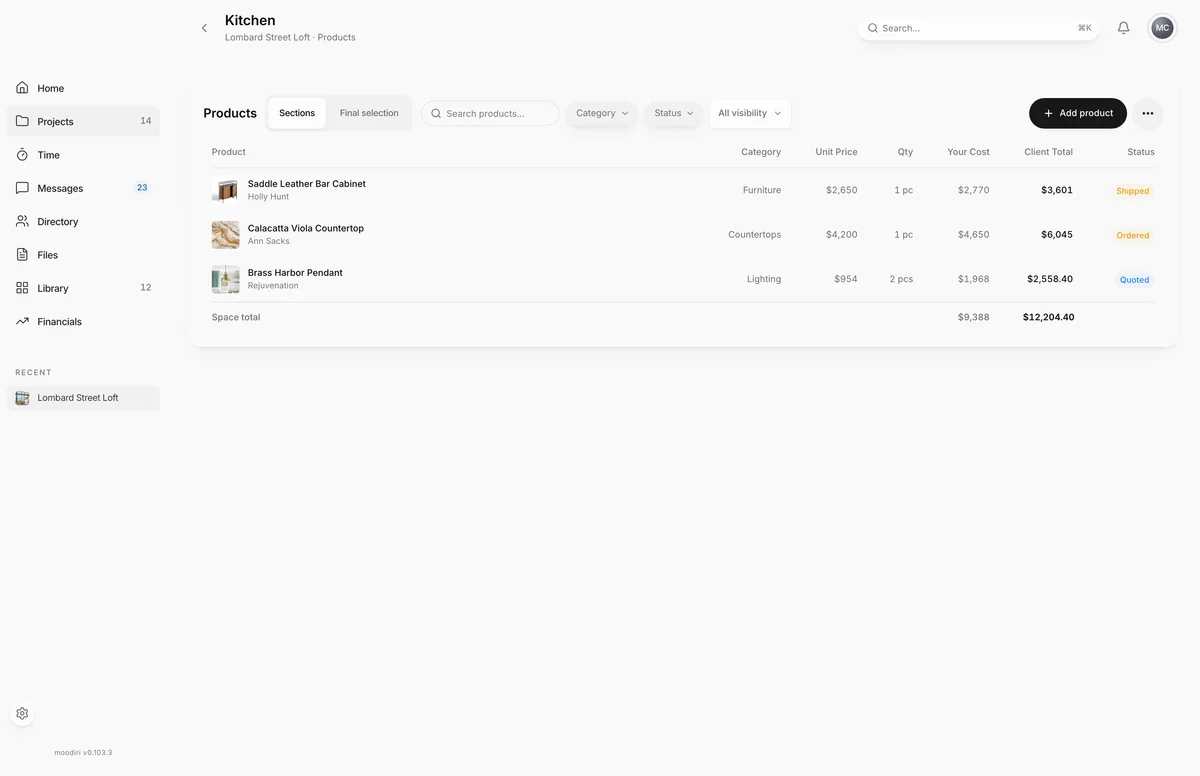
There is also a plain table of every product in the room, with sortable columns for
name, category, unit cost, quantity, your cost, client total and status, and a
Space total row. It has no toggle: add ?view=table to the end of the page
address to open it. In the table view you can search and filter by Category and
Status.
The table does not edit values in place. Select a row to open the product page and change it there.
Export the product list (CSV, Excel, PDF)
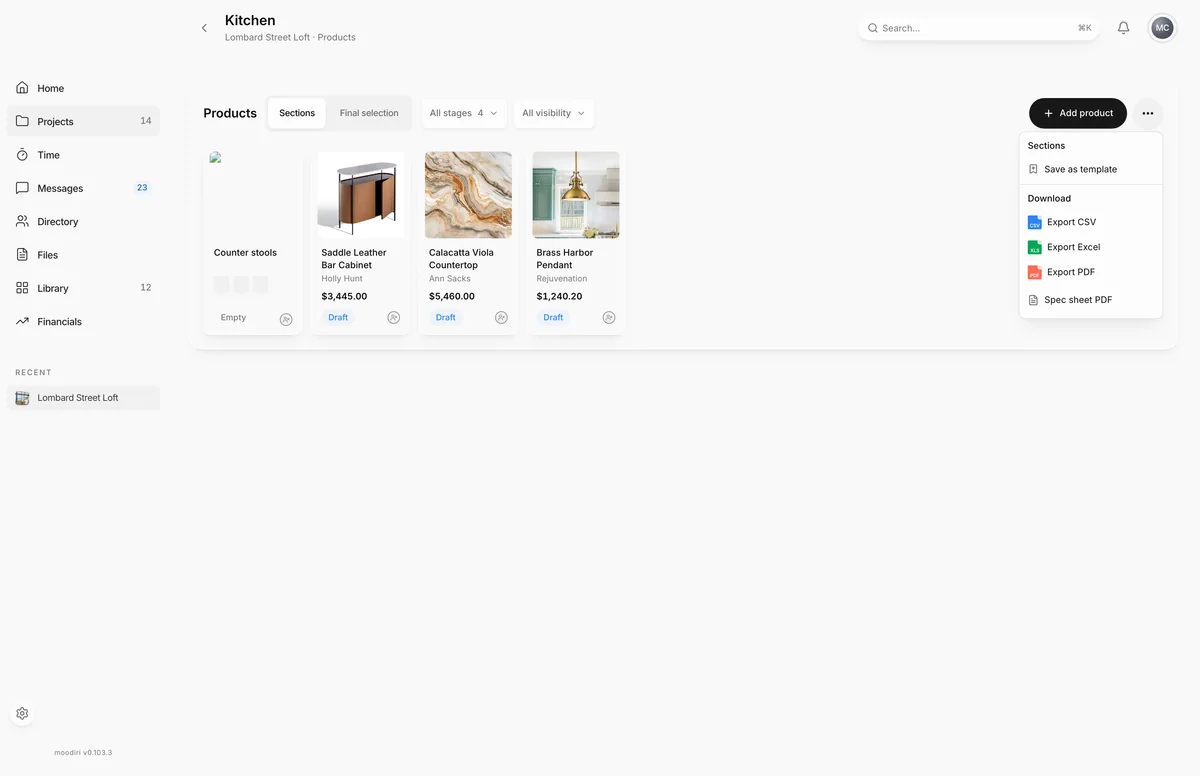
- 1Export CSV
- 2Export Excel
- 3Export PDF
Choose More product actions, then Export CSV, Export Excel or Export PDF. The file lists the room's products with brand, model, category, quantity, unit cost, markup, client price, internal and client totals, status, vendor and order number.
The export includes your costs, so treat it as an internal document. To send product details to a client, contractor or vendor, use a spec sheet instead, which can hide prices.
Limits
- Approved items appear only under Final selection, not in Sections.
- The procurement status filter shows only in Final selection. The family filter shows only when the room has families.
- The table view has no toggle and does not edit in place.
- An export covers up to 500 products.
Questions
Why did a product disappear from the Sections view?
It was approved or selected as final. Approved items leave Sections and appear under Final selection.
Does my client see this page?
No. This is your working view. Your client sees only what you share, in their portal under selections.