Build a spec sheet
Choose the recipient, rooms, vendors, statuses, fields and products for a spec sheet PDF, and check it in the live preview.
Why use it
Each person you send products to needs something different. Building the sheet around the recipient means your contractor gets model numbers without prices, your vendor gets only their lines, and your client gets the photos and prices they expect, all from the same product records.
When to use it
- Client presentations. Choose Owner, keep Photos and Client price on.
- Contractor packs. Choose Contractor to drop prices, and keep Specifications and Quantity.
- Vendor quotes. Choose Vendor, then pick that vendor under Vendors.
Before you start
- Products in the room or project.
- Open the room's products page. A spec sheet opened here starts with this room selected.
Steps
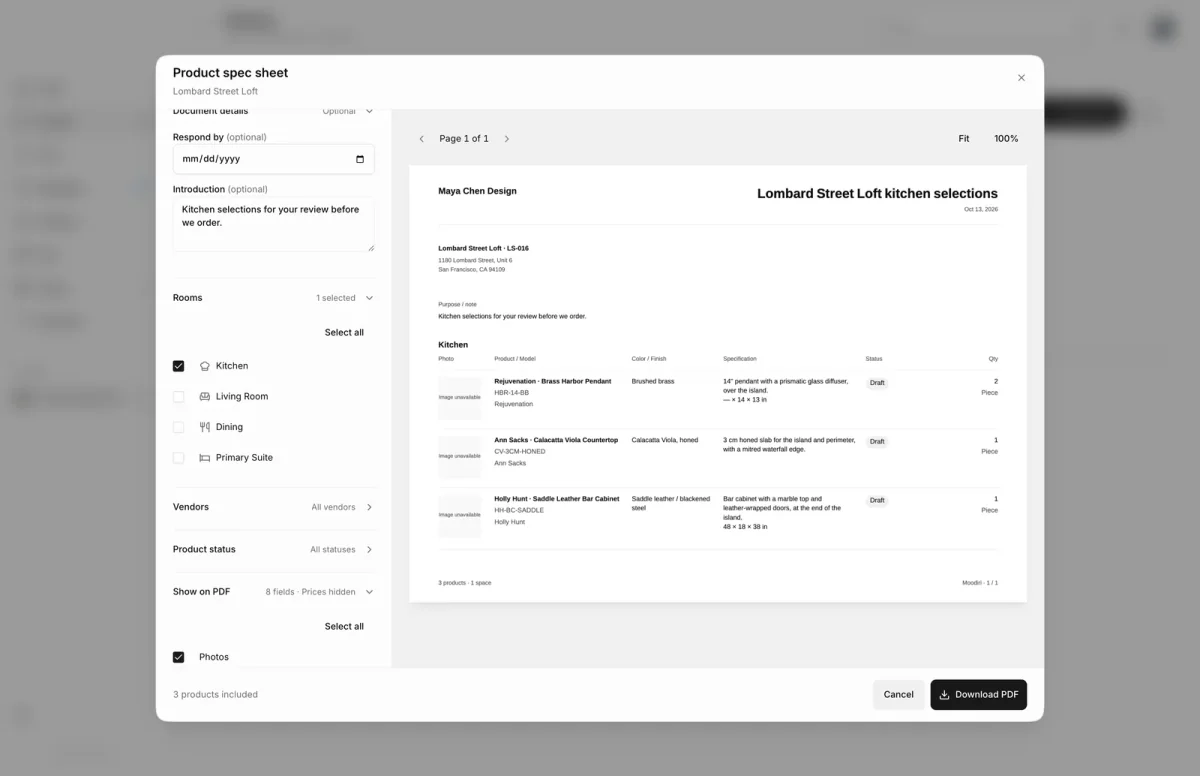
- 1Preview
- On the room's products page, choose More product actions, then Spec sheet PDF.
- Give the sheet a PDF title, for example Lombard Street Loft kitchen selections.
- Choose the Recipient, here Contractor. Owner fills in your client's name and lists only products shared with them.
- Under Document details, add a Respond by date or an Introduction if you need them.
- Under Rooms, Vendors and Product status, tick what to include, and whether to Include section options.
- Under Show on PDF, tick the fields to print, such as Photos, Model and Client price.
- Check the preview, here 3 Kitchen products with prices hidden. Under Products, untick any you want to leave out.
- Choose Download PDF to save the file. Nothing is sent to anyone.
Fields you can show
Show on PDF offers Photos, Model, Color / finish, Specifications, Quantity, Product links, Vendor, Selection status and Client price. All are on to start, except that Contractor and Vendor recipients turn Client price off.
What happens next
- The preview updates as you change options. When it looks right, choose Download PDF. See Download the PDF.
- Your products are not changed, and nothing is sent from Moodiri.
Limits
- Up to 500 products per spec sheet.
- PDF title up to 160 characters, Introduction up to 2,000.
- Prices use client-facing amounts. Product sharing settings also apply when the recipient is Owner.
Questions
What does each status mean on the spec sheet?
Draft is not yet sent, Awaiting review is with your client, Client approved was approved by your client, and Designer selected was chosen by you.
Does a vendor spec sheet show other vendors' products?
Only if you include them. Pick that vendor under Vendors and the sheet lists only their products.