Billing and subscription
See your Moodiri plan, next billing date, payment method, paid seats and past invoices, and subscribe when a trial ends.
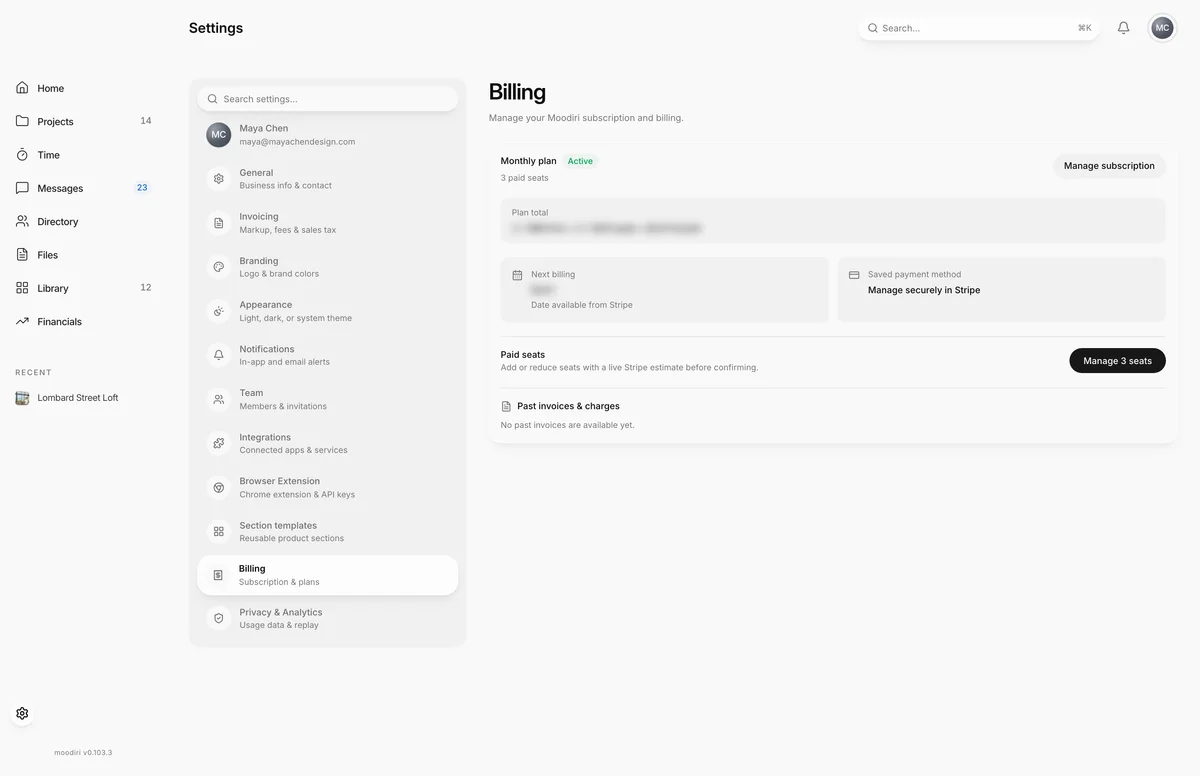
- 1Billing
Billing is where you look after your firm's Moodiri subscription: the plan you're on, what's due next and when, the card or account it's charged to, how many paid seats you have, and your billing history. Payments and payment methods are handled securely by Stripe.
Open Settings, then choose Billing.
Only the owner and admins with the Subscription billing permission can make changes here. Others see a note to ask the firm owner or billing administrator.
What you see here
With an active subscription:
- Plan and status. Monthly plan or Annual plan, with a status badge: Active, Trial, Past due, Payment paused, Payment incomplete or Cancelled. Your number of paid seats is shown under it.
- Manage subscription. Opens Stripe's secure billing portal, where you manage your payment method and subscription. When a payment needs attention it reads Resolve payment. See Manage subscription and payment method.
- Plan total. How your recurring total is made up from the firm plan and additional seats.
- Next billing. The amount and date of your next charge.
- Saved payment method. The card or account on file.
- Paid seats. See Paid seats below.
- Past invoices & charges. Every Moodiri invoice with its amount, date and number, with Receipt, PDF or View charge links.
Plans and pricing
Moodiri has one plan with every feature. You choose to pay monthly or annually, and your total depends on the period you choose and how many paid seats your firm has. During a trial, or after a subscription ends, Billing shows a Monthly and an Annual option with current prices and Subscribe monthly and Subscribe annually buttons. Either one takes you to Stripe to pay.
For what each role can do, see Plans, roles and feature availability.
Paid seats
Every teammate with access and every pending invitation uses a paid seat. Under Paid seats, choose the button with your seat count, for example Manage 3 seats, to add or reduce seats. Moodiri shows Stripe's exact figures before anything changes: what is due today for added seats, and your new recurring total. See Manage seats.
Trial ended, payment issues
- During a trial, Billing shows Free trial and the date your trial ends, with the plan options to subscribe.
- When a trial ends without a subscription, Moodiri opens a page headed Your trial has ended. Choose Subscribe monthly or Subscribe annually to continue.
- When a payment fails, the status changes to Past due and Billing asks you to update your payment method. Moodiri keeps working for a 7-day grace period. After that, the Payment issue page asks you to choose Update payment method.
- After a subscription is cancelled, Billing shows No active subscription. Subscribe again from the plan options, or choose View past invoices to see your billing history.
Limits
- One plan, billed monthly or annually. There are no feature tiers.
- A past-due subscription keeps working for a 7-day grace period.
- Pending invitations reserve a paid seat. Inviting is blocked when all paid seats are taken.
- Changes need the Subscription billing permission.
Troubleshooting
- Live Stripe billing details are unavailable right now. Your plan details are still shown. The next billing date and payment method appear once Stripe responds; try again later.
- Your last payment failed. Please update your payment method. Choose Resolve payment and update the card or account in Stripe.
Questions
Why can't I see the billing buttons?
Managing the subscription needs the Subscription billing permission. The owner has it and can give it to an admin.
Is there more than one plan?
There is one plan with every feature, billed monthly or annually. What you pay depends on the billing period and your number of paid seats.
What happens if a payment fails?
Your subscription shows Past due and Moodiri keeps working for a 7-day grace period while you update your payment method.