Google Calendar sync
See your Google Calendar events on your timesheet as suggestions, and turn the real ones into recorded time in a click.
Why use it
Most of a designer's billable day is already in the calendar: client meetings, showroom visits, site walkthroughs. Typing it all again into a timesheet is slow and easy to skip. Calendar sync puts those events next to your week so you accept the ones that were real work and skip the rest.
When to use it
- Meeting-heavy weeks. Accept client calls and walkthroughs instead of logging each one.
- Filling in a past week. Open the week and work through its events.
- Planning ahead. Schedule a future event as planned work. See Schedule an event.
Before you start
- A Google account with the calendar you use for work.
- Open Time. You land on My time.
- Each person connects their own calendar. Connecting yours does not connect anyone else's.
Steps
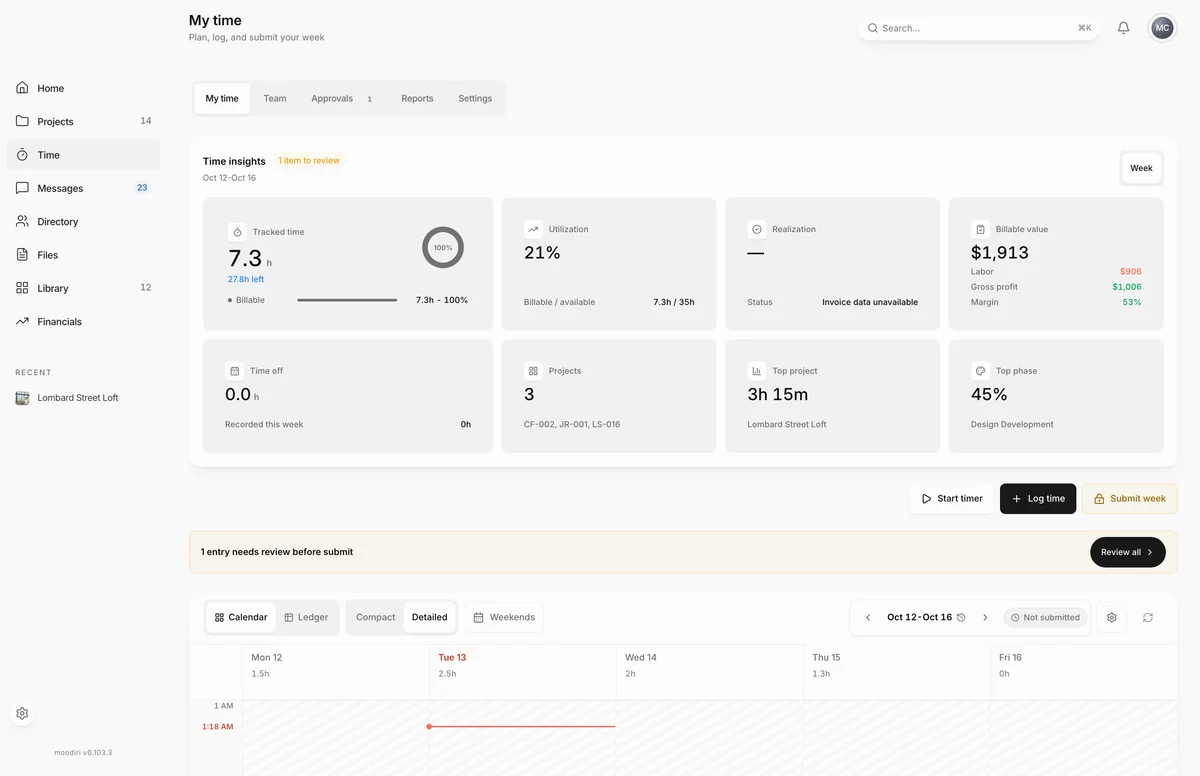
- Connect your calendar once from Sources & sync, the button beside the week picker on My time.
- Open the week you are filling in. Its calendar events appear on the timesheet as suggestions.
- Choose Review all to step through the week's suggestions, then Accept each event you worked.
- In Sources & sync, turn on Hide event titles to show Busy instead of event titles.
- Choose Resync calendar to pull in events you added or changed in Google.
How suggestions work
Suggestions are not recorded time. They stay on the timesheet until you accept them, and they never count toward your week until you do. Accepting an event that has not happened yet opens Schedule event instead, so it is saved as planned work. If an accepted event overlaps time you already recorded, Moodiri asks you to resolve the overlap.
Under Calendar visibility in Sources & sync:
- Only accepted events leaves out tentative and declined Google events.
- Hide event titles shows Busy instead of titles on your timesheet.
Limitation: read-only, Moodiri never edits your calendar
Moodiri asks Google only for read access to events on calendars you own. It never creates, changes or deletes events in Google Calendar. Resolving an overlap or declining a suggestion changes your timesheet, not your calendar.
What happens next
- Accepted events become entries on your timesheet with the event's time.
- Events you skip stay as suggestions and do not count.
- Resync calendar fetches the week again. It is unavailable until your calendar is connected.
Limits
- Access is read-only. Changes you make in Moodiri never reach Google Calendar.
- Sync reads the week you are viewing. Move to another week to see its events.
Questions
Will Moodiri add or change events in my Google Calendar?
No. Access is read-only. Moodiri reads your events and never edits your calendar.
Can my team see my private events?
Private event titles are hidden before they reach Moodiri. To hide every title on your timesheet, turn on Hide event titles in Sources & sync.
Do declined meetings show up?
Turn on Only accepted events to leave out tentative and declined events.