Time tracking · Google Calendar sync
Connect, sync and disconnect Google Calendar
Connect your Google Calendar to Time with read-only access, sync it on demand, and disconnect it whenever you like.
Why use it
Connecting your calendar is a one-time step that lets your events show up on your timesheet as suggestions. Access is read-only, so you can turn it on without worrying about Moodiri changing your schedule.
When to use it
- Setting up Time for the first time.
- Switching Google accounts, by disconnecting and connecting the other one.
- After Google access expires, when the badge says Permission expired.
Before you start
- Open Time. You land on My time.
- Have your Google account sign-in ready.
Steps
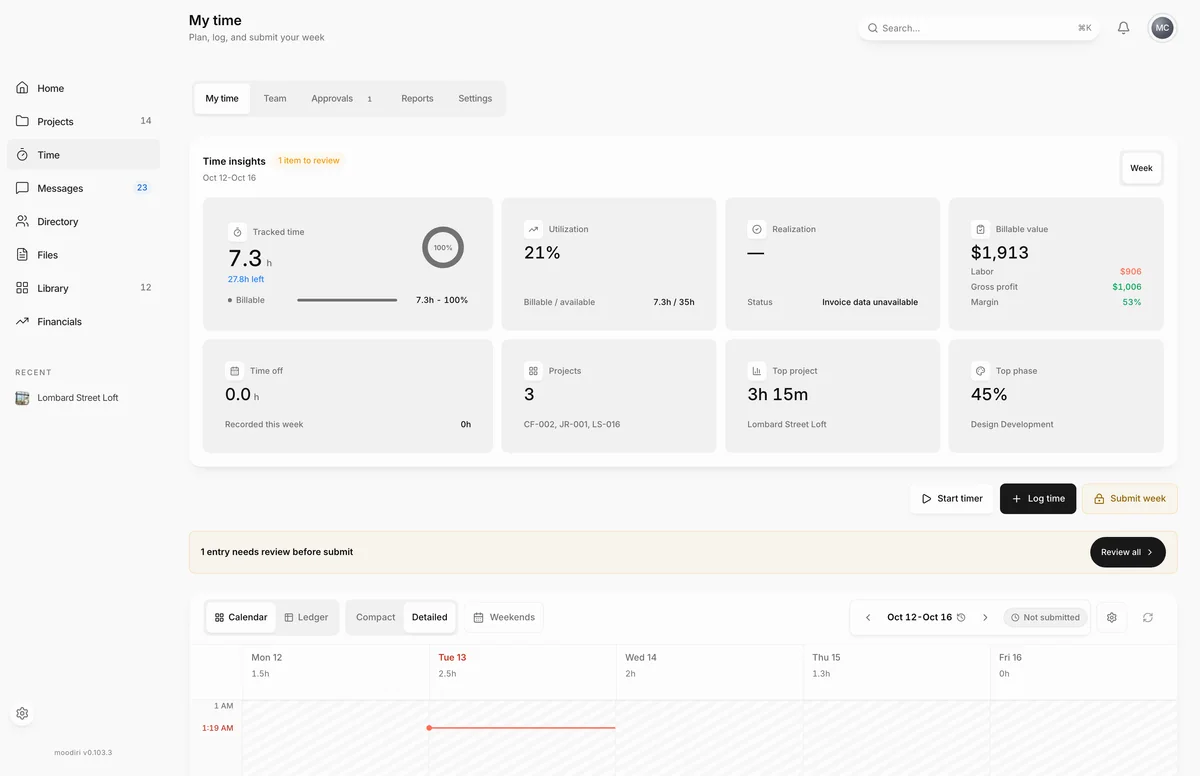
- On My time, choose the sources button beside the week picker to open Sources & sync.
- Under Sources, find Google Calendar and choose Connect Google.
- Sign in to Google and allow read-only access. You come back here and the status reads Connected.
- Turn on Only accepted events to leave out tentative and declined events.
- Close the panel. Choose Resync calendar whenever you want the latest events for the week.
What you see in Sources & sync
- Google Calendar shows your connected account, when it last synced, and how many timed events the week has.
- Calendar visibility has Only accepted events and Hide event titles.
- Privacy & trust confirms Google access is read-only, and Review source trust order shows which source wins when events overlap.
- Work hours and Project colors set how your timesheet looks.
What happens next
- Events for the week you are viewing appear as suggestions. See Google Calendar sync.
- Resync calendar beside the week picker fetches them again at any time.
Limits
Limits
- Read-only. Moodiri never edits your Google Calendar.
- Each teammate connects their own calendar.
Troubleshooting
- Google Calendar is not available for this workspace. Ask an administrator to enable it. Calendar sync is not set up for your firm yet.
- The previous connection change did not finish. Retry cleanup before starting another. Choose Retry cleanup, then connect again.
Questions
What does the status badge mean?
Connected means events are syncing. Permission expired means Google access lapsed; choose Reconnect Google. Cleanup required means a previous change did not finish; choose Retry cleanup.
What happens to my timesheet if I disconnect?
Time you already accepted stays recorded. New suggestions stop appearing until you connect again.
Next
Was this page helpful?
Thanks, noted.