Project tasks
Track the work on a project as tasks with owners, deadlines, priorities, subtasks and dependencies, in a list or on a board.
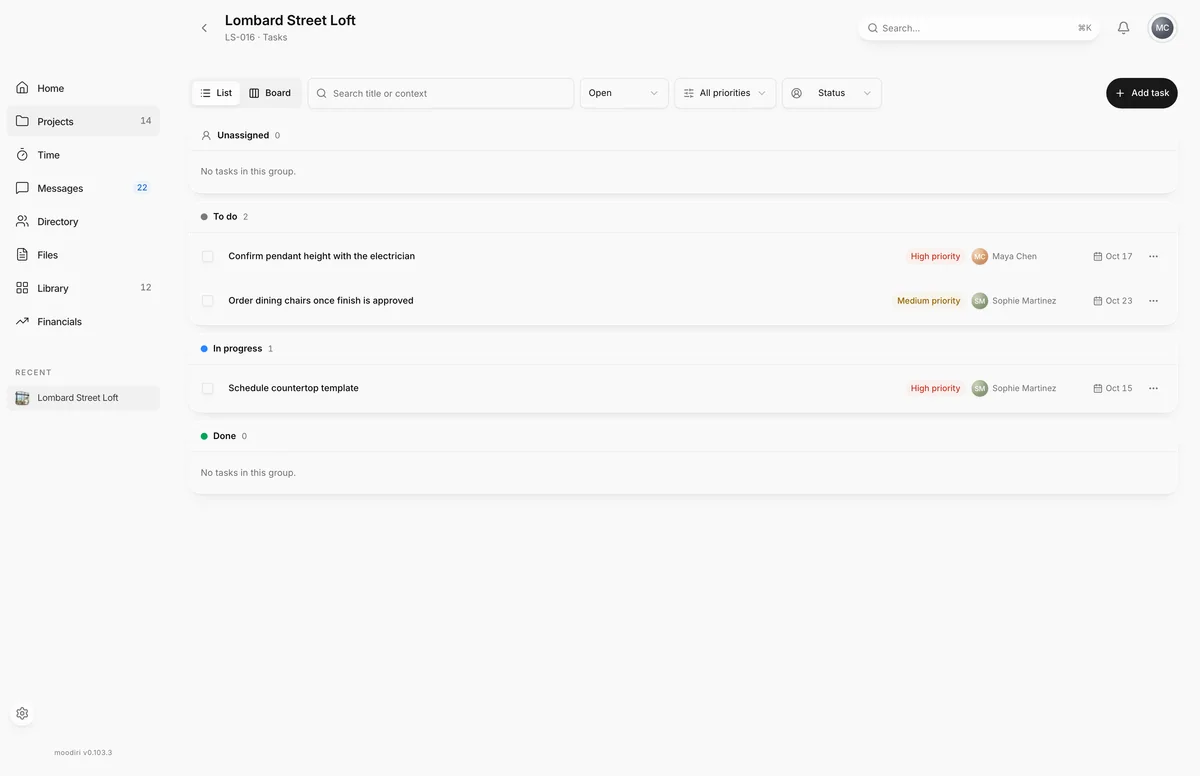
- 1Add task
- 2Task view
Project tasks are the to-do list for a job: order samples, confirm the tile lead time, book the installer. Each task can have an owner, a deadline, a priority, subtasks and dependencies, so everyone can see what is next and what is holding things up. To open them, choose View all on the Tasks card of the project overview.
What you see here
- Toolbar. List and Board, a search box (Search title or context), the Task view menu, a priority filter, a grouping menu, and Add task.
- Task view. All tasks, Open, My tasks, Unassigned, Blocked, Done and Archived.
- Priority filter. All priorities, High priority, Medium priority or Low priority.
- Group by. Status or Assignee.
- Task details. Choose a task to open its details beside the list, with owner, priority, deadline, dependencies, blocker, subtasks (Actionable items), notes and activity.
When a project has no tasks yet, the page shows Create the first task with an Add task button. See Create a task.
List and board views
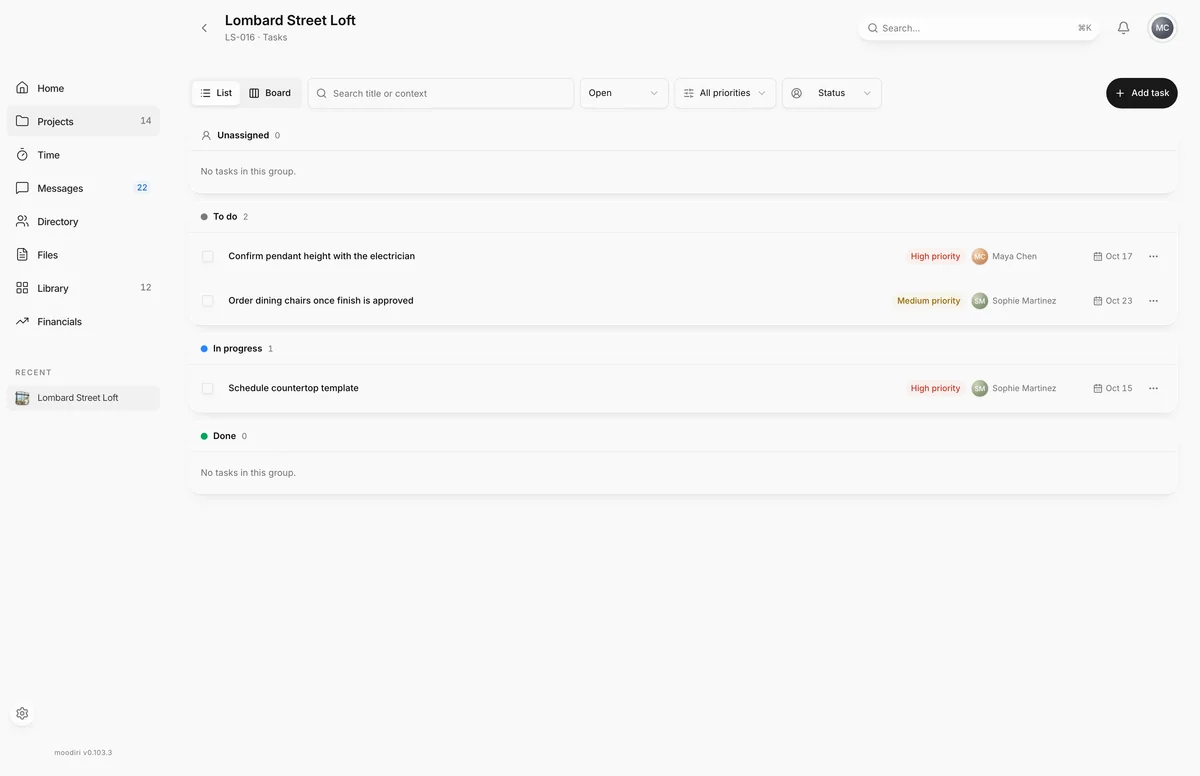
- 1List
- 2Board
Choose List for a compact list you can scan and search, or Board for columns you can drag tasks between. On the board, grouping by Status gives To do, In progress and Done columns; grouping by Assignee gives a column per owner. Dragging an unassigned task to To do or In progress also assigns it to you.
The Archived view always shows as a list.
Dependencies and blockers
Some work can't start until something else is finished. In a task's details:
- Dependency: choose Add dependency and pick the task that must be done first. A dependency that isn't done yet blocks the task.
- Blocker: under Resolving, describe what must be resolved before the task can move forward, such as Waiting for client to confirm finish. Choose Clear blocker once it is sorted.
A blocked task shows Task is blocked and can't be marked done until the blocker is cleared and its dependencies are finished. A task with open subtasks can't be completed until they are done either. Moodiri refuses dependencies that would go round in a circle.
Archive a task
To clear a task you no longer need without deleting it, choose Archive task from its actions menu, or Archive in its details. Archiving a task also archives its subtasks. A short message offers Undo straight away.
To bring one back later, open the Archived view and choose Restore task. If the task belonged to a teammate who has since left, Moodiri asks you to choose a Replacement owner or Unassigned.
Limitation: read-only on archived, cancelled or completed projects
When a project is archived, cancelled, deleted or completed, its tasks are read-only. You can still open them and review their history and notes, but you can't add, change, move or archive tasks. The page shows This project is read-only. Paused (On hold) projects stay editable.
Limits
- Tasks have one level of subtasks. A subtask can't have subtasks of its own; create a separate task and link it with Add dependency instead.
- A task can have up to 100 active subtasks.
- Task titles and context are up to 240 characters.
- Tasks are read-only when the project is archived, cancelled, deleted or completed.
Questions
Who can see and change tasks?
Everyone on your team who can open the project. Tasks are never shown to your client.
Why can't I mark a task done?
It is blocked, or it still has open subtasks. Resolve the blocker or unfinished dependency, or finish the subtasks, then complete it.
Where did an archived task go?
Choose Archived in the Task view menu. Open the task's actions and choose Restore task to bring it back.