Project documents
One project's files in one place. Upload straight into the project, and choose file by file what your client sees in their portal.
- 1Upload file
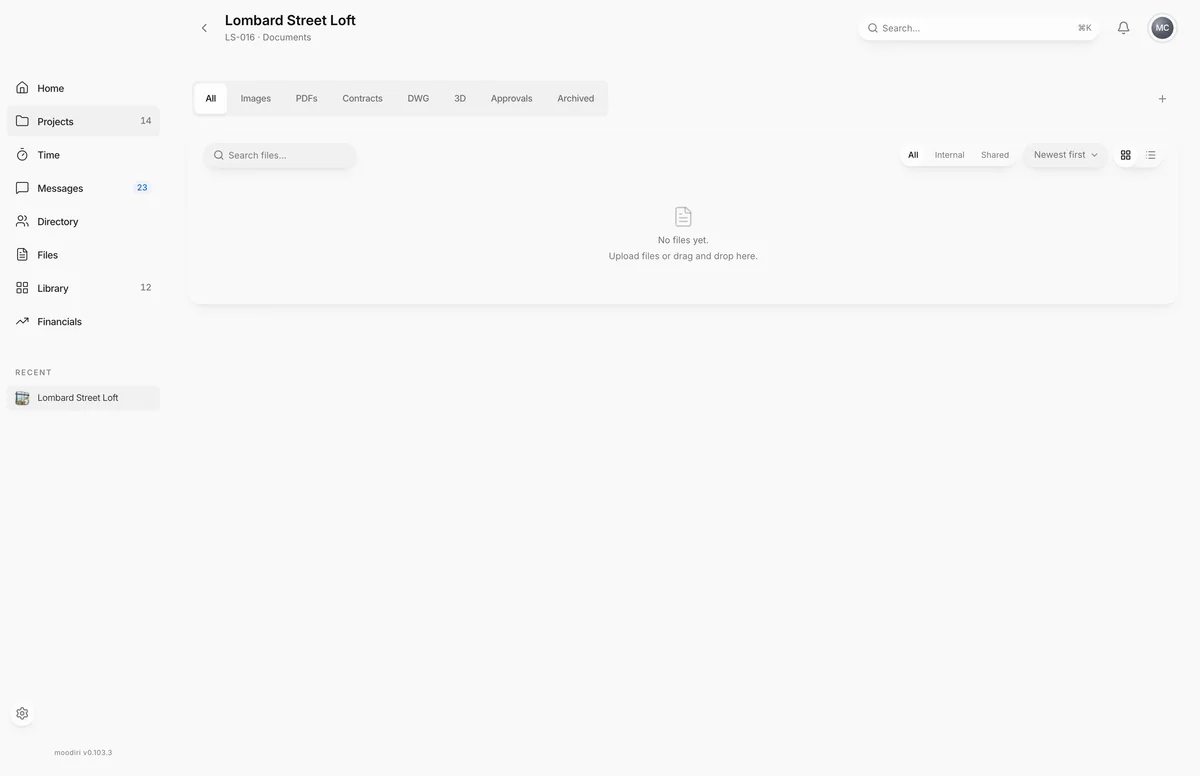
Project documents shows only the files that belong to one project, for example everything for Lombard Street Loft: plans, the signed agreement, renderings and spec PDFs. It works like Files, with the same file types, search, filters, sort and views, but every upload here is filed into this project automatically.
Open the project, then choose View all on its Documents card. You can also drag files onto that card to upload them to the project.
What you see here
- The file type row: All, Images, PDFs, Contracts, DWG, 3D, Approvals and Archived.
- Search files..., the visibility filter (All, Internal, Shared), sort, and Grid view or List view.
- Upload file, which adds the file to this project. See Upload a file.
Choose a file to open its detail panel, where you rename, download, archive, copy or move it, and choose its space. See Files.
Share a file with the client
Every file starts internal. To show one to your client, open it and turn on Share with client. The panel then reads Visible in the client portal. Turn it off and it reads Internal-only. Clients cannot see this document.
Use the Shared filter to check exactly what your client can see, and Internal for what they can't.
Share the final version only. Keep working drafts internal, and share once the drawing or contract is ready for your client.
Limits
- Archived files can't be shared. Restore the file first.
- Up to 100 MB per file.
- Payment proofs, refund receipts and tax-exemption certificates show only to the Owner and Admins.
Questions
Where does my client see shared files?
In the Documents section of their client portal. See Documents for what they see.
Can I unshare a file?
Yes. Turn Share with client off and the file disappears from the client's portal. It stays in your project.