Chat with your designer
Message your designer from the portal, share photos and files, and keep every conversation with the project instead of scattered across texts and emails.
Why use it
Questions about a project tend to scatter: a text here, an email there, a photo sent to the wrong address. Chat keeps your messages with the project, so you and your designer can always find what was said and what was shared.
When to use it
- Quick questions. Timing, an appointment, what happens next.
- Sharing inspiration or photos. A picture of the room, a fabric you liked.
- Anything without a decision attached.
When you're answering a specific choice, use the request itself so your answer is recorded: see Approve or request changes.
Before you start
- You're signed in to your portal.
- Open chat from your designer's photo at the bottom of the menu.
Steps
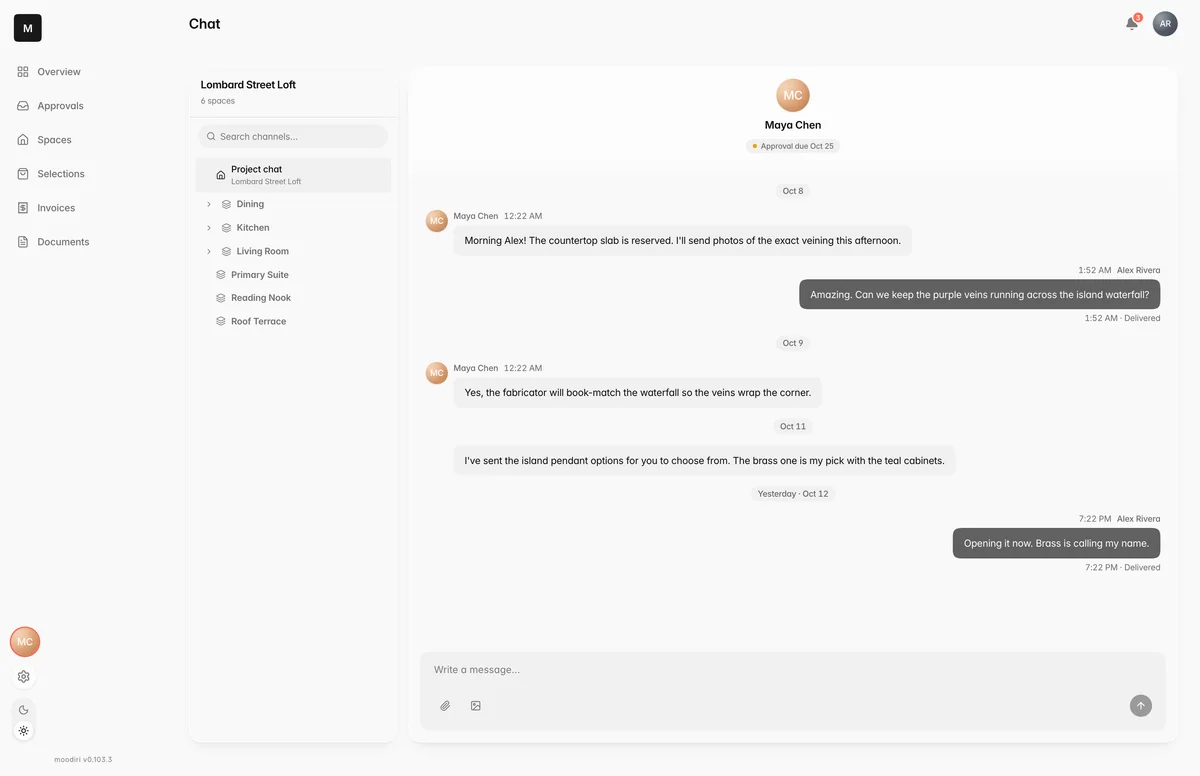
- Choose your designer's photo at the bottom of the menu. A red number shows how many messages you haven't read.
- Type in the message box, such as Could the brass pendant come in a smaller size?
- To share something, choose Attach file or Insert image, or drag files onto the message box.
- Choose Send message. It stays unavailable while the message box is empty.
Conversations about a room, piece or decision
On a computer, a list beside the chat shows the main project conversation and any conversations about a room, a piece or an approval. The header shows what you're talking about, such as About Great Room. On a phone, chat opens on the project conversation; conversations about a piece or a decision are also inside that item, under Chat in Selections or in the approval request itself.
What happens next
- Your designer replies in the same conversation.
- New replies show as a red number on your designer's photo.
Limits
- Images up to 10 MB, other files up to 20 MB.
- Up to 10 attachments per message.
Troubleshooting
- The Attach file button is greyed out when you've already added 10 files to the message. Send it, then add the rest in a new message.
Questions
Can I ask about one specific piece or decision?
Yes. Each approval request and each piece in Selections has its own conversation, so your question stays next to the thing you're asking about.
How do I know my designer replied?
A red number appears on your designer's photo in the menu, and on the Overview's Your designer card.
What kinds of files can I send?
Photos (JPEG, PNG, WebP, GIF, AVIF), PDFs, Word and Excel files, CSV and text files, ZIP files and HEIC photos.