Product families
Group a main product with its parts, like a sectional and its pieces, so they are priced, shared and approved together.
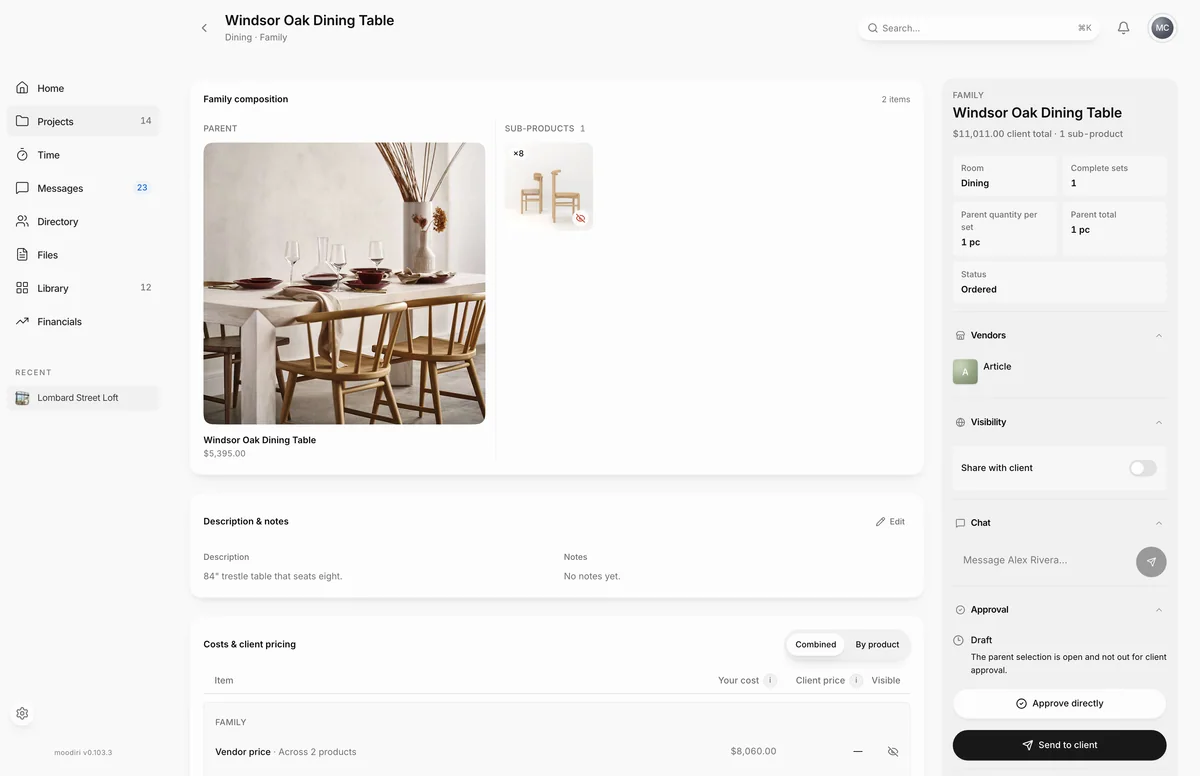
- 1Family composition
A product family is a main product (the parent) with the pieces that make it up (its sub-products). Think of a sectional with its corner, armless and chaise pieces, or a pendant with its canopy and extension rods. The family page shows the whole set: what is in it, what it costs, what your client can see, and where it stands for approval.
Open a family by selecting its card on the room's products page. Family cards show the parent with its sub-products below it.
What a family is (parent, sub-products, sets)
- Parent: the main product. It carries the family's selection, approval and invoice line.
- Sub-products: the pieces. Each has its own cost, quantity and vendor, but moves, sections and approvals are managed on the parent.
- Complete sets: how many of the whole family you need, for example two matching sectionals. Each piece has a quantity per set, so its total follows the number of sets.
What you see here
- Family composition: the parent and its sub-products.
- Description & notes: a description of the whole family and internal notes for ordering or installation.
- Costs & client pricing: the family's price build-up, shown Combined or By product.
- Documents, spec sheets & quotes for every piece in the family.
- A side panel with the family's client total, Complete sets, Vendors, Linked invoices, Visibility, Chat, Approval, Activity and Actions.
Family composition and client visibility
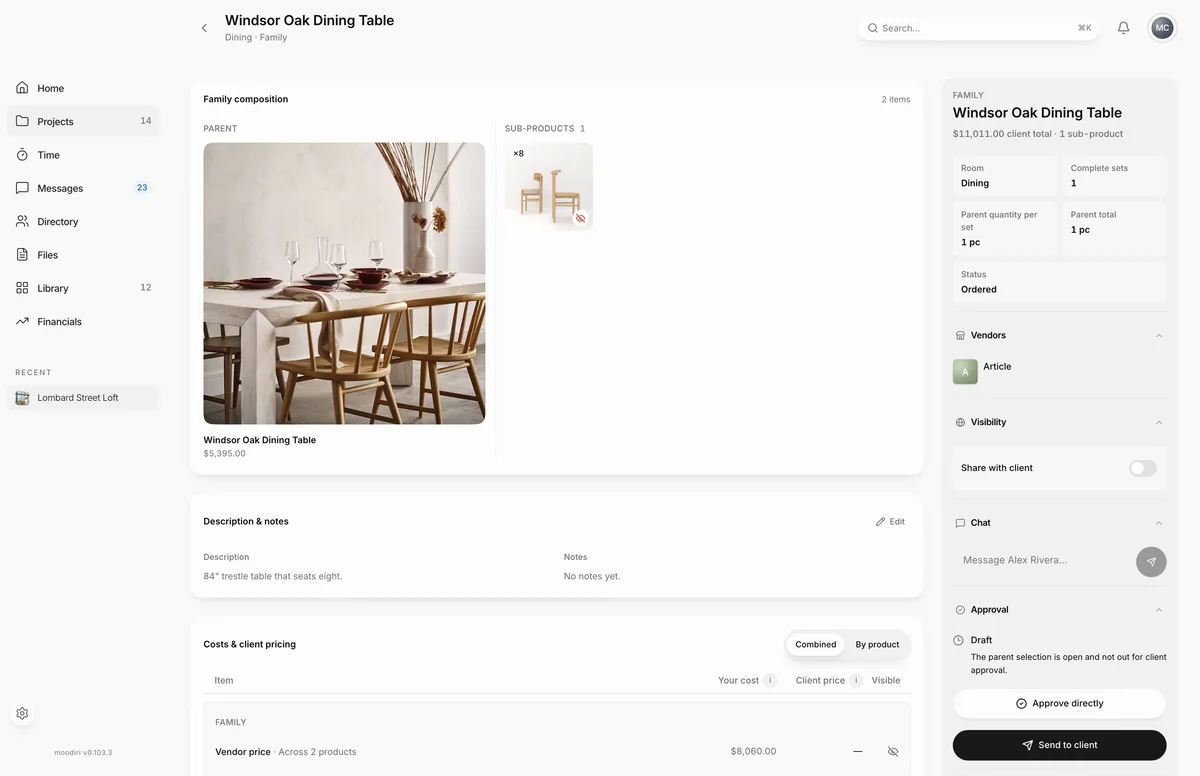
- 1Family visibility
Under Visibility, turn on Share with client for the parent to show the family in your client's portal. Once the parent is shared, a Sub-products list lets you show or hide each piece.
- A shown sub-product is billed as its own line.
- A hidden sub-product's price folds into the parent's price. Your client sees one price for the set.
When the parent is hidden, every sub-product is hidden too.
Family pricing
Costs & client pricing shows how the family's client total is built: vendor price, trade discount, net price, shipping and included charges, then what goes on the invoice: the product price, any pieces billed as their own lines, additional charges and sales tax. Switch to By product to see each piece's numbers.
To change quantities, open the parent or a sub-product and use the Family section of its side panel: set Parent quantity per set or Quantity per set, and, where it can be edited, Complete sets, then choose Save quantity.
Family member pages
Each sub-product has its own page inside the family, with a large Client total, its role, and the same photos, pricing, quotes and chat as any product page. A sub-product page notes that it is invoiced with its parent, and that move, sections and approvals are managed on the parent.
Actions
Actions on the family page offers Add sub-products, Flatten family, Open parent, Open room and Save to Library. See Add or remove sub-products and Save a family to the Library.
Limits
- Complete-set and per-set quantity changes are refused once issued invoices bill the family.
- The number of complete sets can be up to 10,000.
- Sub-products cannot be sent for approval or invoiced on their own. They go with the parent.
Questions
Does my client see every piece?
Only the pieces you show. A hidden sub-product's price folds into the parent's price, so your client sees one total for the set.
How do I undo a family?
Choose Flatten family in Actions. The parent and its sub-products become standalone products again.