Profile
Set the name, photo, title, phone, booking link and hourly rate your team and clients see, and manage how you sign in.
- 1Save changes
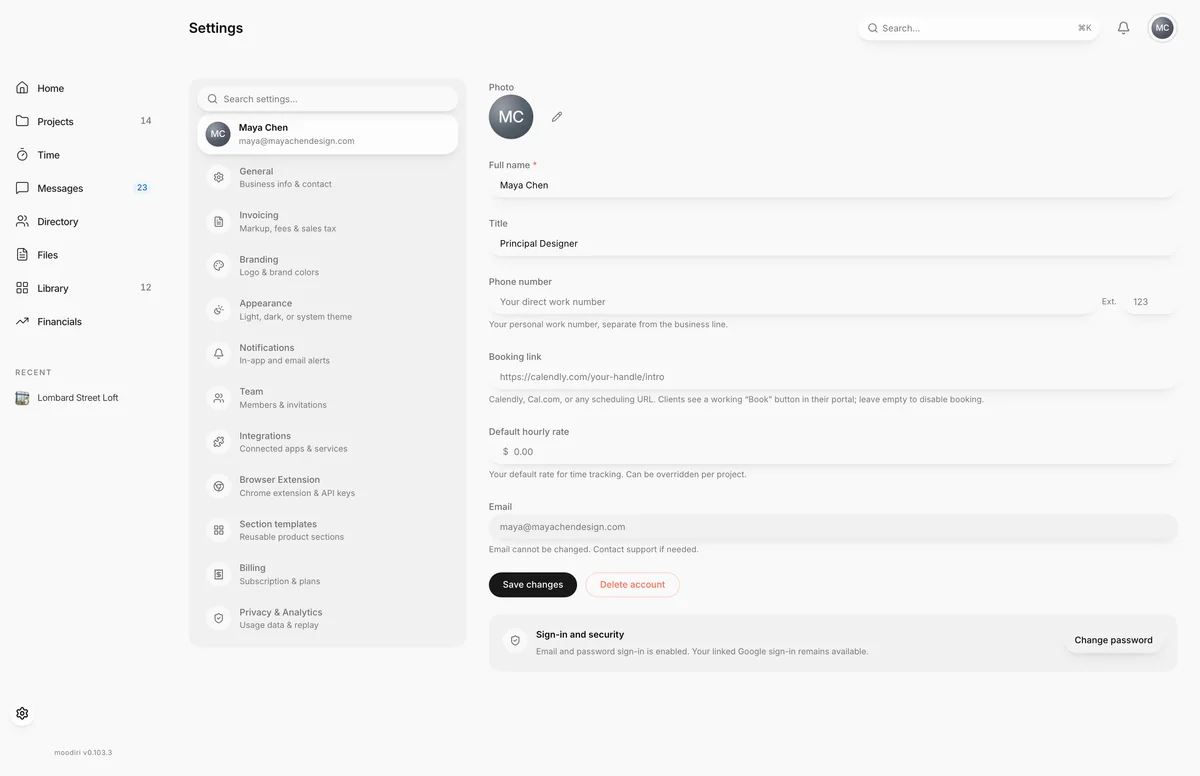
Your profile is the personal part of Moodiri: how you appear to your team and clients, the link clients use to book time with you, your default rate for time tracking, and how you sign in. Every member of the firm has their own profile, and anyone can edit their own.
Open it from Settings. It is the first item in the settings list, shown with your photo and name.
What you see here
- Photo. Choose the pencil button to upload a photo, or Remove to go back to your initials. JPEG, PNG or WebP, up to 5 MB.
- Full name. Required. Save changes stays unavailable while it is empty.
- Title. Optional, for example Principal Designer or Project Manager.
- Phone number and Ext. Your own work number, separate from the firm's business line.
- Booking link. See Booking link below.
- Default hourly rate. See Default hourly rate below.
- Email. The address you sign in with. It is read-only here.
Choose Save changes to save. You see Profile saved. when it worked.
Booking link (the client's Book button)
Paste the link to your scheduling page here. Clients then see a working Book button in their client portal that opens it. When the field is empty, the portal shows booking as not yet enabled.
The link must start with http:// or https://. Any scheduling page works.
Default hourly rate
Your default rate for time tracking. Time you log uses this rate unless a project sets its own. See Time settings for project-level setup.
Sign-in security (password)
- 1Sign-in and security
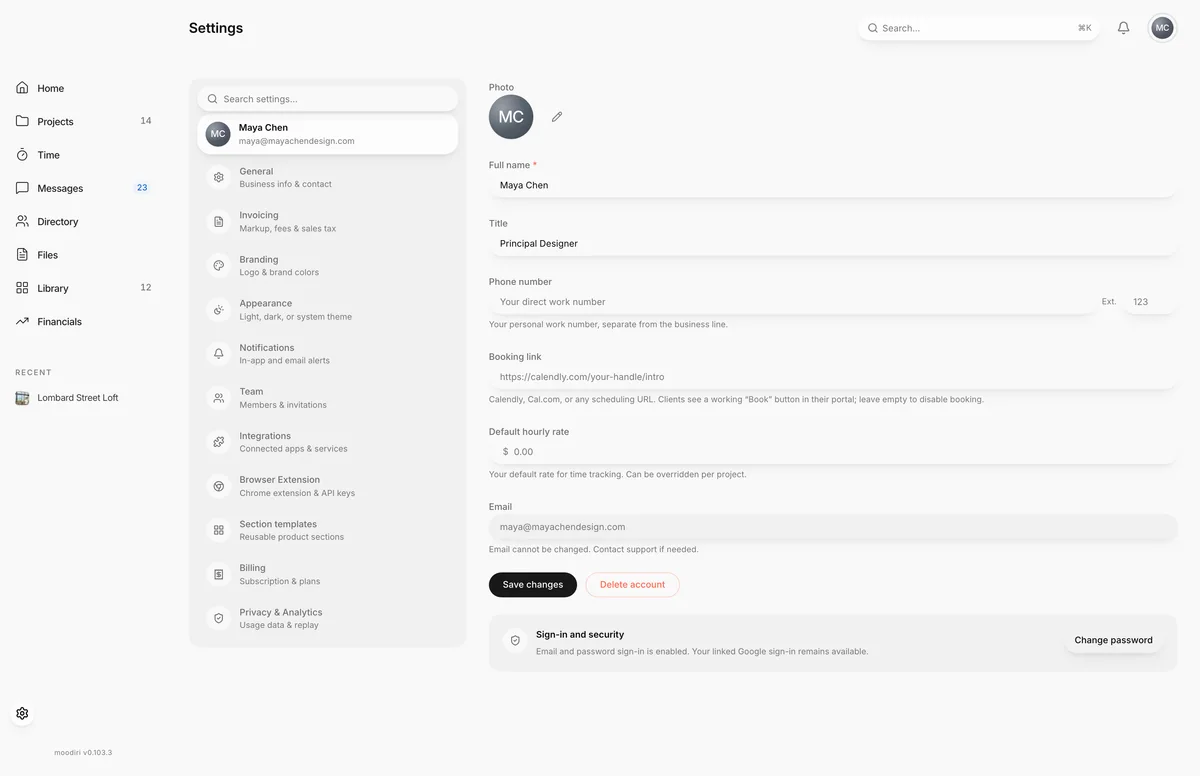
The Sign-in and security card shows how you sign in.
- If you have a password, choose Change password, enter your Current password, then a New password and Confirm password, and choose Save new password.
- If you signed up with Google and have no password, choose Add password. Moodiri first asks you to verify your identity, then lets you set one with Enable password sign-in. Your Google sign-in stays linked, so you can use either.
New passwords need at least 8 characters.
Delete your account
- 1Contact Support
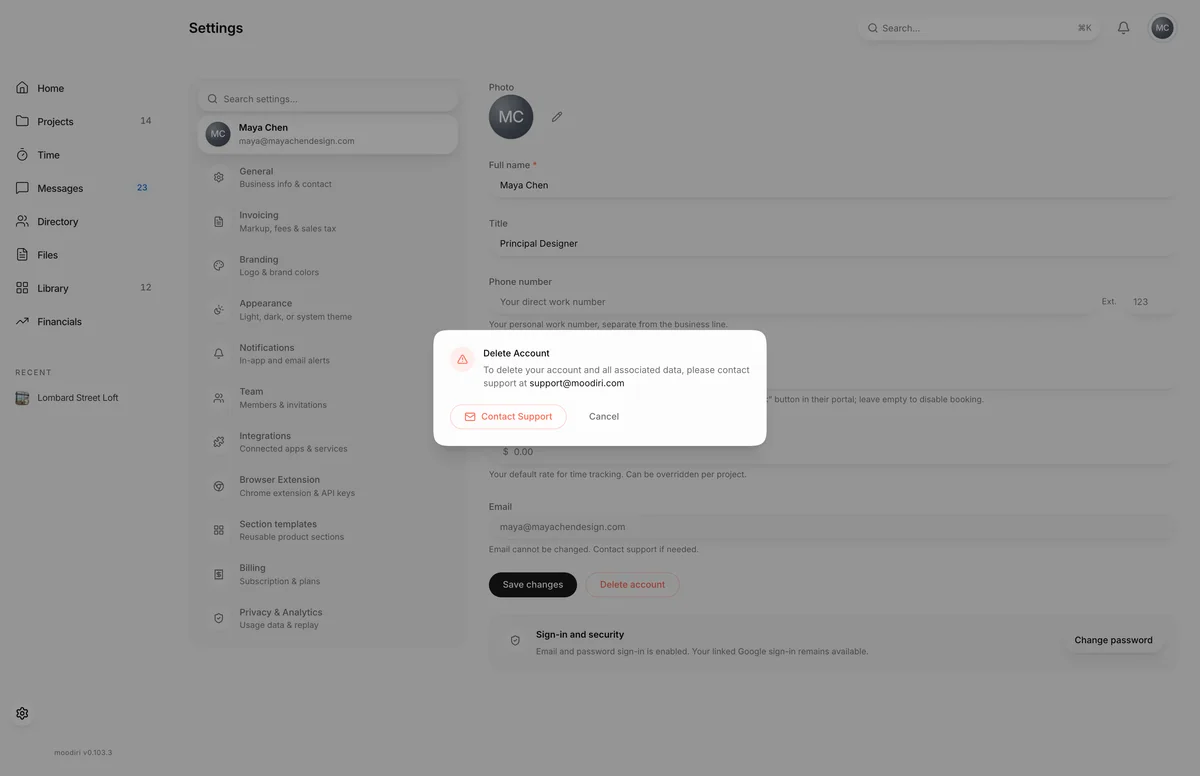
Choosing Delete account does not delete anything straight away. The dialog explains that account deletion is handled by Moodiri support, and offers Contact Support, which opens an email to support@moodiri.com. Choose Cancel to close it.
Limits
- Profile photos: JPEG, PNG or WebP, up to 5 MB.
- Your sign-in email cannot be changed from Settings.
- Account deletion goes through Moodiri support.
- Adding a password to an account that has none asks you to verify your identity first.
Troubleshooting
- Booking link must start with http:// or https:// Paste the full address, including the
https://at the start. - Passwords don't match. Retype the same password in New password and Confirm password.
- Enter your current password. Changing an existing password needs the current one. If you see Verify your identity, choose it to confirm who you are, then try again.
Questions
Can I change the email I sign in with?
Not from this screen. The Email field is read-only. Contact Moodiri support if your sign-in email needs to change.
Who sees my booking link?
Your clients. When the field has a link, they see a working Book button in their client portal. Leave it empty to turn booking off.
Does my profile change what my teammates see?
Yes. Your name and photo appear next to your work across Moodiri, and your photo shows in the top-right corner of the app after you save.