Browser extension
Create the API key that connects the Moodiri Chrome extension, choose what it saves, and track this month's captures.
- 1New key
- 2Include additional photos
- 3Auto-enrich vendors
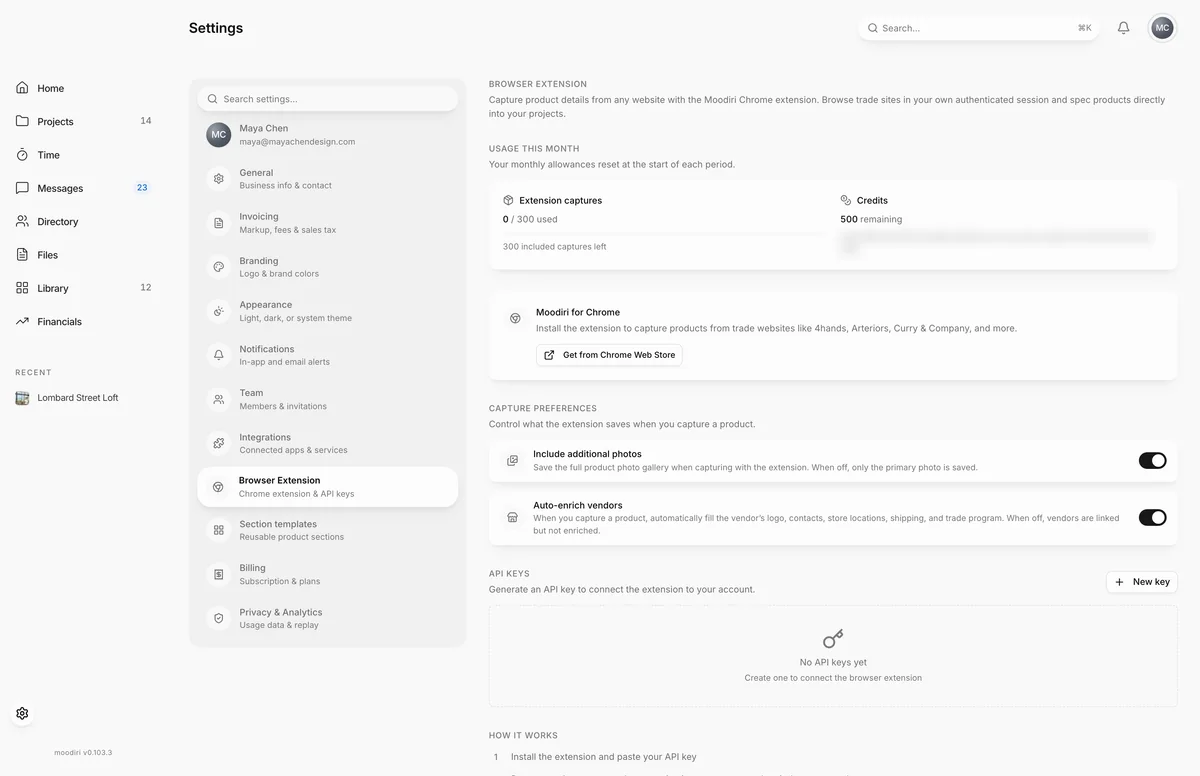
Browser Extension is where you connect the Moodiri Chrome extension to your account. The extension captures product details from trade and vendor sites while you browse in your own signed-in session, and sends them to a Moodiri product form. This screen holds the API key it uses, the capture preferences, and your usage for the month.
Open Settings, then choose Browser Extension.
What you see here
- Usage this month. See Usage this month below.
- Moodiri for Chrome. Where to get the extension.
- Capture preferences. Two switches that apply to the whole firm:
- Include additional photos. Save the full product photo gallery when capturing. When off, only the main photo is saved.
- Auto-enrich vendors. When you capture a product, fill in the vendor's logo, contacts, store locations, shipping and trade program automatically. When off, vendors are linked but not enriched.
- API Keys. The keys that connect the extension to your account, with when each was created and last used.
- How it works. A three-step reminder: install the extension and paste your key, browse to a product page, then choose Spec this product.
Only the owner and admins with the Firm settings permission can change the capture preferences. Anyone can create their own API keys.
Create an API key
- Under API Keys, choose New key.
- Give it a Key name, such as Extension or Studio laptop, and choose Create key.
- Copy the key straight away. It is shown only once.
- Paste it into the extension. See Install and connect.
To stop a key working, choose the bin button on its row. It is revoked straight away.
Usage this month
This card shows your firm's monthly allowances and when they reset:
- Extension captures. How many of this month's included captures are used, and how many are left.
- Credits. Your remaining credits. Credits are used once the included captures run out, and also by vendor enrichment.
- This period. A breakdown of what was used, such as Captures (included), Captures (credits) and Vendor enrichment.
Limits
- Up to 5 API keys per person. New key is unavailable once you have 5.
- A new key is shown only once.
- Included monthly captures reset at the start of each period. After that, captures use credits.
Troubleshooting
- Failed to create key. If you already have 5 keys, revoke one you no longer use and try again.
Questions
I lost my API key. Can I see it again?
No. A key is shown only once, when you create it. Revoke the old one and choose New key to make another.
Do my teammates share my key?
No. Each person creates their own keys, so captures are saved under their own account.
What happens when the included captures run out?
Captures carry on using credits. The Usage this month card shows how many included captures and credits you have left.