Time overview and access levels
Time has five tabs: My time, Team, Approvals, Reports and Settings. What each one is for, and who on your team sees it.
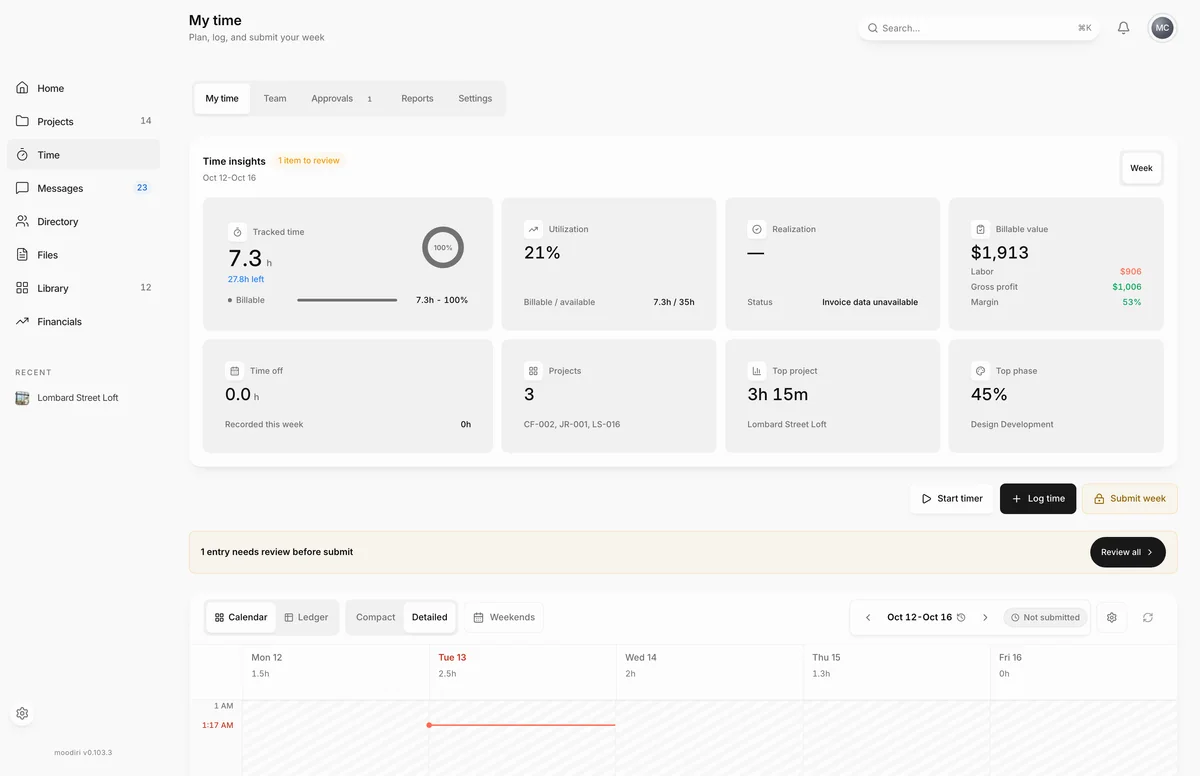
- 1My time
- 2Settings
Time is where your studio records the hours behind every project: what you plan, what you actually worked, and what gets approved and billed. Everyone logs their own week in My time. The owner and admins see the whole team, approve timesheets, run reports and turn approved billable hours into invoices.
What each tab is for
- My time. Your own week: log time, run a timer, accept suggested calendar events and submit the week. See My time.
- Team. Everyone's logged hours for a week, day by day, with each person's submission status. See Team time.
- Approvals. Submitted weeks waiting for a decision. A badge on the tab shows how many are waiting. See Timesheet approvals.
- Reports. Confirmed hours, billable value and utilization for a period, plus the time that is ready to invoice. See Reports.
- Settings. Weekly capacity, rates and approvers for each person, project phases and tasks, and firm holidays. See Time settings.
Who sees what
| Tab | Who sees it |
|---|---|
| My time | Everyone on the team |
| Team | The owner and admins |
| Approvals | The owner, admins with the Time tracking permission, and anyone set as a teammate's approver |
| Reports | The owner and admins. Exports and Unbilled time need the Time tracking permission |
| Settings | The owner and admins with the Time tracking permission. Anyone else who opens it is sent back to My time |
The Time tracking permission is set per admin in roles and admin permissions.
How a week moves
Each person's week has one status, shown next to the week dates:
- Not submitted. The week is open. Add, change or delete time freely.
- Submitted. Waiting for the approver. You can recall it while it waits.
- Returned. The approver sent it back with comments. Fix it and resubmit.
- Approved. Locked. Billable time from approved weeks is ready to invoice.
Projects you can log to
Owners and admins with the Time tracking permission can log to any project. Everyone else sees only the projects they are assigned to in Time settings. Time can also go to office work with no project.
Limits
- Nobody approves their own week from Approvals. If you can review time, your own week approves itself when you submit it, and you can reopen a week you approved this way.
- A week that someone else approved can only be reopened by the owner or an admin with the Time tracking permission.
Questions
Why can't a teammate see the Approvals tab?
Approvals shows only for the owner, admins with the Time tracking permission, and people set as someone's approver. Set an approver in People and approvers.
Why does my own week approve itself when I submit it?
If you can review time, your week is approved the moment you submit it, so you never wait on a second approver. You can still reopen it yourself.