Set roles and admin permissions
Make a teammate a Member, Admin or Owner, and choose exactly which firm-level permissions an Admin gets.
Why use it
Not everyone who helps run the firm should see everything. A studio manager may need to manage billing but not payouts; a bookkeeper may need integrations but not branding. Roles and admin permissions let you hand over exactly those jobs, and take them back when someone's work changes.
When to use it
- Promoting a teammate. Make a Member an Admin when they start helping run the firm.
- Delegating one job. Give an Admin Custom access with only, say, Subscription billing or Integrations.
- Sharing ownership. Make a business partner an Owner.
To add someone new with a role already set, use Invite people instead.
Before you start
- You are an Owner. The Role list and admin permissions are unavailable to everyone else.
- The teammate is active. People under Without a seat must be reactivated first.
- Open Settings, then choose Team.
Steps
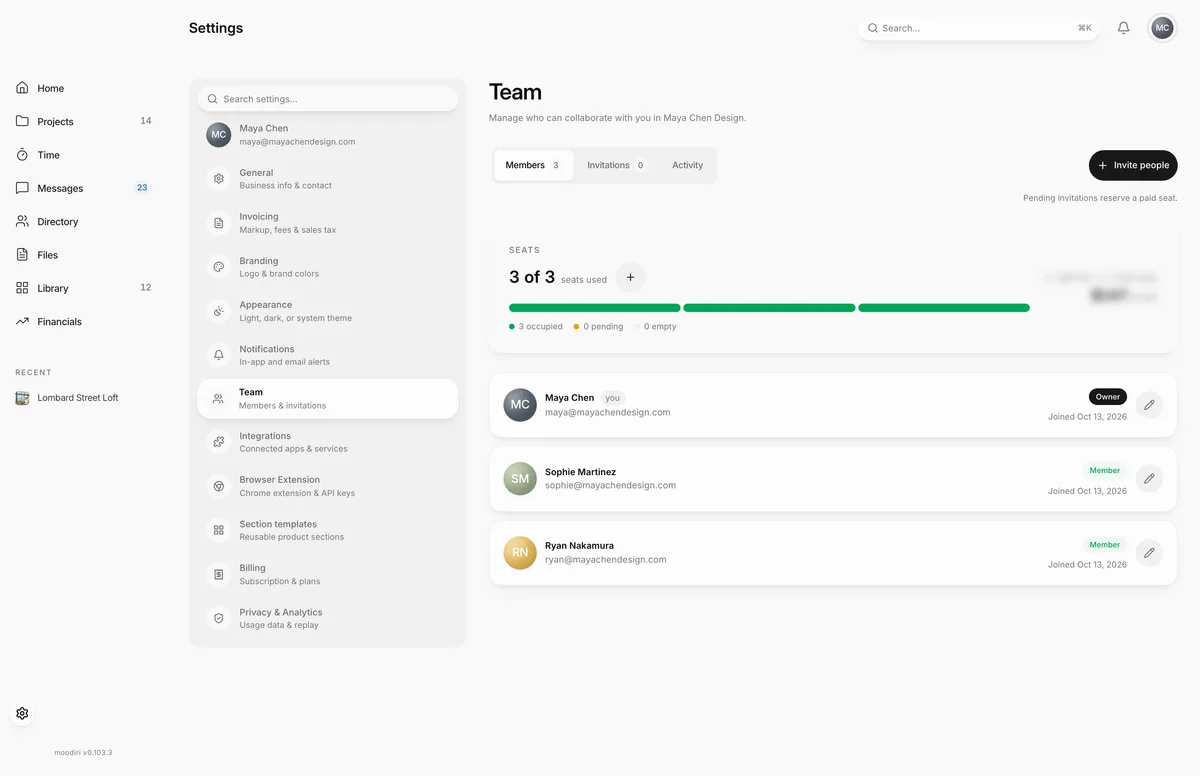
- On Team, choose the pencil button on the teammate's row, here Sophie Martinez.
- The Role list sets what they can do. Only an Owner can change it, and never for themselves.
- Pick Admin to let them help run the firm. The admin access choices appear below.
- Choose Custom to hand over only the jobs this Admin needs.
- Tick each permission, for example Subscription billing. Custom needs at least one.
- Choose Save changes. The new role and access apply at once.
Roles
- Owner. Every permission. Owners manage everyone, including other Owners and Admins.
- Admin. Helps run the firm and manages ordinary Members. What else they can do depends on their admin access.
- Member. Day-to-day project work.
Admin permissions
With Custom, pick from the permissions an Owner can delegate:
- Firm settings. Firm profile, branding and workspace settings.
- Client-facing identity. Which teammate represents the firm to clients.
- Project managers. Assign project responsibility to teammates.
- Invoice copy settings. Who receives invoice email copies.
- Subscription billing. Seats, payment methods and the Moodiri subscription.
- Payouts. Stripe payout and connected-account settings.
- Integrations. Connect and manage integrations such as QuickBooks.
- Time tracking. Time settings, assignments, approvals, and calendar connections.
- Delete clients. Permanently remove client records.
- Delete projects. Permanently remove projects.
The team list shows each Admin's level, for example Custom Admin · 2 permissions. Ownership safeguards stay with Owners whatever you choose.
What happens next
- The new role and permissions apply as soon as you save.
- The teammate's row on Team shows the new role and admin level.
Limits
- Only an Owner can change roles or admin permissions.
- Nobody can change their own role.
- A firm must keep at least one active Owner.
- Custom access needs at least one permission.
- Login emails can't be changed here. Invite the new address instead.
Troubleshooting
- You can't change your own role. Ask another Owner. Another Owner has to make the change.
- Your firm must keep at least one active Owner. Make someone else an Owner before changing this one.
- This teammate changed while you were editing. Reload and try again. Someone else saved a change first. Reload the page and edit again.
Questions
Can an Admin change someone's role?
No. Only an Owner can change roles or Admin permissions. Admins can edit a Member's name and title.
Can I make someone else Owner?
Yes. Choose Owner as their role. A firm can have more than one Owner, and must always keep at least one active Owner.
Can I change my own role?
No. Ask another Owner to change it.