Manage seats
Add or reduce paid seats, free a seat by unassigning someone, and give a returning teammate their seat back.
Why use it
Your plan includes a set number of paid seats, and every teammate and pending invitation uses one. Managing seats keeps that number matched to your team, so you can invite a new hire without waiting, and stop paying for a desk nobody sits at.
When to use it
- Hiring. Add a seat, then invite your new teammate.
- Someone leaves. Unassign their seat, then reduce the count if you won't replace them.
- Someone comes back. Reactivate them from Without a seat.
Before you start
- To change the seat count, you need the Subscription billing permission. The owner has it.
- To unassign or reactivate teammates, you are the owner or an admin. Admins can do this for Members only.
- Open Settings, then choose Team.
Steps
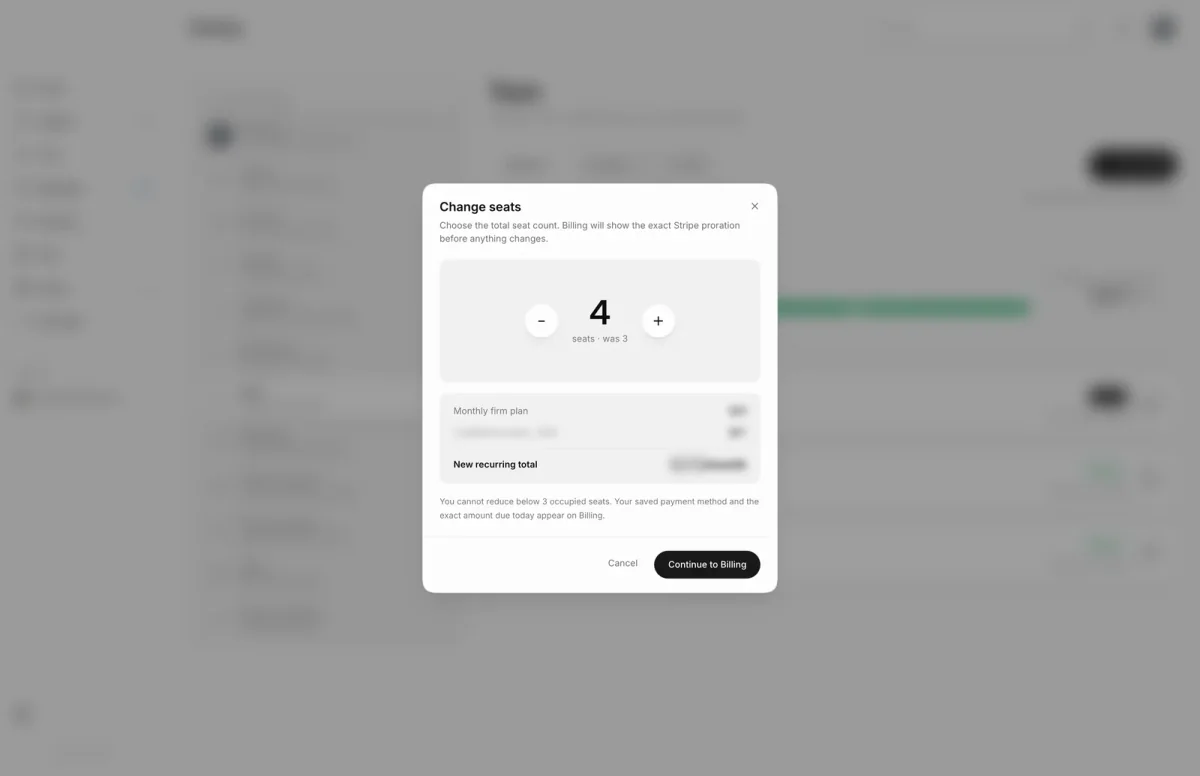
- 1Add one paid seat
- On Team, choose the + button next to your seat count to open Change seats.
- Use + and − to set the total seats you want, here 4 instead of 3.
- Choose Continue to Billing. Nothing changes yet; it shows No changes until the count differs.
- Check the amount due today and the new recurring total, then confirm. Nothing is charged before you do.
Add or reduce seats
The Change seats dialog shows the new seat count and the recurring total for it. Continue to Billing takes you to Billing, where Moodiri asks Stripe for the exact change:
- Adding seats. Review seat payment shows what is Due today, prorated for the rest of your current billing period, and your New recurring total. Your saved payment method is billed, less any account credit. Choose the Confirm · pay button.
- Reducing seats. Review seat change shows the estimated invoice adjustment and the new recurring total. Choose Confirm · reduce to your new number.
You can also start from Billing: under Paid seats, choose the button that shows your seat count, for example Manage 3 seats.
Unassign a seat
Choose the pencil button on a teammate's row, then Unassign seat. Their access pauses straight away, they move to Without a seat, and their seat becomes empty. If they are a client-facing contact or project manager, you choose who takes over first. See Remove a member.
Reactivate a teammate
Under Without a seat, choose Reactivate on their row. They get their access back and use one of your empty seats.
What happens next
- After an increase, you see a message once the seats are added. If payment is still pending, Billing shows the seats as awaiting payment, with Pay the open invoice.
- After a decrease, Billing shows the new count as reserved while Stripe finishes the change.
- Charges and adjustments appear under Past invoices & charges on Billing.
Limits
- You can't reduce below the seats in use: active teammates plus pending invitations.
- Reactivating a teammate needs an empty paid seat.
- A firm can have up to 500 seats.
- Added seats unlock after the prorated payment clears.
Troubleshooting
- Remove members first on the confirm button means the new count is below the seats in use. Unassign members or revoke invitations, then try again.
- Stripe couldn't confirm a renewal total for this change. Choose Retry pricing before you confirm.
Questions
When can I use a seat I just added?
Once the payment clears. If it doesn't go through straight away, Billing shows the seats as awaiting payment, with a link to pay the open invoice.
Why can't I reduce my seats?
Seats in use can't be removed. Unassign teammates or revoke pending invitations first.
Does unassigning someone reduce what I pay?
No. Their seat stays on your plan and becomes empty. Reduce the seat count on Billing if you won't fill it.