Portal settings
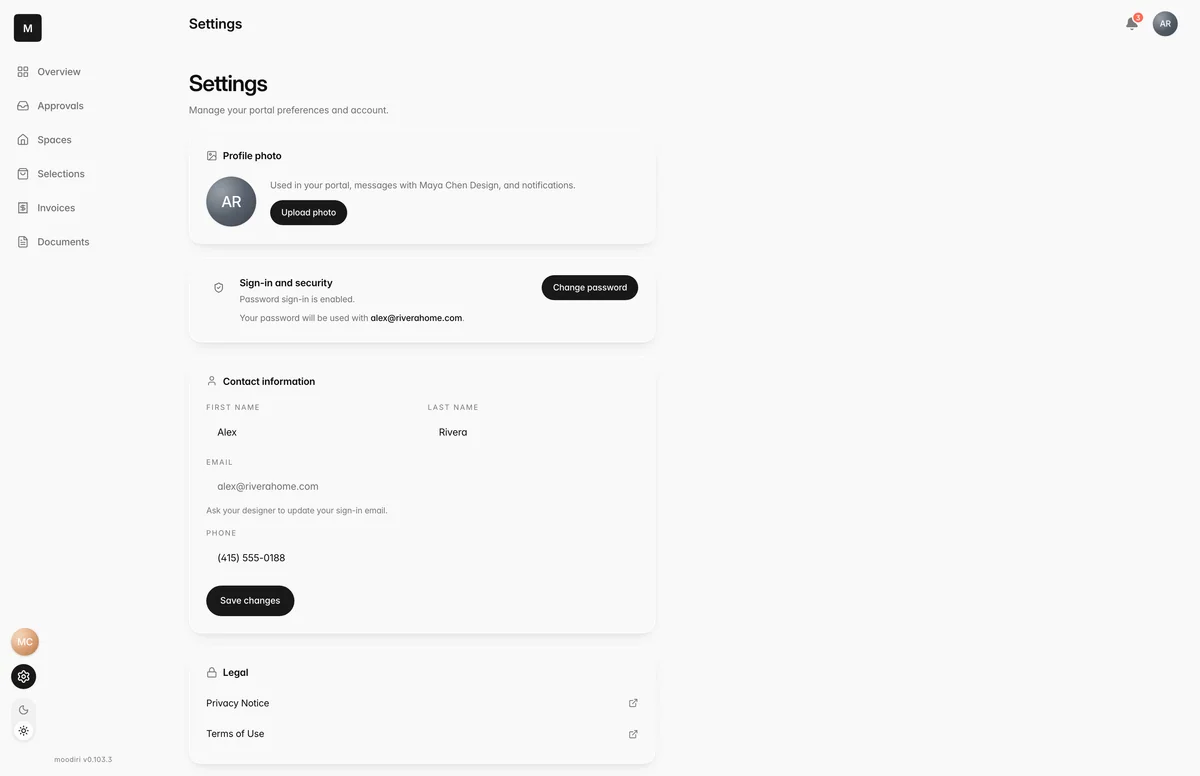
Update your photo and contact details, add or change a password, sign out, or remove your own access to this project portal.
- 1Sign-in and security
- 2Contact information
Settings holds your own details for this portal: how you appear, how you sign in, and how to leave. Open it with the gear at the bottom of the menu, or from the menu under your initials at the top right.
Profile photo and contact information
Your Profile photo appears in your portal, in messages with your designer and in notifications. Choose Upload photo (or Change photo) to pick a JPEG, PNG or WebP image up to 5 MB, or Remove to go back to your initials.
Under Contact information, update your First name, Last name and Phone, then choose Save changes. Your Email is shown for reference: ask your designer to update your sign-in email.
Change your password
Sign-in and security shows how you sign in today, for example Email code sign-in is enabled. or Password sign-in is enabled.
- To change an existing password, choose Change password, enter your Current password, then your New password twice, and choose Save new password. Other portal sessions are signed out, and you may be asked to sign in again.
- If you sign in with Google or Apple, choose Add password to add one as well. You confirm with your linked account first, then choose Enable password sign-in. Your Google or Apple sign-in keeps working.
If you've connected Apple, a Sign-in methods card shows that your Apple Account is connected.
Remove my access to this portal
Under Remove portal access, choose Remove my access. Type DELETE to confirm, then choose Confirm removal. This ends your sign-in for this project portal. Your designer keeps the project history and can invite you again later.
Sign out
Choose Sign out at the bottom of Settings to sign out of this portal on this device. You can also choose Log out from the menu under your initials.
Limits
- Profile photos: JPEG, PNG or WebP, up to 5 MB.
- Passwords need at least 8 characters.
- Password sign-in needs a sign-in email on file. If there isn't one, contact your designer.
- Removing your access needs you to type DELETE to confirm.
- Your sign-in email can only be changed by your designer.
Questions
How do I change the email I sign in with?
Ask your designer. Your sign-in email can't be changed from the portal.
I can't see a button to add a password.
If you sign in only with email codes, keep doing that; there's nothing to set up. Add password appears when you've linked Google or Apple. If the page says a sign-in email is required, ask your designer to add one.
If I remove my access, does my project disappear?
No. Your designer keeps the project and its history, and can invite you again later.