Add products
Add products to a room as a section of options, a single draft, a link, a captured product or a Library item.
Why use it
A room fills up from many places: a vendor site, a rep's email, last year's project, your Library. Moodiri gives each of those a way in, so every product lands in the same room with its photo, price and vendor, ready to compare, approve and order.
When to use it
- Your client is choosing between alternatives. Add a product section, then add up to three options to it.
- You already know the product. Add it directly as a draft.
- You found it online. Paste the product link and let Moodiri fill in the details.
- You use it often. Add it from the Library.
Before you start
- A project with at least one space. See Add a space.
- Open the space, then choose View all on its Products card.
Steps
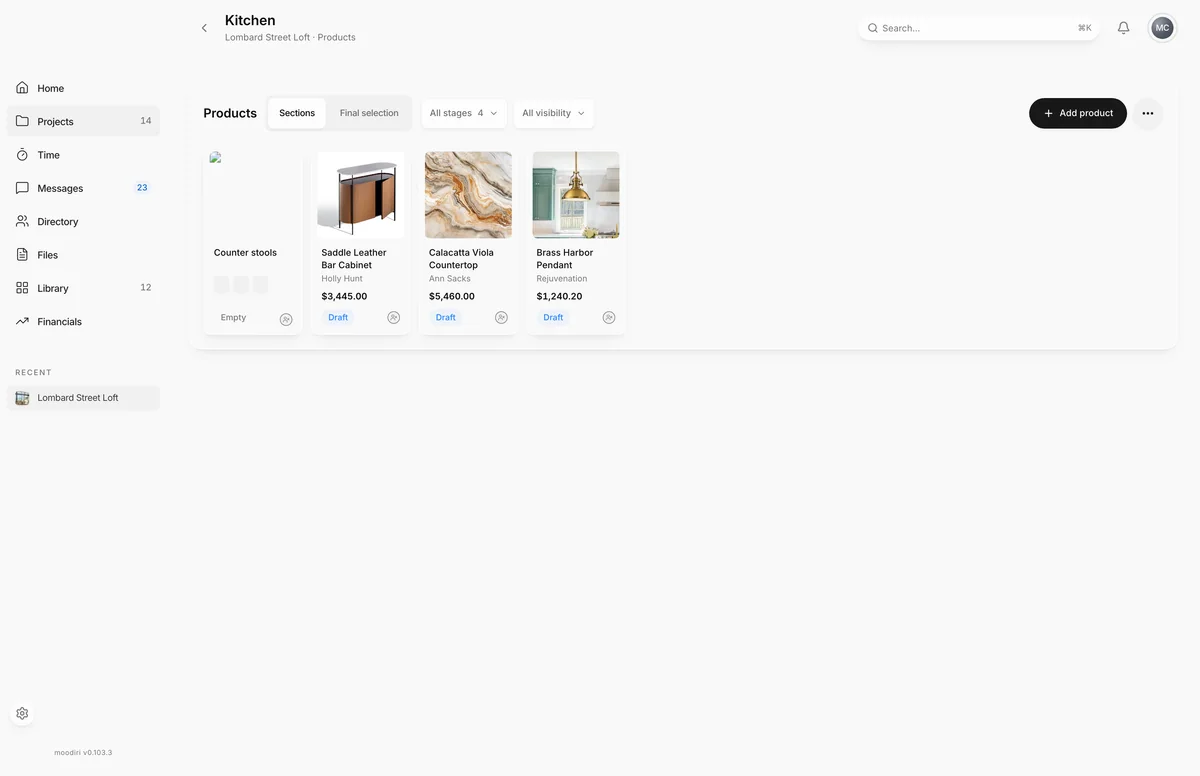
- Open the space's Products tab, shown here for Kitchen, to see its products and sections.
- Choose Add product.
- Choose Add a product section to compare options with your client, or Add product directly for a single product.
Add with the Chrome extension
The Moodiri Chrome extension captures a product from the vendor's own page while you browse. You choose the photos and category, then send it to a project, space or section. See Capture a product, and Import a captured product for the page that opens when you finish a capture in Moodiri.
What happens next
- A new section appears on the Sections view as an empty card, ready for options.
- A directly added product appears as a draft, hidden from your client.
- From there, send it for approval or approve it directly.
Limits
- An approval sends up to three options per section.
- New products start hidden from the client.
Questions
Should I start with a section or a product?
Start with a section when your client will choose between options, such as three dining tables. Add a product directly when the choice is already made or you are still collecting details.
Can my client see a product as soon as I add it?
No. New products start hidden from the client. They appear in the portal once you share them, send them for approval, or approve them with sharing turned on.