Integrations
Connect Stripe to get paid online and QuickBooks to keep your books in step with the invoices and payments in Moodiri.
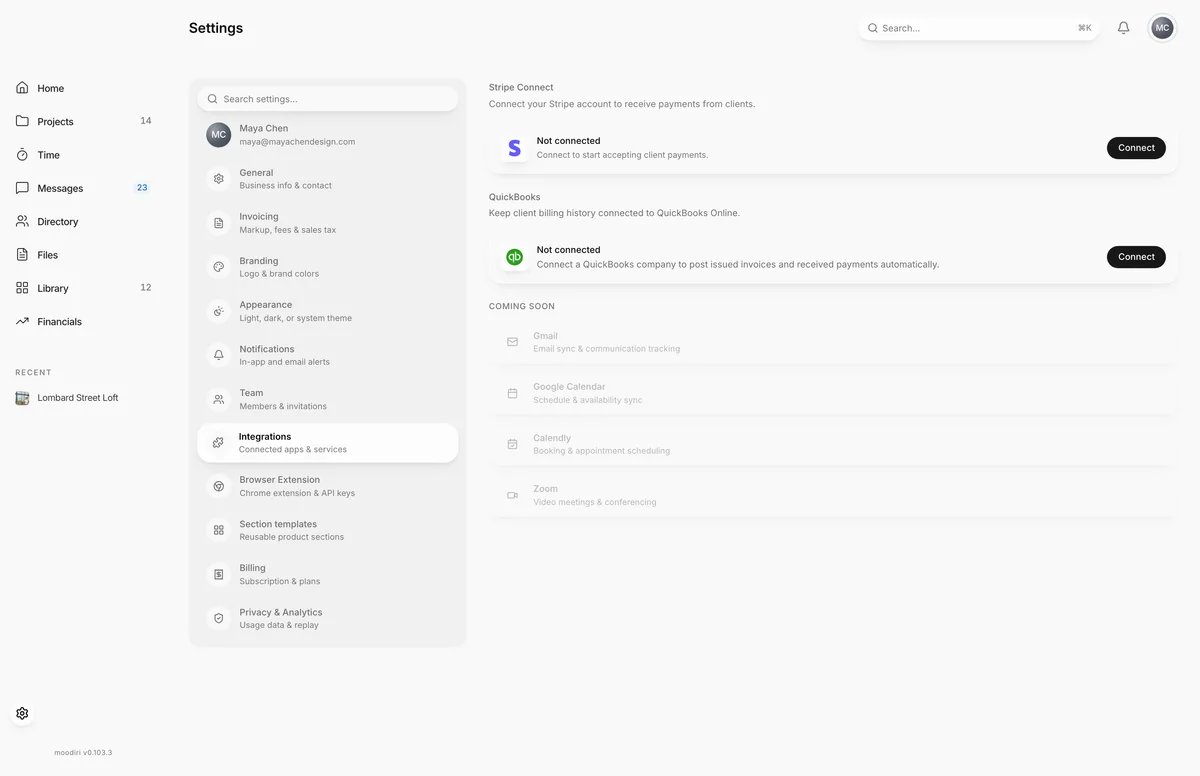
- 1Stripe Connect
- 2QuickBooks
Integrations connects Moodiri to the services that move your money and keep your books. Stripe lets clients pay invoices online and pays the money out to your bank. QuickBooks receives the invoices and payments you record in Moodiri, so your bookkeeping is not a second round of data entry.
Open Settings, then choose Integrations.
What you see here
- Stripe Connect. Your Stripe account status (Not connected, Stripe setup incomplete, Stripe account under review or Stripe account connected) and the buttons to connect, edit or disconnect it. See Connect Stripe payouts.
- QuickBooks. Your QuickBooks Online connection, posting status, imports and categories. See QuickBooks below.
- Coming soon. Integrations that are not available yet. See Coming soon.
QuickBooks
The QuickBooks card shows one of three states: Not connected, QuickBooks Online connected, or QuickBooks connection needs attention. When connected, the card also shows the company name and when it was connected, or how many invoices are waiting to post or need your review.
With a connection you get:
- Sync to QuickBooks. Invoices issued from the connection date, and their payments, post automatically after you save. Review sync shows anything that needs attention. See Sync review.
- Import from QuickBooks. Scan history prepares a review list of earlier clients, invoices, payments and credit memos, and Review imports opens it. See Import from QuickBooks.
- Categories. Choose which of your QuickBooks Products & Services each kind of Moodiri line posts to. See Choose which QuickBooks item each kind of line posts to.
To connect, refresh access or disconnect, see Connect and disconnect QuickBooks.
Only the owner and admins with the Integrations permission can use these controls. Everyone else sees Read only.
Retainer sync
When QuickBooks is connected and retainer sync is available for your firm, Review retainers appears next to Review sync. It opens Retainer accounting, a list of collected retainers with what was collected and what is still available.
Choose Review on a retainer to sync it:
- If asked, link the QuickBooks customer or project that owns the retainer with Link QuickBooks customer. Linking does not post money.
- For a retainer collected before you connected, match the original collection to its QuickBooks receipt, or confirm that the collection is not recorded, so the money isn't recorded twice.
- Choose the Customer, Bank account, Retainer liability account and Retainer item to use.
- Choose Approve and sync retainer.
Approving updates your books; it does not send money. After approval, Moodiri requests the sync, and a retainer that is up to date shows Up to date in QuickBooks. See Retainers for how retainers work in Moodiri.
Coming soon
The bottom of the page lists integrations that are planned but not yet available, including email, meeting and scheduling connections. They are shown greyed out and can't be connected yet.
Google Calendar sync for time tracking is already available. You connect it from Time, not from this page. See Google Calendar sync.
Limits
- Stripe controls need the Payouts permission. Without it the Stripe card is read-only.
- QuickBooks controls, imports and sync review need the Integrations permission.
- Invoices issued from the QuickBooks connection date, and their payments, sync automatically. Earlier invoices come in through Import from QuickBooks.
- Review retainers shows only while QuickBooks is connected and retainer sync is on for your firm.
Questions
Do I need Stripe to send invoices?
Yes, to take payments online. Connect Stripe before you send your first invoice. See Connect Stripe payouts.
Do I need QuickBooks?
No. QuickBooks is optional. Connect it if you keep your books there and want invoices and payments posted automatically.
Why are the buttons on this page read-only for me?
Stripe needs the Payouts permission and QuickBooks needs the Integrations permission. Ask the owner to give you the one you need.