Directory overview
The Directory holds the clients and vendors your firm works with, so contact details, projects and money owed live in one place.
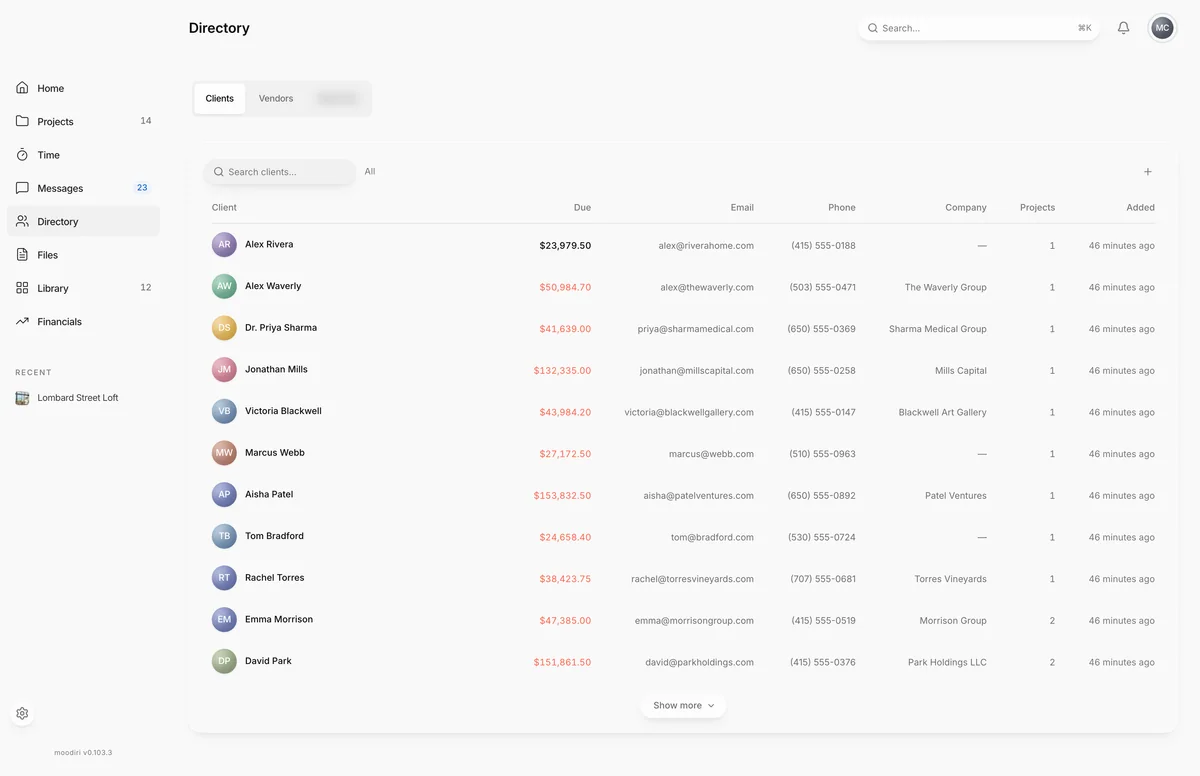
- 1Clients tab
- 2Vendors tab
The Directory is your firm's address book. It keeps one record for each client and each vendor, and links each record to the projects, invoices and products that involve them. Instead of retyping a client's email on every project or searching old orders for a vendor's rep, you look them up here.
Open Directory from the sidebar. It opens on Clients; switch with the tabs at the top.
What you see here
- Clients: everyone you design for, with what they owe, their projects and whether they have joined the client portal.
- Vendors: the suppliers and showrooms you buy from, with trade account details, sales reps and the products you have specified from them.
When to use it
- Before a new project. Add the client first, then pick them when you create the project.
- Chasing payment. A client's page shows the amount due and overdue invoices across all their projects.
- Ordering. A vendor's page has the trade account number, terms and the rep to call.
Who can change it
Everyone on your team can look up clients and vendors. Only the owner and admins can add, edit or delete them, and deleting a client also needs the Delete clients permission.
Questions
Is a client in the Directory the same as a client on a project?
Yes. A client record is shared across every project it is linked to, so update the email once and every project uses it.
Do clients see the Directory?
No. The Directory is for your team only.