Retainers
Collect money up front with a Stripe payment link, hold it for your client, and apply it to invoices as the project moves.
- 1Retainers
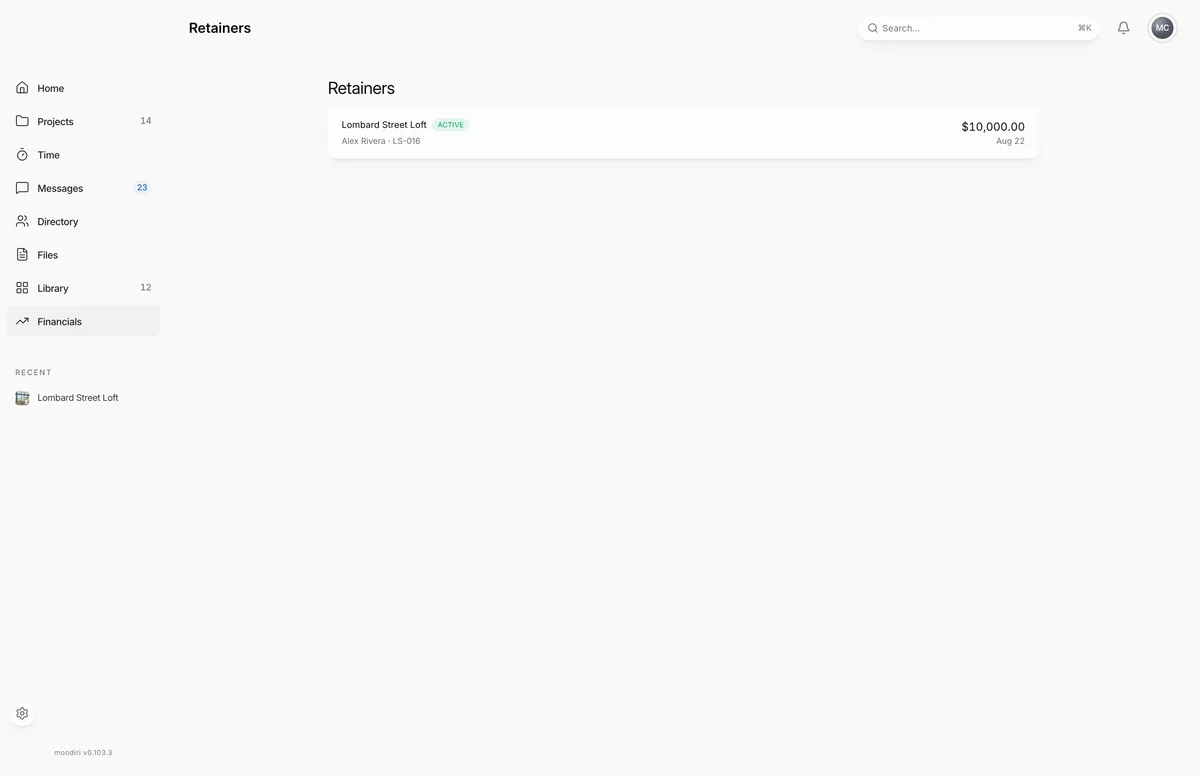
A retainer is money your client pays before the work starts, held against future invoices. Retainers lists every retainer your studio has requested, with its project, client, amount and status. Open Retainers in the sidebar. With the Financial Hub on, retainers are summarized on its Client funds tab, and View all opens this list.
What you see here
Each retainer shows its project and status, the client and project code, the original amount, and the date it was paid (or requested, if unpaid). Choose a retainer to open it.
Statuses:
- Awaiting payment. The payment link is out; your client has not paid yet.
- Active. Paid. The balance is available to apply to invoices.
- Closed. The balance reached zero.
- Cancelled. Cancelled before your client paid.
Retainer page (ledger, applied, remaining)
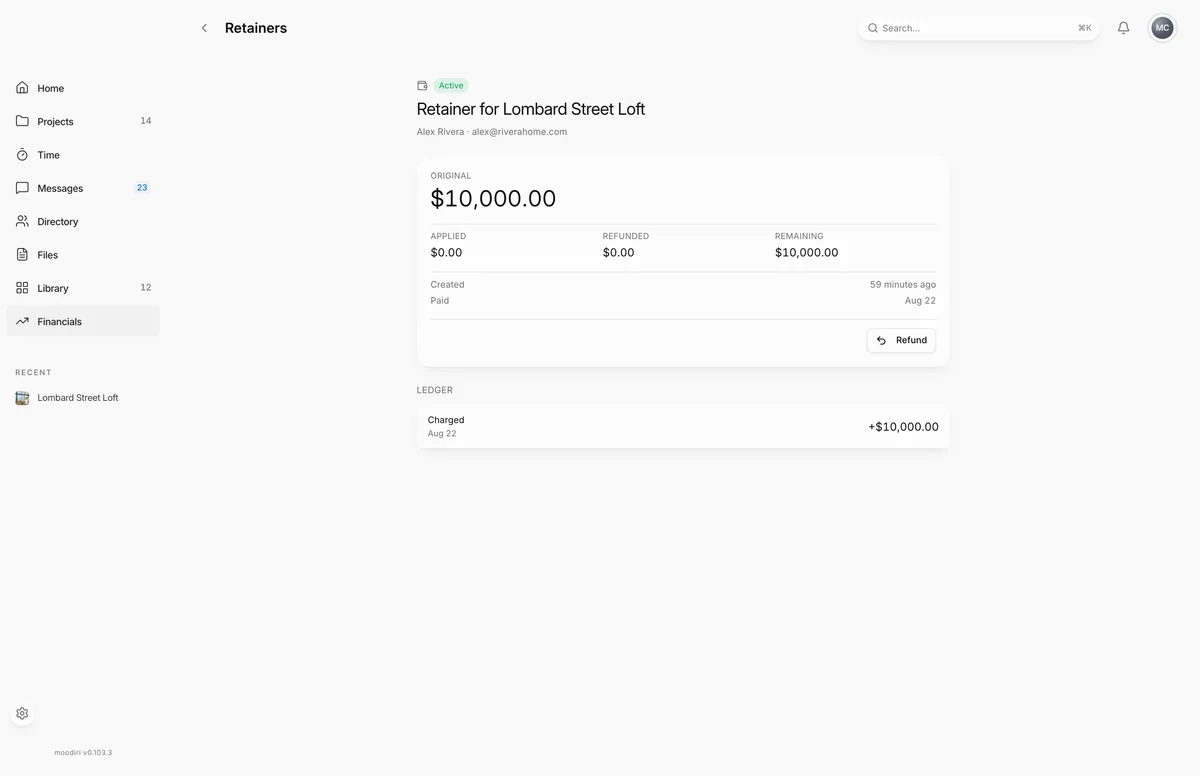
A retainer's page shows Original, Applied, Refunded and Remaining, when it was Created and Paid, and a Ledger of every transaction against it.
- While it is Awaiting payment, the page shows the payment link to copy and share with your client.
- Any refunds are listed with their status, such as Processing or Refunded.
- Admins can choose Cancel retainer while it is unpaid, or Refund while it is active. See Cancel or refund a retainer.
Related tasks
Limits
- Requesting, applying, cancelling and refunding retainers is for the owner and admins.
- Retainers are paid through Stripe, so Stripe must be connected first.
Questions
Is a retainer revenue?
Not yet. It is client money you hold until you apply it to an invoice. That is why Financials shows retainers separately from revenue.
Where does my client see it?
In their client portal, with the balance they have left. See Paying a retainer.