Manage clients on a project
See who the client is on each project, add a co-client, invite them to the portal, and choose which teammate they deal with.
Why use it
Many projects have more than one decision-maker, and each needs their own access to the portal. The Clients panel shows at a glance who is on the job and whether they can see it, so you are never unsure whether your client actually received the approval or invoice you sent.
When to use it
- A partner or spouse should see the project too. Add them as a co-client and invite them.
- A client says they never got the invite. Check their status, then choose Resend invite.
- Someone should no longer see the project. Choose Revoke access.
For the client's own record (address, notes, all their projects), use Clients.
Before you start
- You need to be the owner or an admin to add, invite, revoke or remove clients.
- A portal invite needs the client to have an email address.
Steps
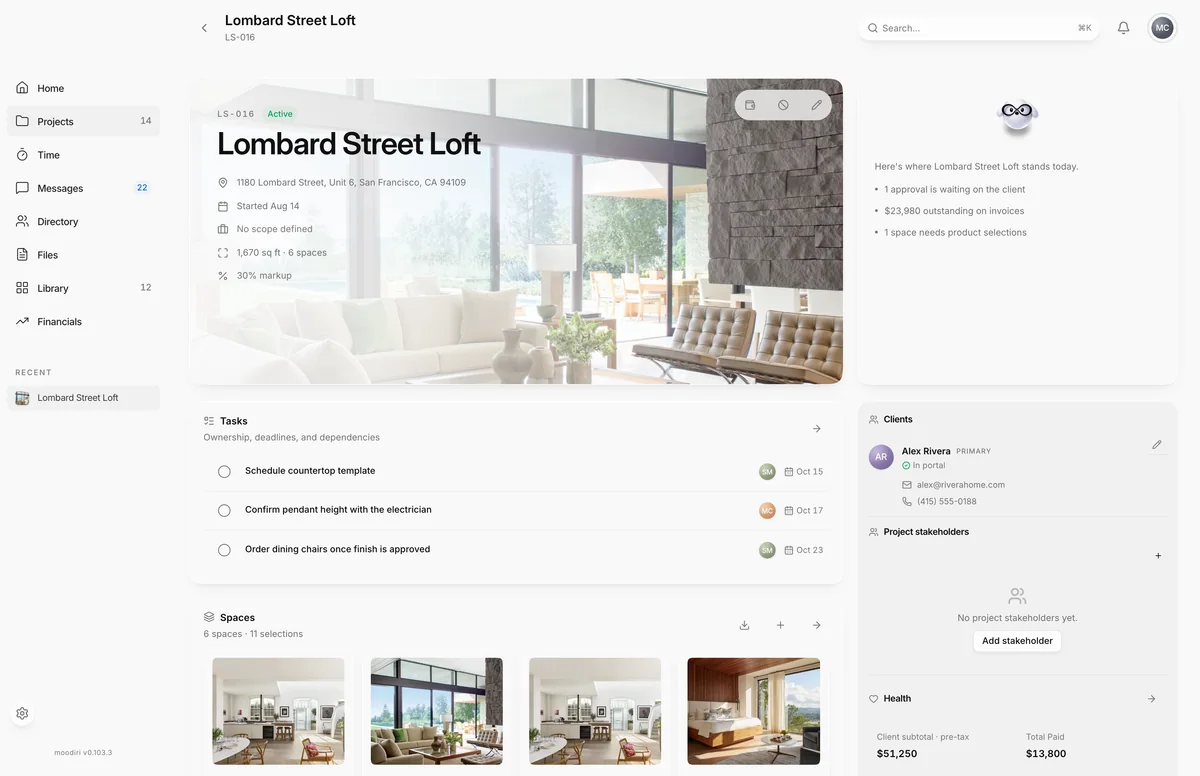
- Open the project and find Clients in the side panel. It lists each client's email, phone and portal status.
- Choose Manage clients, the pencil next to the client list.
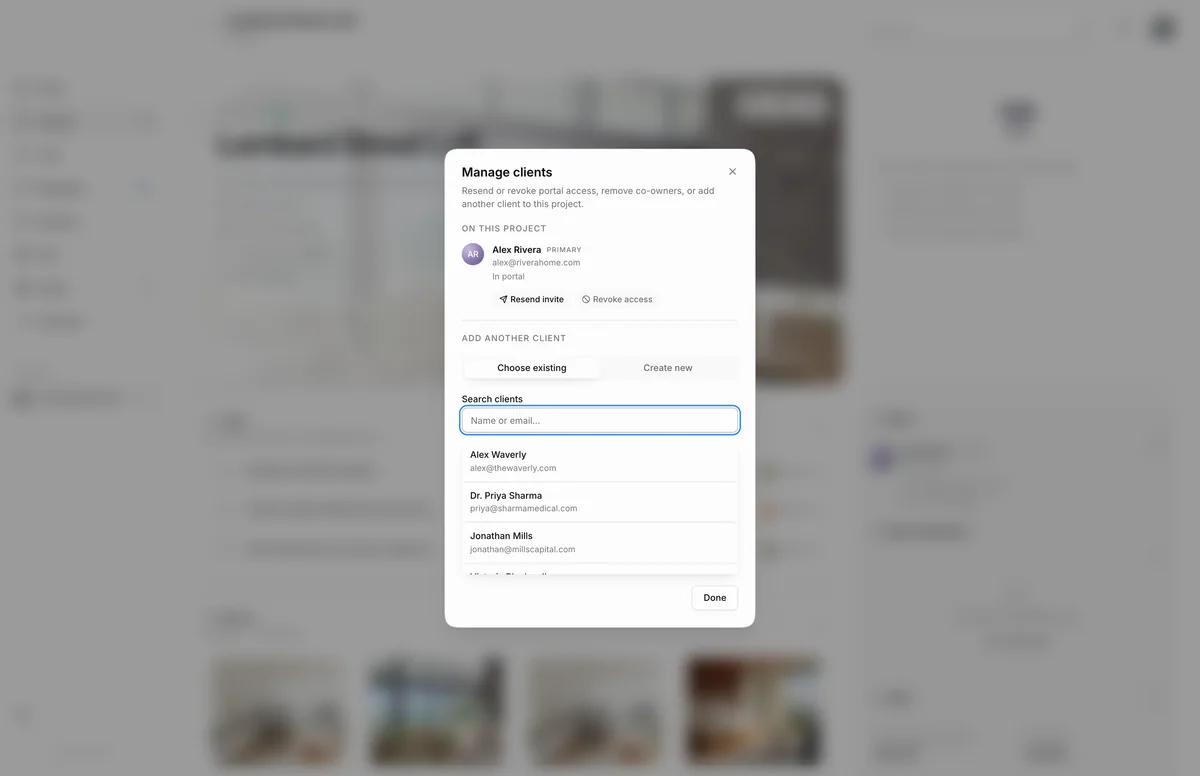
- For each client, choose Send invite or Resend invite, Revoke access, or Remove for a co-client.
- Under Add another client, search your clients with Choose existing, or switch to Create new to add a co-client.
Revoke a client's portal access
- 1Revoke access
In Manage clients, choose Revoke access on a client who has been invited or has joined. Moodiri signs them out, cancels any outstanding invite, and clears their portal password and Google or Apple sign-in.
Revoking applies to the client, not just this project, so they lose portal access to every project they have with your firm. To let them back in, choose Send invite again. See Invite clients and manage access.
Client-facing contact and project manager
- 1Client-facing contact
- 2Project manager
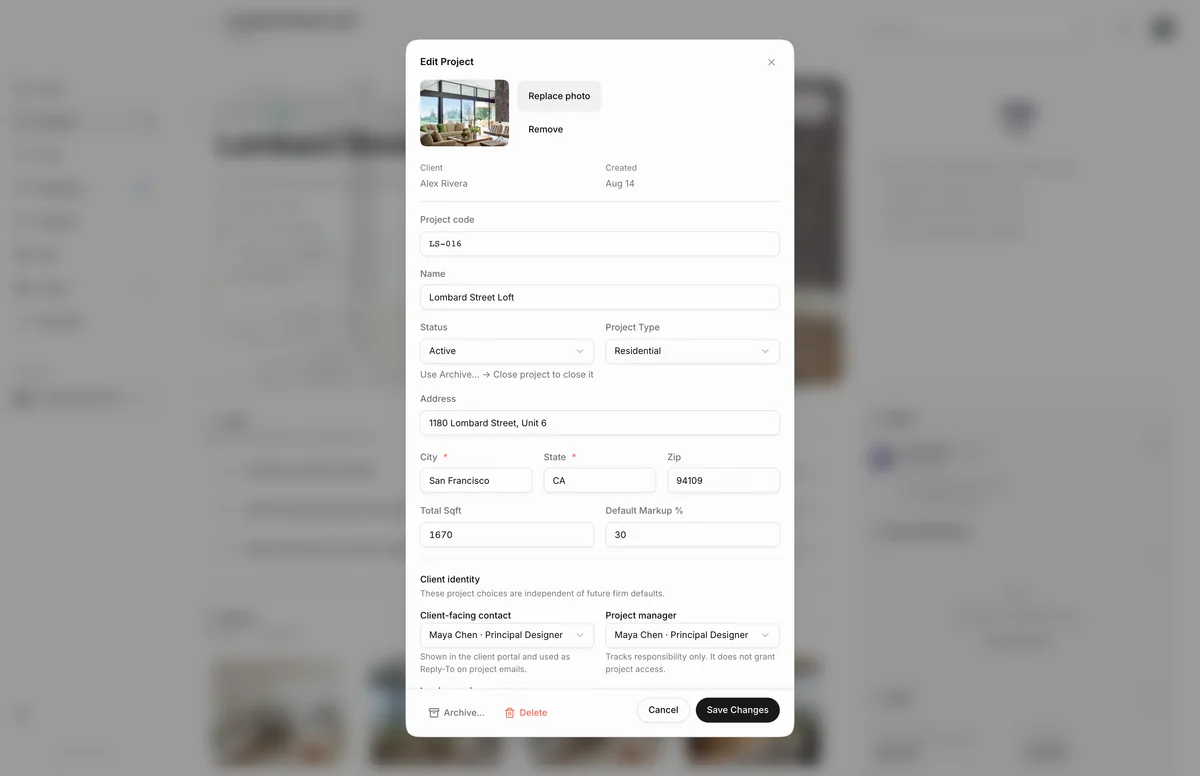
Each project has two teammate roles, set in Edit project under Client identity:
- Client-facing contact: the teammate shown in the client portal and used as the reply-to address on project emails. When your client replies to an email, it goes to this person.
- Project manager: tracks who is responsible for the project. It does not give anyone extra access.
- Invoice copies: who on your team gets a copy of invoice emails. Choose Use firm default, Do not send copies, copy every invoice-authorized teammate by CC or BCC, or Choose teammates.
New projects start from your firm defaults. Changing them on a project does not change the firm defaults, and later changes to the defaults don't change the project.
What happens next
- Invited clients get an email from your firm with a View your project button. Their status changes to Invite sent, then In portal once they join.
- Co-clients you add appear in the Clients panel straight away.
- A revoked client sees No portal access in Manage clients until you invite them again.
Limits
- Changing the client-facing contact needs the Client-facing identity permission, the project manager needs Project managers, and invoice copies need Invoice copy settings.
- The primary client can't be removed. Only co-clients show Remove.
- Send invite is unavailable until the client has an email address.
Questions
What is the difference between the primary client and a co-client?
The primary client is the main contact for the project and can't be removed. Co-clients, such as a partner or spouse, get the same portal access when invited and can be removed.
What do In portal and Invite sent mean?
Invite sent means the client has an invite but hasn't signed in yet. In portal means they have joined. No portal access means they haven't been invited.