Sign in
Log in to Moodiri with Google, or with your email and password. Forgot your password? Request a reset link from the log-in page.
Why use it
Moodiri keeps your firm's projects, client details and money behind your own sign-in. Each teammate signs in as themselves, so activity, approvals and payments always show who did what.
When to use it
- Every day. Sign in to your firm's workspace.
- After Save & exit in onboarding. Signing back in returns you to the step you left.
Joining a firm for the first time? Use your invitation link instead: see Accept a team invitation.
Before you start
- An account. If you don't have one, choose Sign up at the bottom of the page, or see Create your account.
Steps
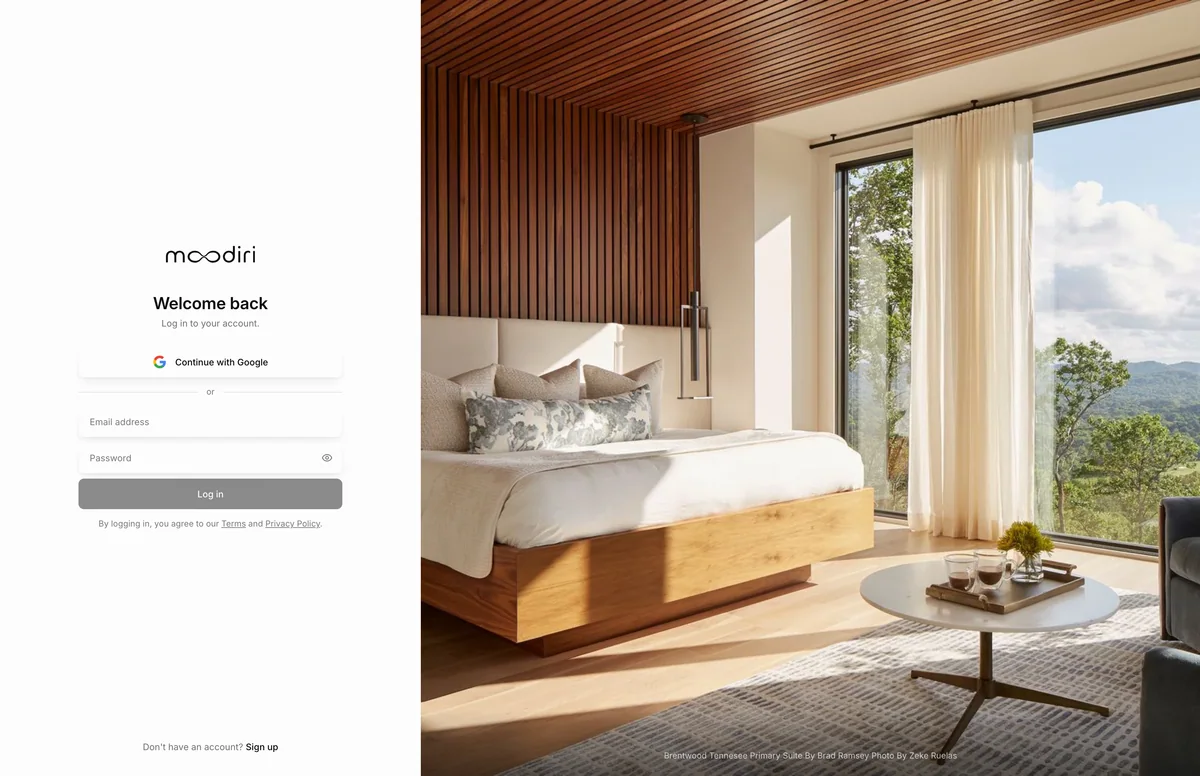
- Open the log-in page. If you signed up with Google, choose Continue with Google above the form instead.
- Type the Email address you signed up with, for example maya@mayachendesign.com.
- Type your Password. It is at least 8 characters.
- Choose the eye button to show what you typed. Choose it again to hide it.
- Choose Log in. Moodiri opens your workspace.
Reset your password
If you forget your password, request a reset link by email. See Reset your password.
Sign in with an email link
Some sign-ins happen through a link Moodiri emails you, for example when you sign up, accept an invitation or reset your password. The link opens a Confirm your sign-in page. Choose Continue to finish signing in. Nothing happens until you choose it, so an email scanner that opens the link can't sign you in or use it up.
Accept a team invitation
If a teammate invited you, open the invitation email and follow its link. See Accept a team invitation.
What happens next
- Moodiri opens your workspace, starting at Home. If you followed a link to a specific page, you go straight there.
- If your firm owner hasn't finished onboarding yet, the owner is taken back to the onboarding walkthrough.
- To sign out, open the user menu (your photo at the top right) and choose Log out.
Limits
- Forgot password? shows only after a log-in attempt fails.
- An emailed sign-in link that is incomplete or expired can't be used. Request a new one.
Troubleshooting
- Invalid email or password.: check the email address and password, then try again. If you signed up with Google, choose Continue with Google instead.
- This link isn't valid: the emailed link is incomplete or has expired. Choose Back to log in and request a new one.
- Popup blocked. Please allow popups for this site.: allow pop-ups for Moodiri, then choose Continue with Google again.
Questions
I don't see a Forgot password link.
It appears under Log in after a log-in attempt fails. Try once, then choose Forgot password?.
Where do my clients sign in?
In your client portal, not on this page. See Signing in to your portal.