Approval details
The full record of one approval request: its options, your client's answer, the conversation, the timeline and every action you can take.
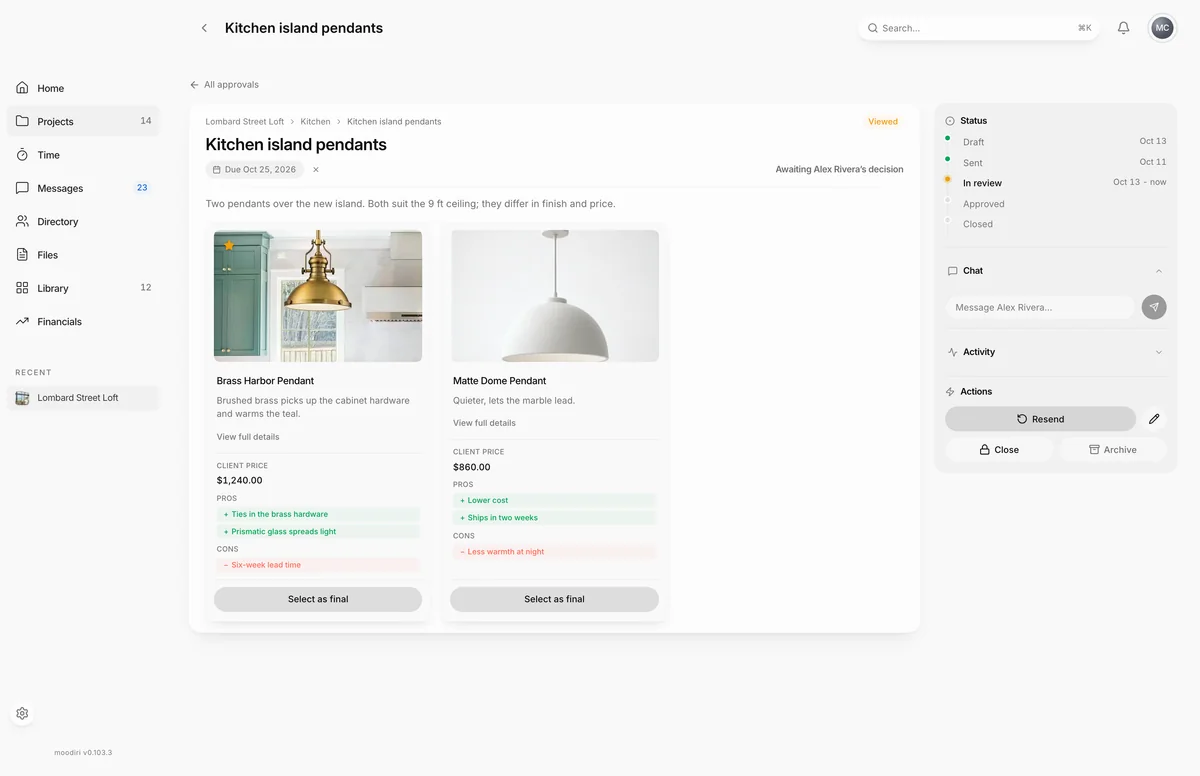
Approval details is the full view of one request. It shows the options as your client sees them, their answer, the conversation about it, and when each step happened, with every action you can take on the right. Open it from the Approvals list: choose a card, then Open full screen.
What you see here
- The request: its space, title, due date, your description and the option cards. Once your client decides, the chosen option is ringed and stamped. Choose an option to see its full details, including your cost, markup and the client price.
- Status: the steps Draft, Sent, In review, Approved and Closed, with the date of each. When your client asks for changes, the third step reads Changes requested.
- Chat: your conversation with your client about this request. Their approval note appears here too.
- Activity: who did what, and when.
- Actions: what you can do next. The buttons change with the request's status.
Review requested changes
When your client asks for changes, the request shows Changes requested and a note under the options with their name, the date and their comment. Reply in Chat to talk it through. Then:
- For a general request, choose Resend to send it again. To update the description or due date first, choose Edit details (the pencil) in Actions. The options stay locked.
- For a request from a product section or a product, send updated options as a new request. These can't be resent once answered.
- If you agree on an option by phone, record it for your client. See Decide on behalf of the client.
Reopen a decision
Choose Reopen decision on an approved request to take the decision back. The request returns to Changes requested and shows up again for your client, so they can choose again. A product that the approval finalized goes back into review. Use it when your client changes their mind after approving, or an approved item becomes unavailable.
Lock (close) and reopen a request
Choose Close to stop a request. Your client can no longer respond to a closed request, but they can ask you to reopen it. Choose Reopen to unlock it again: it goes back to your client's earlier answer, or to Sent if they hadn't answered.
Drafts can't be closed. Archive a draft you no longer need instead.
Resend a request
- 1Resend
Choose Resend to email your client the request again, for example when it is close to its due date. Moodiri confirms who it was sent to. You can resend a request while it is Sent or Viewed, and a general request after your client asks for changes.
Archive a request
Choose Archive to remove a request from the list and from your client's portal. See Delete an approval.
Limits
- Options can't change after your client responds.
- Drafts can't be closed.
- Requests from a product section or a product can't be resent after your client asks for changes.
- Family proposals have their own actions. See Family revision proposals.
Questions
Can I change the options after my client answered?
No. Answered requests keep their options so the record matches what your client saw. Send a new request with the updated options instead.
What's the difference between Reopen and Reopen decision?
Reopen unlocks a closed request. Reopen decision takes back an approved decision so your client can choose again.