Approvals · Approval details
Decide on behalf of the client
Record a decision your client made on a call or at a site visit, with an audit note, so the request shows as approved.
Why use it
Plenty of decisions happen out loud: at a showroom, on a site visit, or at the end of a call. Waiting for your client to also click in the portal holds up ordering, and leaving the request open makes your records wrong. Recording the decision yourself closes the loop while keeping an honest record that it came from you.
When to use it
- A verbal yes. Your client picked the walnut finish on the phone.
- Clients who don't use the portal. Record their emailed or spoken choice.
- Time-sensitive orders. Lock in the option before a price or lead time changes.
If your client can answer themselves, let them: Resend the request instead.
Before you start
- The request is a Draft, Sent, Viewed or Changes requested request.
- Make sure your client really chose this option. Moodiri records it as their approval.
Steps
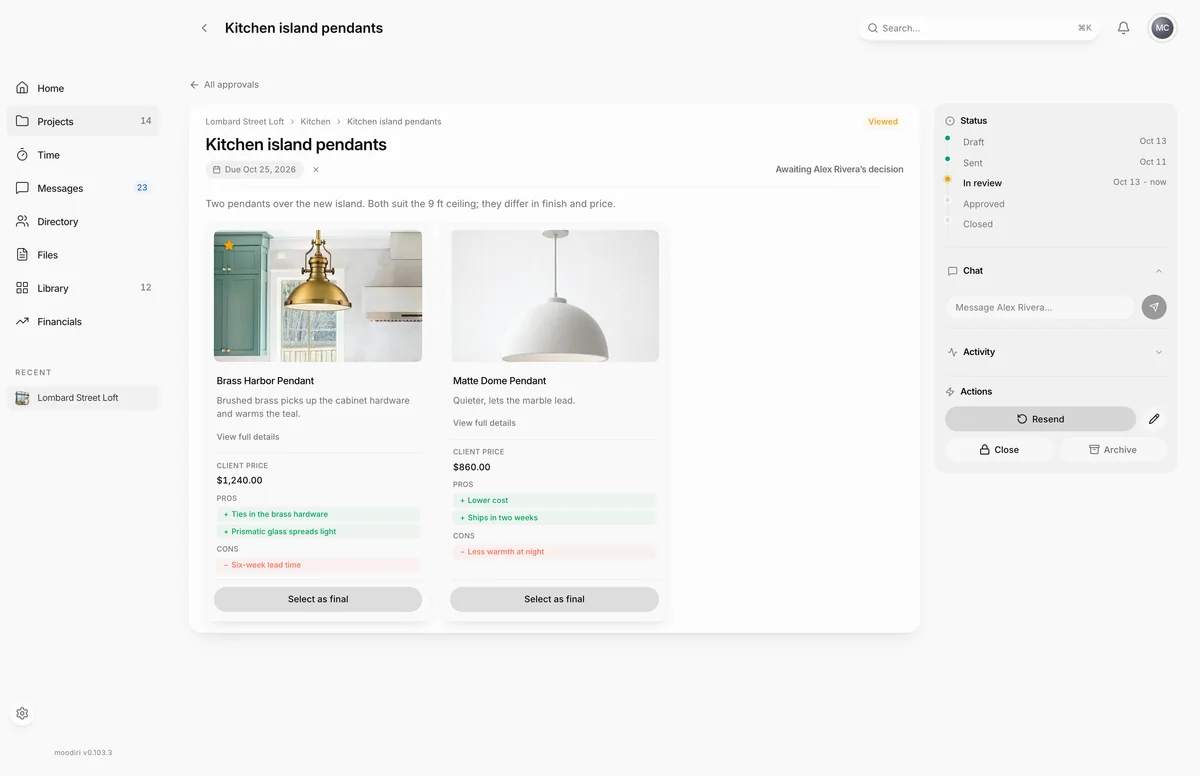
- Open the request and choose Select as final under the option your client chose, such as Brass Harbor Pendant.
- Add an Internal note (optional), such as Confirmed with Alex on the site visit. Only your team sees it.
- Tick I confirm the client chose this option. Confirm decision stays unavailable until you do.
- Choose Confirm decision to record the approval in your client's name.
What happens next
- Moodiri shows Confirmed on the client's behalf, and the request shows as Approved with the chosen option stamped.
- The record shows the decision was confirmed by you, with your internal note, so it never looks like your client clicked.
- If you sent a message, your client sees it in the request's conversation in their portal.
- If the request was set up to create a product, the product is created as it would be after a client approval.
Limits
Limits
- Available on Draft, Sent, Viewed and Changes requested requests only. Closed, archived or already approved requests can't be decided this way.
- Not available on family proposals. Your client must accept those themselves.
- The internal note holds up to 2,000 characters, and the message to the client up to 5,000.
Troubleshooting
- The decision was recorded, but the message couldn't be sent. The approval is saved. Send your note from the request's Chat instead.
Questions
Will my client be asked to confirm?
No. The request is recorded as approved straight away. The record shows that you confirmed it, with your note.
I picked the wrong option. Can I undo it?
Yes. Choose Reopen decision on the request. It goes back to Changes requested and your client can choose again.
Next
Was this page helpful?
Thanks, noted.