For clients
Answer your project intake
Answer a few questions at the start of your project so your designer can shape the first ideas. Your answers save as you go.
Why use it
Before your designer starts sketching, they need to understand the project: what you want, how you live, your timing. The intake asks those questions once, in writing, so nothing is lost between calls and emails.
When to use it
- At the very start of a project, when your designer sends you the intake link.
For questions about a single room, your designer sends a brief instead. See Answer a space brief.
Before you start
- You're signed in to your portal. If you aren't, the link asks you to sign in first. See Sign in to your portal.
- Set aside a few minutes. Your designer uses your answers to shape the first round of ideas.
Steps
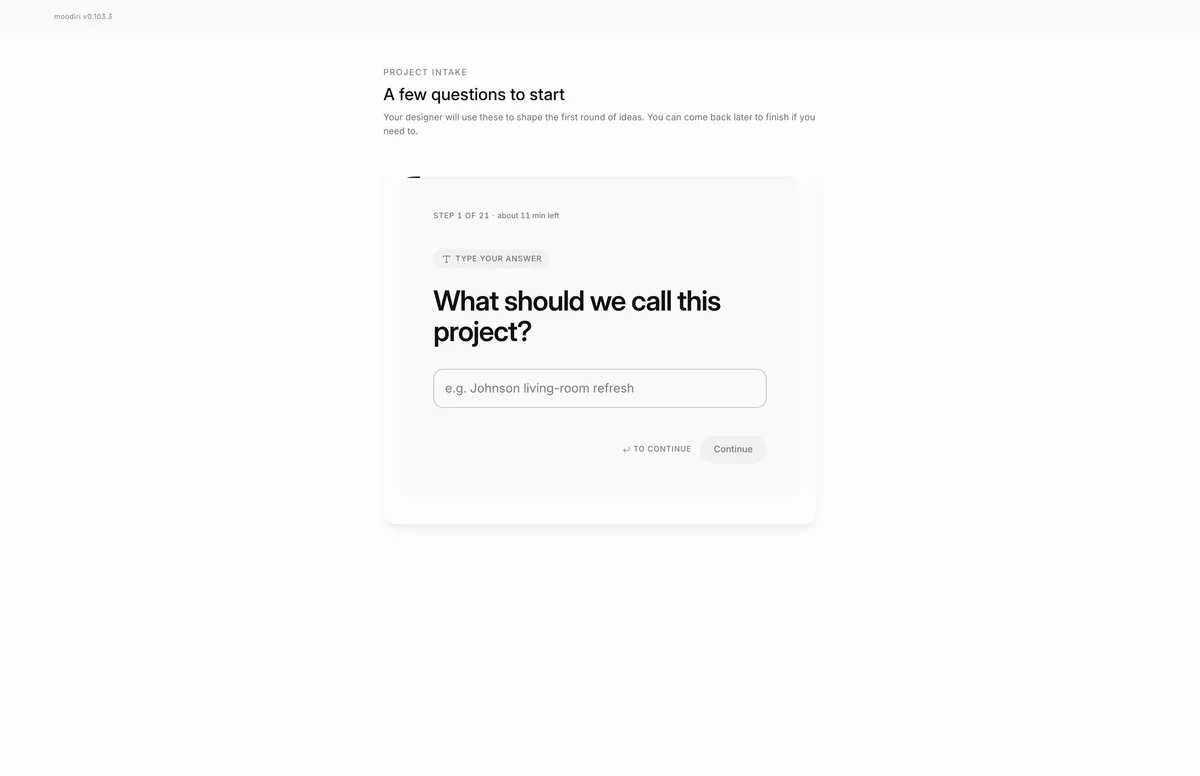
- Open the intake link your designer sent you. The page is titled A few questions to start.
- The header shows where you are and roughly how long is left, such as Step 1 of 21.
- Answer the question shown. Here it asks for a project name, such as Lombard Street Loft.
- Choose Continue to save the answer and move on. On the last question it reads Submit.
What happens next
- A thank-you page confirms your designer has your answers. Choose Back to your project to go to your portal.
- Your designer gets your answers and follows up when they have a first look ready.
Limits
Limits
- Answers save as you go; you can come back later to finish.
- After you submit, the intake link shows the thank-you page.
- Required questions can't be skipped; Skip stays unavailable until you answer.
Troubleshooting
- This question is required. Answer it before choosing Continue.
- The intake was updated. Please refresh to pick up the latest version. The questions changed while you were answering. Refresh the page and carry on.
Questions
Do I have to finish in one go?
No. Answers save as you go, so you can close the page and come back to the same link later to finish.
Can I change an answer after submitting?
Not from the portal. Opening the intake again shows the thank-you page. Send any corrections to your designer in chat.
Next
Was this page helpful?
Thanks, noted.