General
Your firm's business details, client portal address, and who represents the firm to clients on new projects.
- 1General
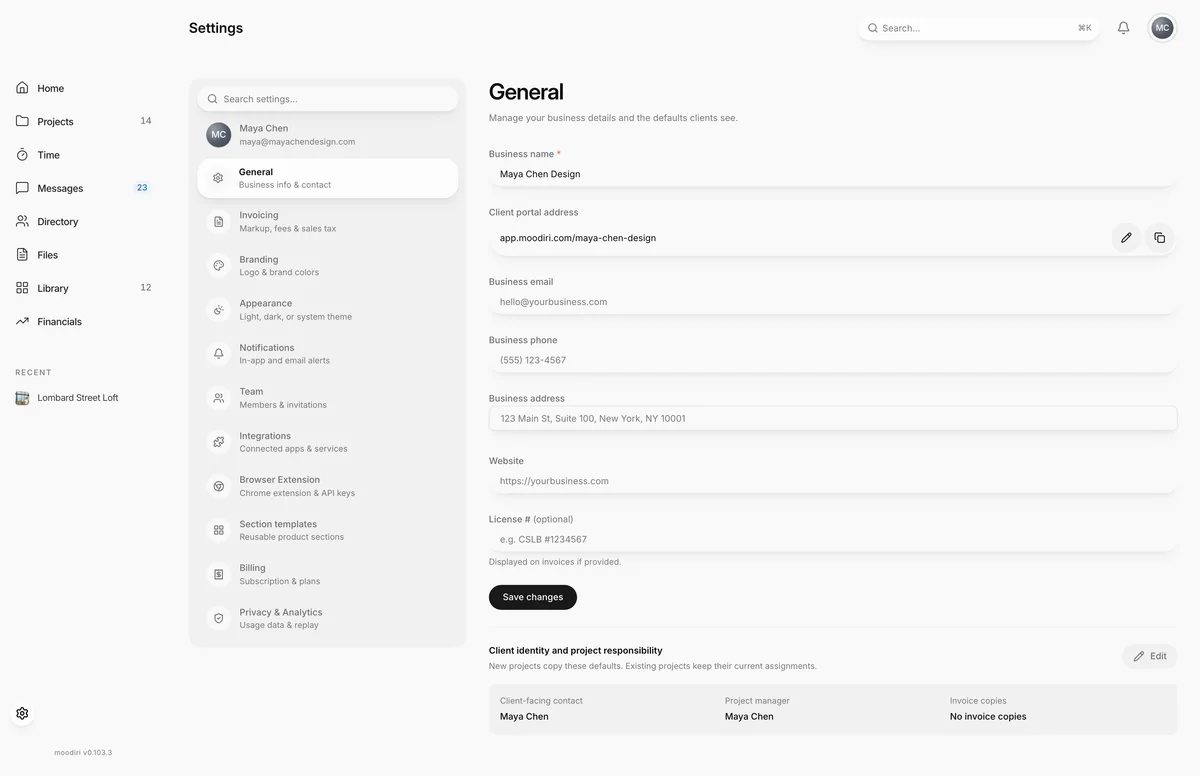
General holds the facts about your firm that appear on invoices, emails and the client portal: your business name and contact details, your portal address, and the teammates who represent the firm to clients by default. Set it once when you start, and come back when something about the business changes.
Open Settings, then choose General.
What you see here
The top of the page is your business details, with Save changes underneath. Below that is Client identity and project responsibility, which has its own Edit button and dialog.
Business info and portal handle
- Business name. Required. Save changes stays unavailable while it is empty.
- Client portal address. The address clients use to open your portal. Choose the copy button to copy the full link. To change it, choose the pencil button (Edit portal address), pick a new address in Edit client portal address, and choose Save portal address. Moodiri checks that the address is free as you type. See Your portal address.
- Business email, Business phone, Business address and Website. Your firm's main contact details. The address field suggests matches as you type.
- License # (optional). Shown on your invoices if you fill it in.
Choose Save changes to save. You see Settings saved. when it worked.
Only the owner and admins with the Firm settings permission can change business details. Everyone else sees them read-only.
Client identity: contact, project manager, invoice copies
- 1Edit client defaults
- 2Save defaults
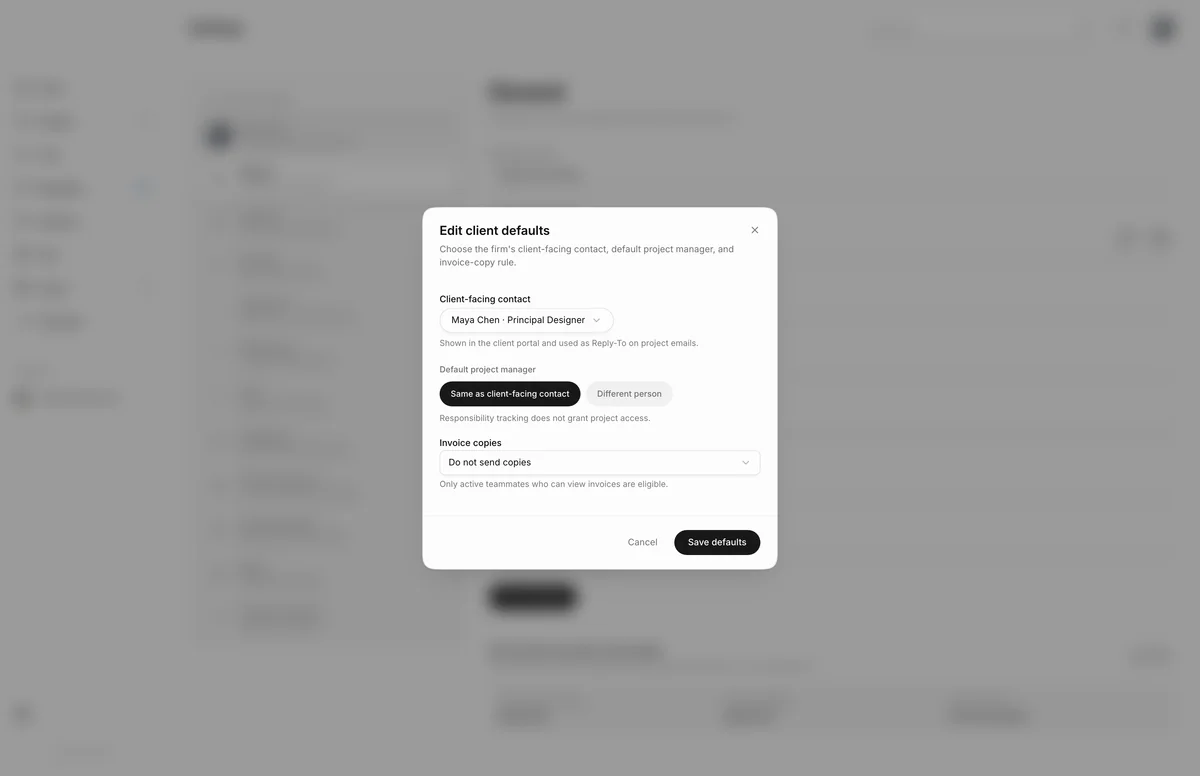
This section sets three defaults that every new project starts with:
- Client-facing contact. The teammate shown to clients in the portal. Their address is used as the Reply-To on project emails, so client replies reach them.
- Project manager. Choose Same as client-facing contact, or Different person and pick someone in Different project manager. Responsibility tracking does not give anyone access to a project.
- Invoice copies. Who gets a copy of invoice emails: Do not send copies, CC every invoice-authorized teammate, BCC every invoice-authorized teammate, or Choose teammates.
Choose Edit to open Edit client defaults, make your changes, then choose Save defaults. You see Client defaults saved. when it worked.
Each default has its own permission: Client-facing identity for the contact, Project managers for the project manager, and Invoice copy settings for invoice copies. The owner has all three. If you have none of them, Edit is unavailable.
Invited teammates can be chosen here only after they accept their invitation.
To change who is responsible on one project, use Clients on a project instead.
Limits
- Changes to client defaults apply to new projects. Existing projects keep their current assignments.
- Portal addresses use 3 to 40 letters, numbers and single hyphens. Some addresses are reserved.
- Only active teammates can be picked as the client-facing contact or project manager.
Questions
If I change the client-facing contact, do my current projects change?
No. New projects copy these defaults. Existing projects keep the people already assigned to them.
Where does the license number show up?
On your invoices, when you fill it in.
Why can't I edit the business details?
You need the Firm settings permission. Ask the owner or an admin who has it. Any client and project defaults delegated to you stay editable.