Invite clients and manage portal access
Invite each client on a project to your portal, resend a lost invite, or revoke access when someone should no longer get in.
Why use it
Clients lose emails, change devices, and sometimes a project partner should no longer have access. From one dialog you can see who is in, send or resend the link, and close the door when you need to.
When to use it
- Kick-off. Invite your client once the project is ready for them to see.
- "I can't find the link." Resend the invite.
- People change. Revoke access for a client who leaves the project, then remove them.
You can also invite from the client's page. See Send or resend a portal invite.
Before you start
- Only the owner and admins can send invites and revoke access.
- The client needs an email address. Without one, Send invite is unavailable. Add it from the client's page with Edit client.
- Open the project from Projects.
Steps
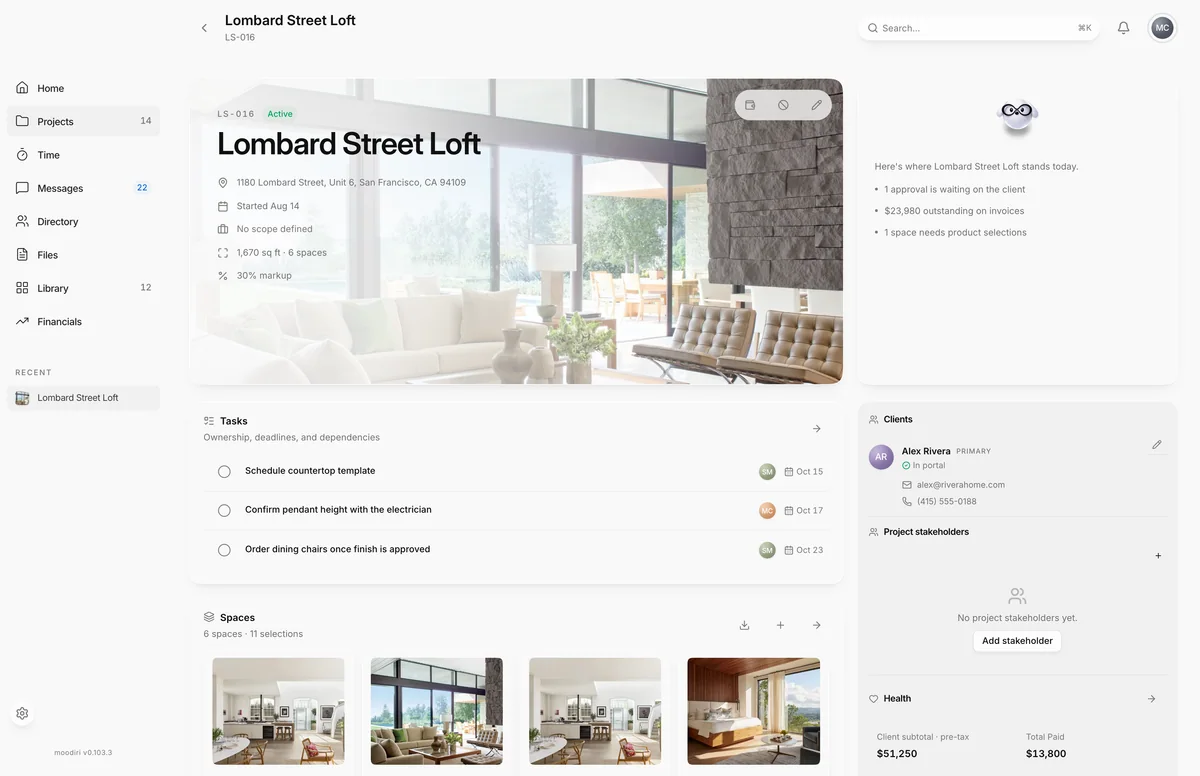
- Open the project, here Lombard Street Loft, and choose Manage clients (the pencil beside the clients).
- Each client's portal status sits under their email. Alex Rivera shows In portal, so he has signed in.
- Choose Send invite, or Resend invite if they were invited before. It emails a link to this project.
- Choose Revoke access to sign the client out everywhere. You confirm before it happens.
Send or resend an invite
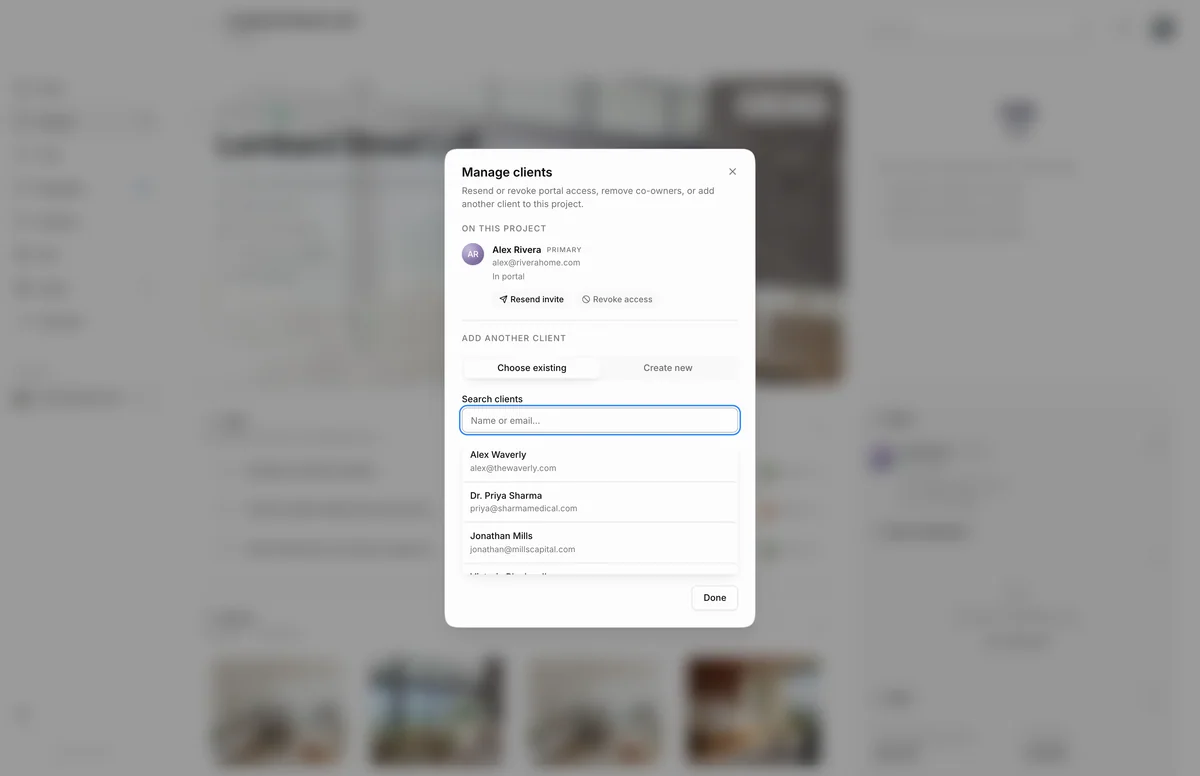
- 1Manage clients
Send invite emails the client a link to this project at your portal address. You see Portal invite sent to and their name, and their status changes to Invite sent. When they sign in for the first time it changes to In portal.
Each invite is for this project. To give a client a second project, invite them from that project too.
Revoke portal access
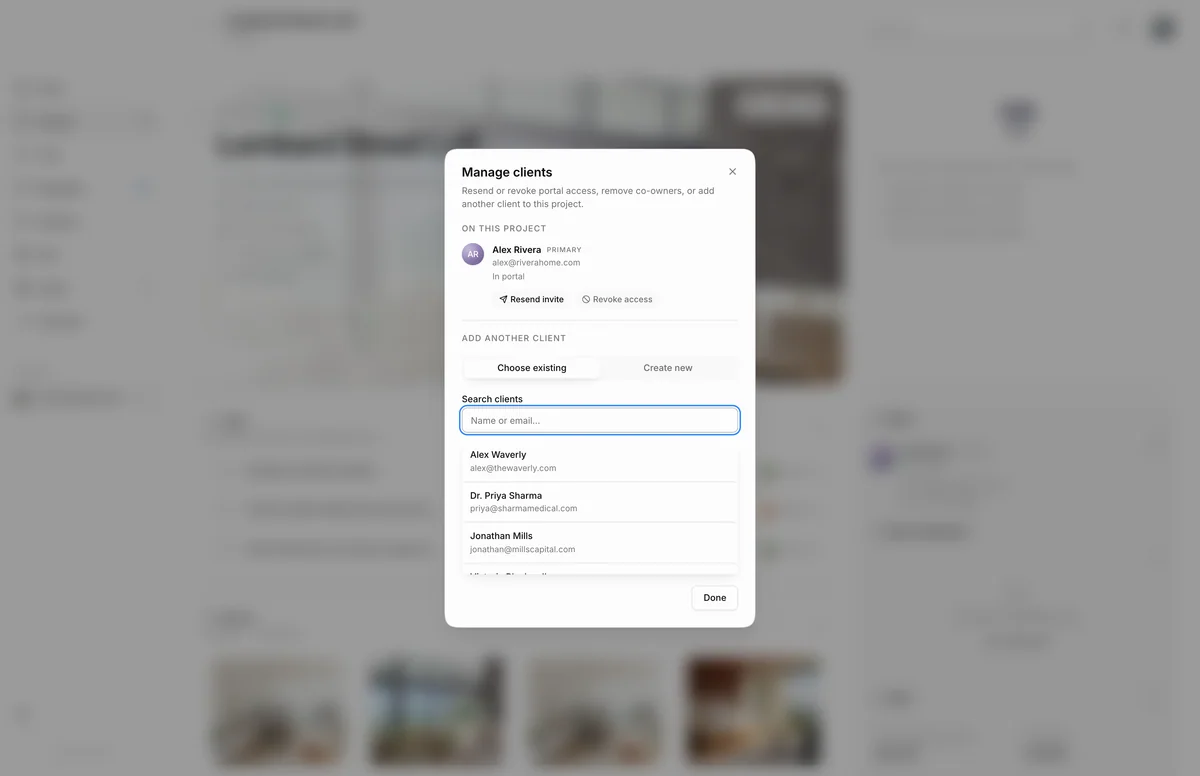
- 1Revoke access
Revoke access signs the client out everywhere and stops them signing in again, including with a password or Google or Apple. Confirm the message to go ahead. You see Portal access revoked for and their name, and their status goes back to No portal access. To let them back in, send a new invite.
What happens next
- Invited clients follow the email link and sign in to the portal.
- Their status in Manage clients and on their client page shows whether they have joined.
Limits
- The client needs an email address before an invite can be sent.
- You can also send invites from the client page, as Send portal invite.
- Revoking signs the client out; they cannot sign back in until you invite them again.
Troubleshooting
- Add an email to this client first. Shown when you point at Send invite for a client with no email. Add one, then try again.
Questions
What does my client receive?
An email titled {your firm name} invited you to view your project, with your logo and a link to the project in your portal. Replies go to the project's client-facing contact.
Can two people from the same household get in?
Yes. Add each person as a client on the project, then send each of them their own invite.
Does revoking access delete anything?
No. Their approvals, answers and payments stay on the project. They cannot sign in until you invite them again.