Vendors
The suppliers and showrooms your firm buys from, with category, price range, contact details and how many of your products come from each.
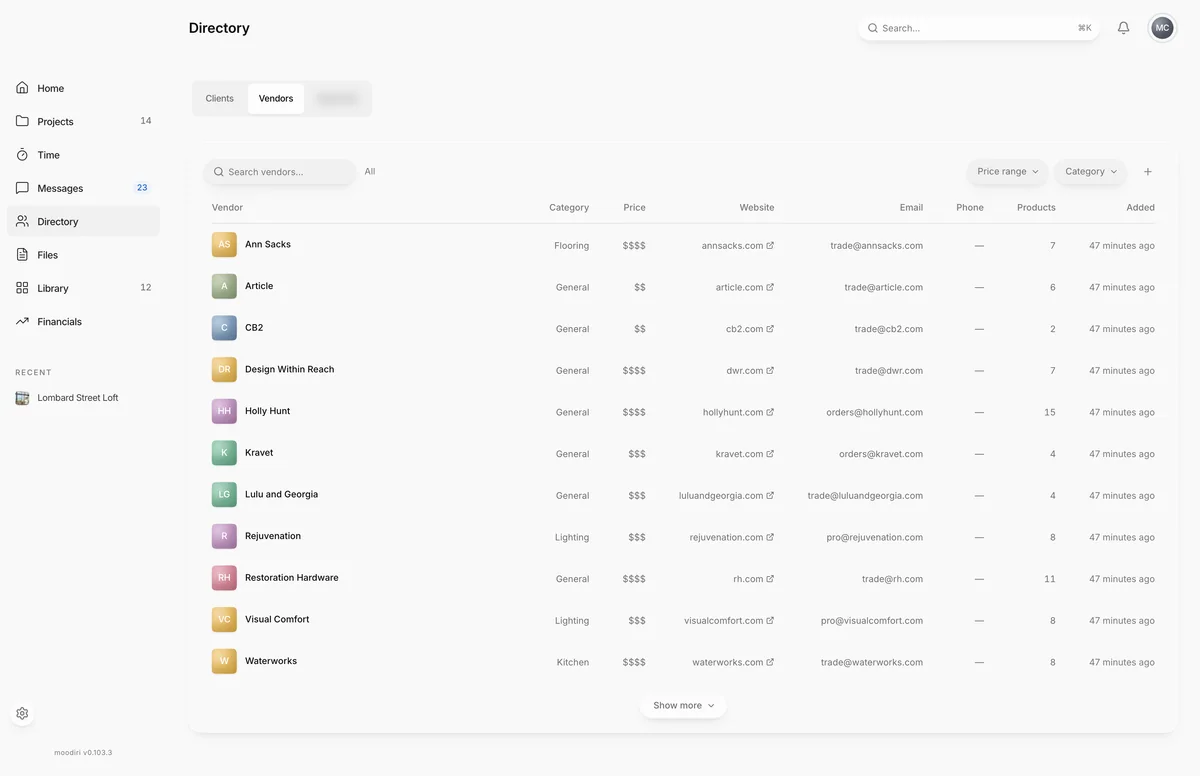
- 1Add vendor
The Vendors list keeps every supplier in one place: who they are, how to reach them, and how much of your work they supply. It is the starting point for trade account details and sales reps when you place an order.
Open Directory from the sidebar and choose Vendors.
What you see here
- A table with Vendor, Category, Price, Website, Email, Phone, Products and Added. Choose a column heading to sort by it.
- Search vendors... matches a vendor's name, email, phone or website.
- Price range ($ to $$$$) and Category (such as Lighting, Flooring or Cabinetry) filter the list.
- Choose a row to open the vendor page.
Trade discounts and re-applying them
Many vendors give you a trade price, a percentage off list. Record it on the vendor as % off list when you edit the vendor, and turn on Auto-apply to imports from this vendor to apply it to products you capture from them.
When you change a vendor's discount, products that already took the old rate keep it. The vendor page then offers Re-apply to a number of products. Choose it, then Confirm, to update them to the current rate. Only products that took the discount from the vendor and have not been ordered yet are updated; project totals are recalculated.
Trade terms / notes is a free-text field for the rest, such as Net 30.
Only the owner and admins can set or re-apply trade discounts.
Limits
- Only the owner and admins can add, edit or delete vendors.
- A vendor with linked products cannot be deleted.
- % off list is from 0 to 100.
Questions
How does a vendor get linked to a product?
Choose the vendor on a product, or capture a product from the vendor's website with the Chrome extension. The vendor's page then lists it under Linked products.
Do clients see my vendors?
No. Vendors, trade terms and trade discounts are never shown in the client portal.