Spec sheet PDFs
Turn a room's or project's products into a clean PDF for your client, contractor or vendor, with only the details you choose.
Why use it
Contractors, vendors and clients each need a different view of the same products: a contractor needs model numbers and dimensions, a client wants photos and prices, a vendor needs only their own lines. A spec sheet builds the right PDF for each from the products you already have, with no copy and paste into a document.
When to use it
- For your client. A tidy summary of a room's selections with photos and client prices.
- For a contractor. Models, finishes and specifications, without prices.
- For a vendor. Only that vendor's products, for a quote or an order.
For an internal list with your costs, use an export instead.
Before you start
- Products in the room or project.
- Open the room's products page.
Steps
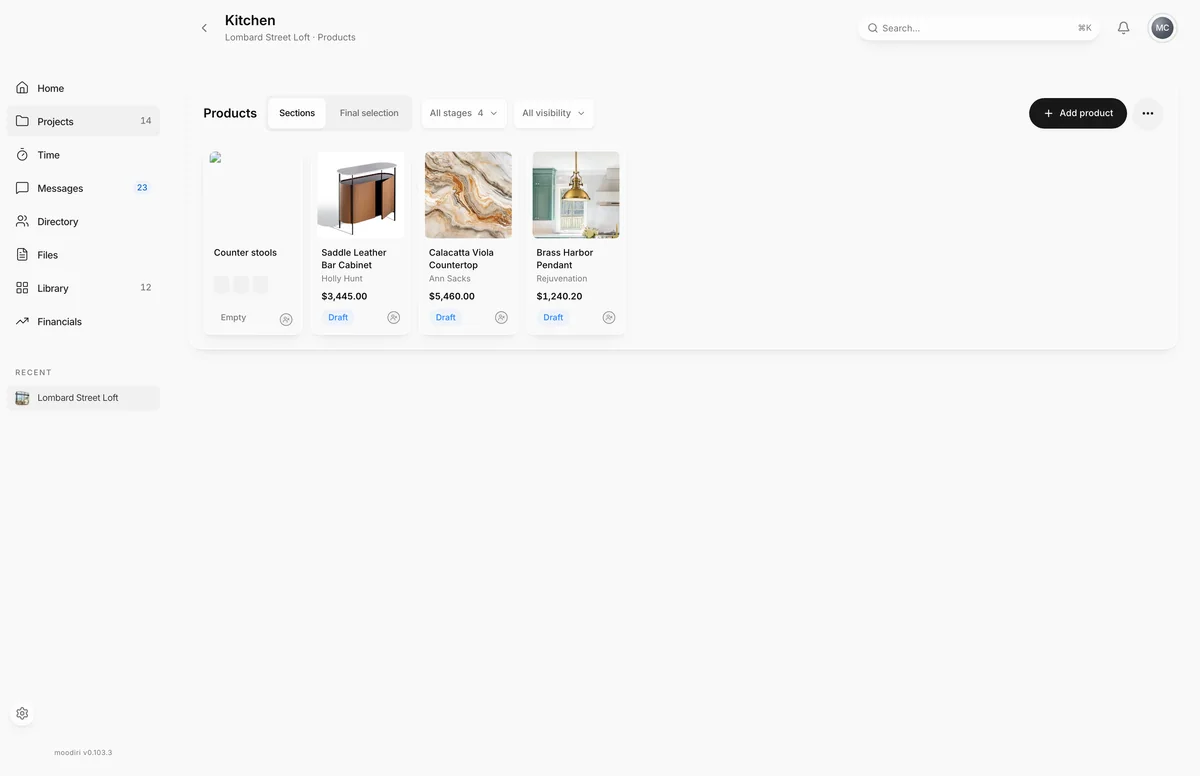
- On the room's products page, choose More product actions.
- Choose Spec sheet PDF.
- Set the recipient, rooms, vendors, statuses, fields and products. The preview updates as you go.
- Check the preview, then choose Download PDF. Nothing is sent to anyone.
Download the PDF
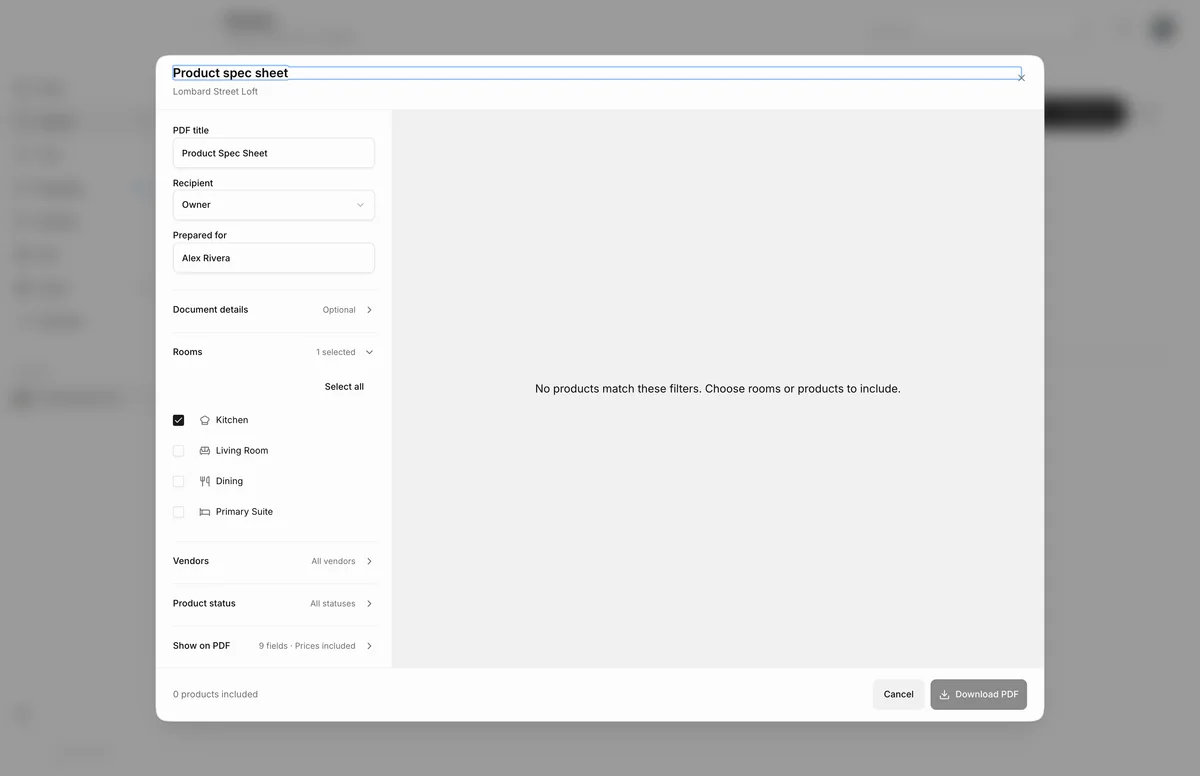
- 1Download PDF
The preview on the right updates as you change the options; on a phone, switch between Controls and Preview. When it shows what you want, choose Download PDF. The footer shows how many products are included.
Download PDF stays unavailable while the preview is loading, when no products match, or when more than 500 products are included.
What happens next
- The PDF downloads to your computer. Send it from your own email, or attach it where you need it.
- Nothing is sent from Moodiri, and the products are not changed.
Limits
- Up to 500 products per spec sheet.
- The PDF title can be up to 160 characters and the introduction up to 2,000.
- Prices use client-facing amounts. Each product's sharing settings also apply to owner PDFs.
Troubleshooting
- No products match these filters. Choose rooms or products to include. Widen the rooms, vendors or statuses.
- Couldn’t generate the PDF. Try again. Choose Retry.
Questions
Can I leave prices off?
Yes. Turn off Client price under Show on PDF. Choosing Contractor or Vendor as the recipient turns prices off for you.
Can I make one for the whole project?
Yes. Opened from a room, the spec sheet starts with that room. Under Rooms, choose Select all and the summary reads Entire project. You can also open it from the project's export menu. See Export a project.