Project overview
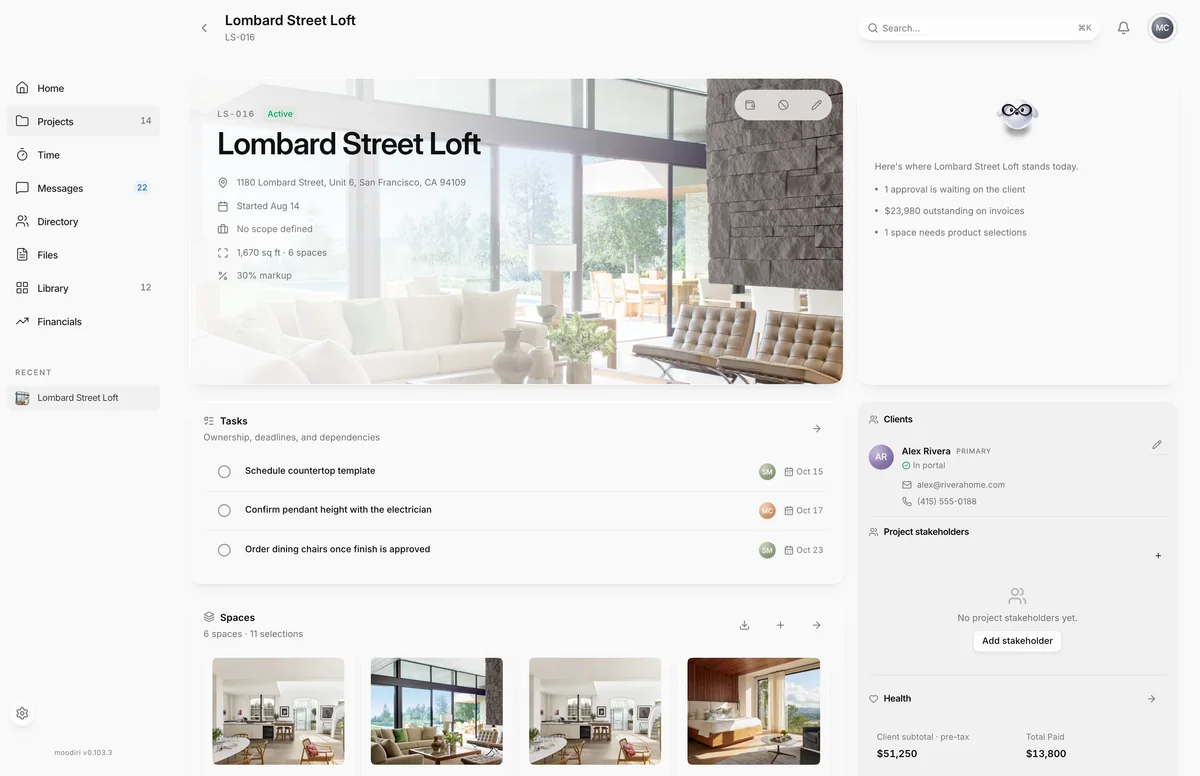
The home page of a project: its key facts, spaces, approvals, invoices and documents, with clients, health, sales tax, chat and notes alongside.
- 1Edit project
- 2Spaces card
The project overview is the first page you see when you open a project. It brings the whole job onto one screen: what and where it is, what is waiting on the client, what has been billed, and who is involved. Open it from Projects by choosing a project card. The example screenshots show Lombard Street Loft for client Alex Rivera.
What you see here
- Project card. The cover photo, project code, status, name, address (opens in a map), start date, total square footage and number of spaces, and the project markup. The buttons at its top right are Request retainer, Cancel project and Edit project. See Request a retainer.
- Tasks. The next few open tasks, when project tasks are on for your firm. See Project tasks.
- Spaces. The rooms in the project and how many selections they hold, with Export and a button to add a space. See Spaces list and Export a project.
- Approvals, Invoices and Documents. The latest of each, with a way to view all.
- Side panel. Clients, Project stakeholders, Health, Sales tax, Chat, Notes and Activity.
To change the name, code, address or markup, choose Edit project. See Edit project details.
Change the project code after invoicing
The project code appears in your document numbers. You can change it in Edit project at any time, even after invoicing. When you do, the dialog reminds you which documents already carry the old code.
- Existing invoices and refunds keep their numbers. New ones use the new code and continue the sequence.
- Saved invoice PDFs are refreshed with the new project number.
Only the owner and admins can change the code.
Project health panel
- 1Health
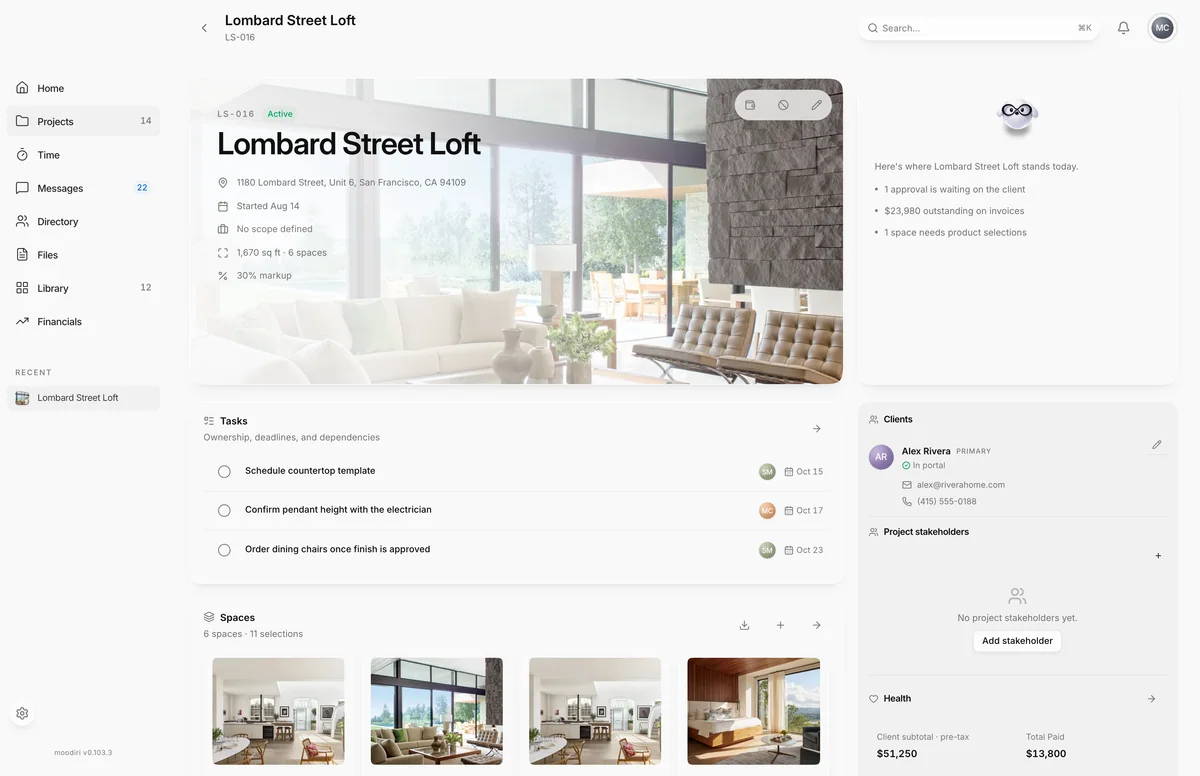
Health in the side panel is a quick read on the money and progress of the job:
- Total value (or Client subtotal · pre-tax), Total Paid and Outstanding.
- Overpayment credit: client credit created by overpayments on this project.
- Billed: the share of the project value that has been invoiced.
- Margin and Est. gross profit. Gross profit is based on planned client totals and recorded costs, and excludes refunds and payment fees. It shows Not tracked with a count of costs not recorded when costs are missing.
- Open approvals, Empty spaces and Last activity.
Figures in red or amber need attention, for example an outstanding balance or a negative margin.
Project financials card
- 1View all financials
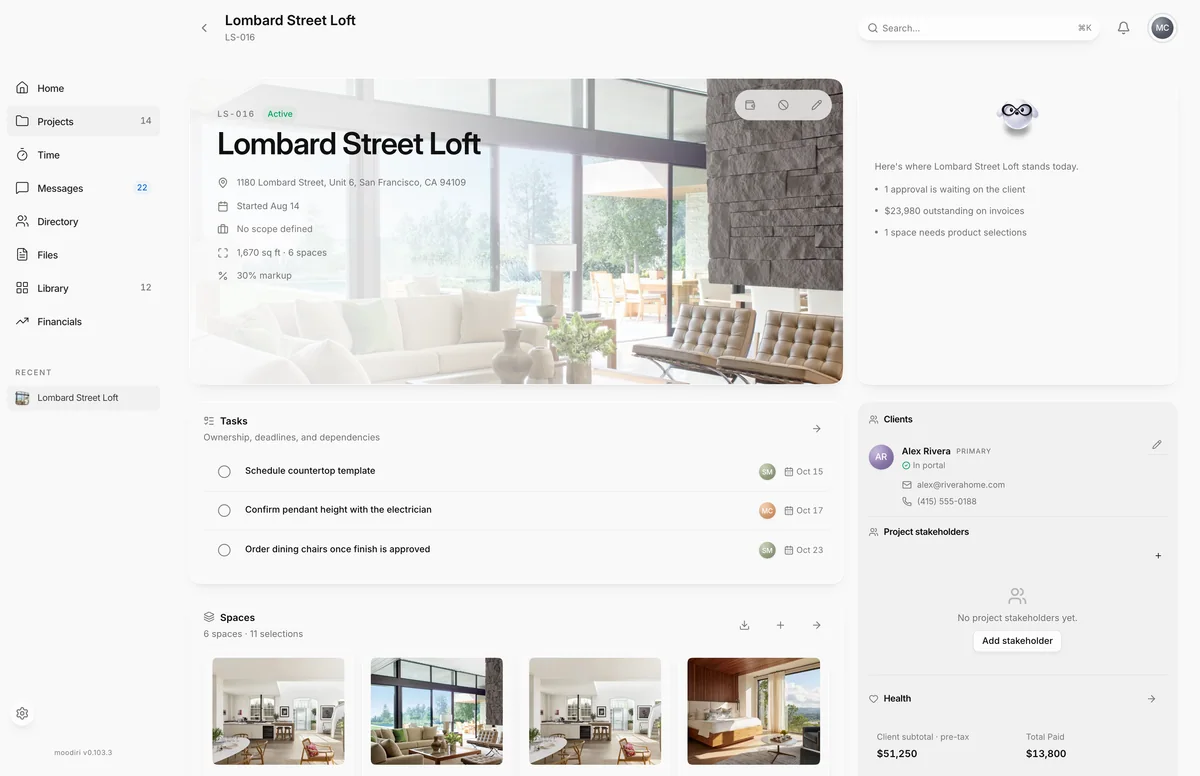
When your firm uses the Financial Hub, Health has a View all financials button. It opens the hub's Projects view for this project. See Financial Hub.
Project stakeholders
- 1Add project stakeholder
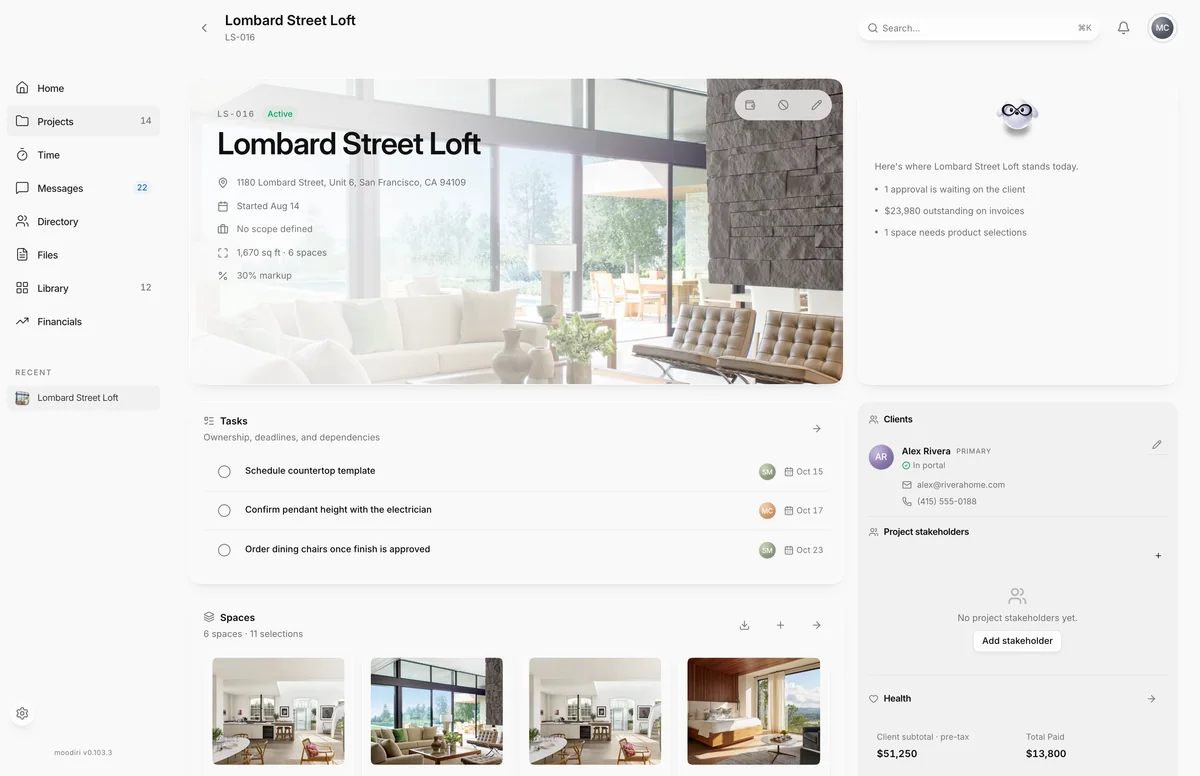
Project stakeholders lists the outside companies and people on the job, such as the general contractor, architect or a vendor. Choose Add project stakeholder, pick a Company or person from your Directory and give them a Role. Edit or deactivate a stakeholder from their row.
Stakeholders come from your Directory, so add the company or person there first. See Companies and people. Only the owner and admins can add or change stakeholders.
Project sales tax profile
Sales tax in the side panel shows how this project charges client sales tax and the rate in use:
- Needs setup: no decision yet.
- Accepted: using the accepted address-based project rate.
- Manual override: using a rate you entered.
- Needs review: the address changed or there is a new suggestion to look at.
- Disabled: sales tax is turned off for the project.
Choose Review sales tax (or Enable sales tax) to open the review. Owners and admins can accept the suggested rate, choose Edit rate to enter their own with a reason, or turn sales tax off. Accepting a rate, saving your own or turning sales tax off needs you to tick the confirmation that you are responsible for the rate and what is taxable. Moodiri suggests a rate from the project address but does not determine your tax obligations.
Sales tax review when you open a project
With sales tax set up, a project that has no tax decision opens a sales tax review over the overview for owners and admins. From there you can choose Check project address, Keep sales tax off, Decide later or Edit rate.
The review is one table of what is billed, whether it is taxed, and at what rate. Products and purchasing use the project rate. Charges such as shipping and installation are taxed when marked taxable. Design services, logged time and expenses are never taxed.
Tick Don't show this again to hide these reminders for you only. Turn them back on in Settings › Invoicing › Show sales tax reminders.
Cancel a project (client ended it)
When the client ends the engagement, choose Cancel project on the project card. Add an optional Reason, choose Cancel project, then Confirm cancel.
- The project is marked cancelled, and new retainer and invoice activity is blocked. The project is not deleted.
- Cancelling never moves money. If the project still holds retainer funds, Moodiri lists them under Refund held retainers? with a Refund link for each. Nothing is refunded automatically.
Only the owner and admins can cancel a project. To finish a project normally, close it instead: Close a project.
Limits
- Cancelling a project never moves money. It lists retainers still holding funds so you can refund them.
- The sales tax review opens automatically only for owners and admins, and only while the project needs a decision.
- Don't show this again applies to you only.
Questions
Why does a sales tax window open when I open a project?
The project has no sales tax decision yet. Accept the suggested rate, edit it, keep sales tax off, or choose Decide later. Tick Don't show this again to stop the reminders for you.
Can team members see the money figures?
Members see the overview, including Health. Editing the project, requesting a retainer and cancelling are for the owner and admins.