Spaces list
See every room in a project at a glance, switch between gallery, details and table views, and filter rooms by how far along they are.
- 1View mode
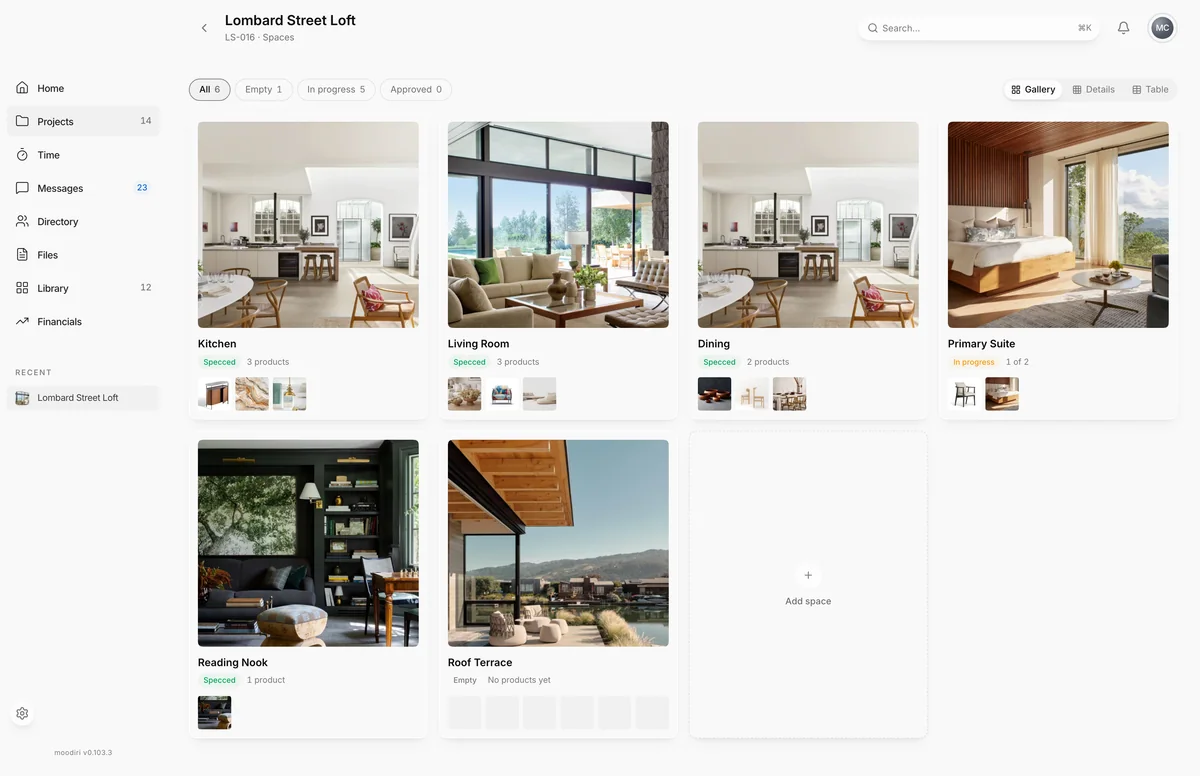
A space is a room or area of the project, such as a kitchen, a primary bedroom or a terrace. The spaces list shows every space in one project, so you can see which rooms still need products and which are finished. Open a space to work on its products, approvals and documents.
To get here, open the project and choose View all in its Spaces section.
What you see here
Each space is a card with its photo, name, a status and a row of small squares, one per product. A filled square shows the product's image; a hatched square is a product still to be specced. The count under the name reads, for example, 3 of 5: three of the five products have been ordered or are further along.
Hover a card to show its edit and delete icons. The last card, Add space, starts a new space. See Add a space.
Gallery, Details and Table views
- 1Gallery
- 2Details
- 3Table
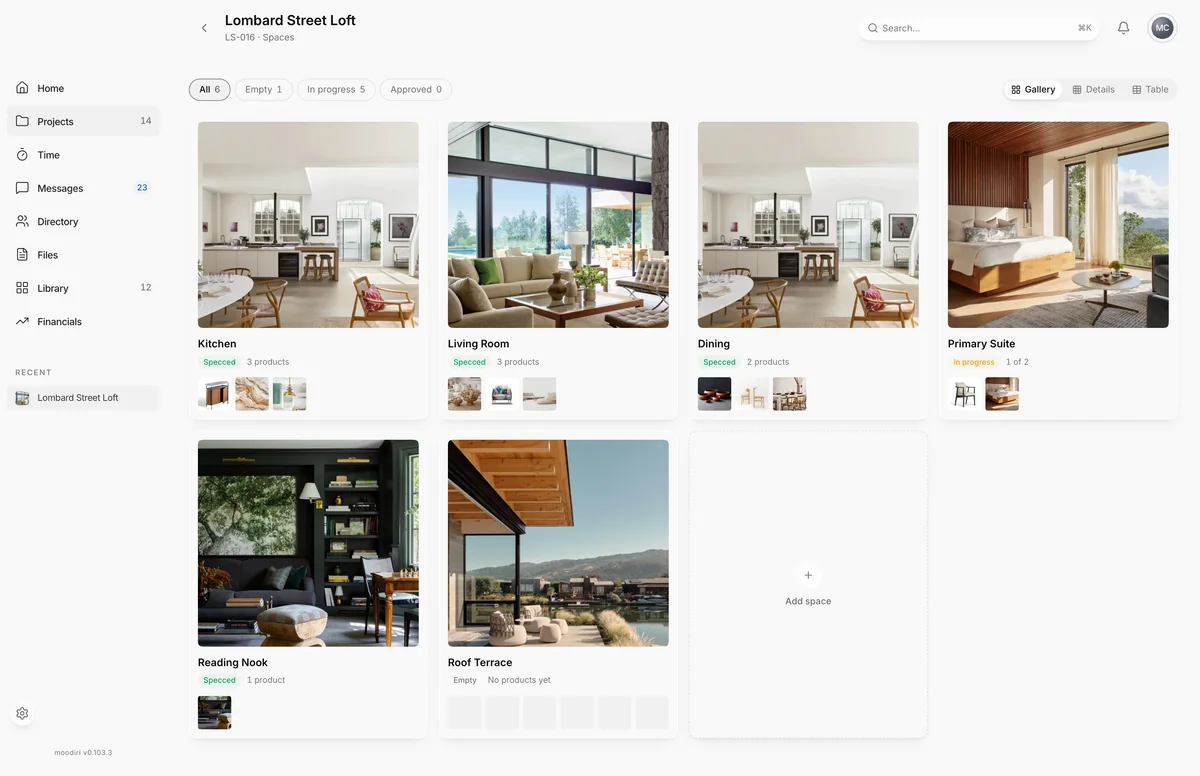
Switch views with the control at the top right.
- Gallery shows each space with its photo. Use it to find a room by sight.
- Details drops the photo and shows larger product squares, with a count of products at each stage under the name. Use it to see what each room is missing.
- Table lists spaces in rows: Name, Type, Products, Area, Internal, Client total and Status. Use it to compare rooms by size or cost. Choose a row to open the space.
Internal is your cost and Client total is what the client pays. Both are for your team only.
Filter by state (Empty, In progress, Approved)
The chips on the left filter the spaces, and each one shows how many spaces it holds.
- All shows every space.
- Empty shows spaces with no products yet.
- In progress shows spaces with at least one product that is not yet delivered.
- Approved shows spaces where every product is delivered, installed or signed off.
On a gallery card, a space whose products have all been ordered shows Specced. The Approved filter is stricter: it waits for delivery.
Questions
What makes a space count as Approved in the filter?
Every product in it is delivered, installed or signed off. A space with no products is Empty, and everything else is In progress.
Can my client see this page?
No. This is your team's view. Your client sees the spaces you share with them in their portal.