Approvals
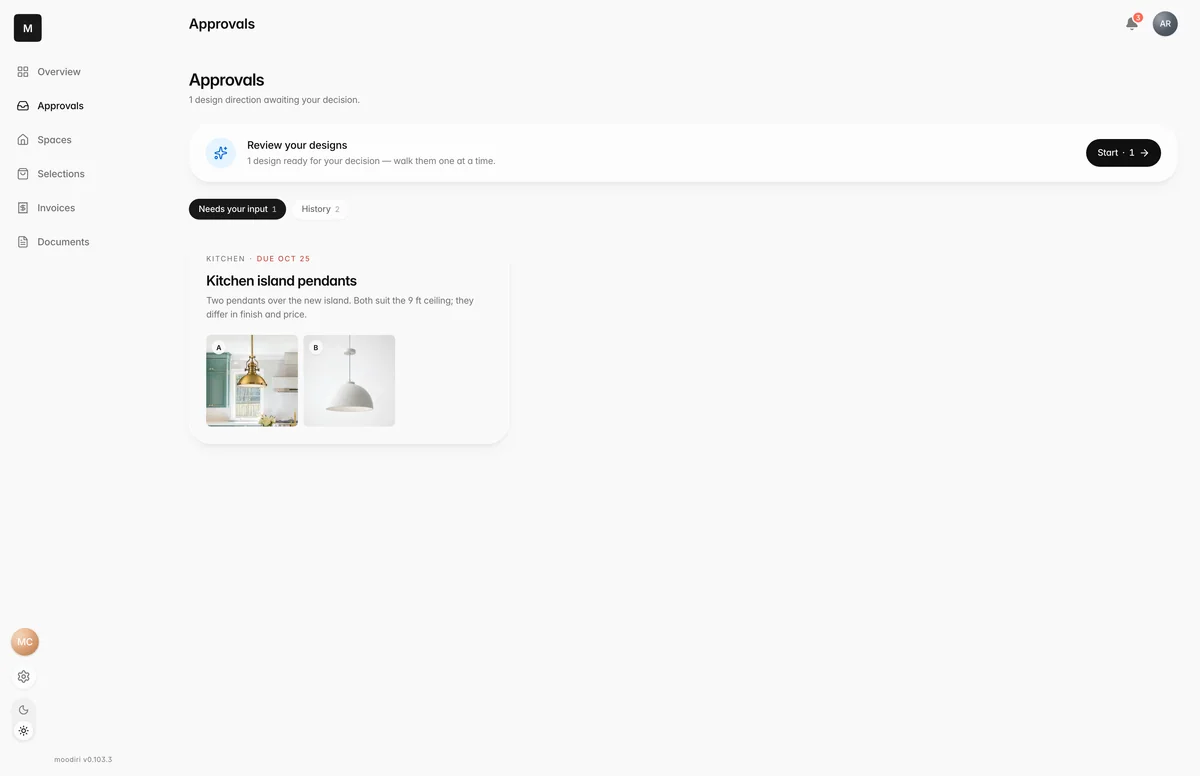
Every decision your designer needs from you, in one list: what's waiting on you now, and a history of what you've already decided.
- 1Approvals
When your designer needs a decision from you, a sofa, a tile, a paint colour, they send it as an approval request. This page keeps every request together, so you can see at a glance what's waiting on you and look back at what you agreed.
What you see here
The heading tells you how many design directions are awaiting your decision, or says you're all caught up.
- Needs your input lists the requests waiting on you. Each card shows the title, the room and any due date.
- History lists requests you've already answered or that are closed. It appears once there's something in it.
Each request carries a status:
- Awaiting you: your designer is waiting for your answer.
- Approved: you chose an option.
- Changes requested: you asked for something different and your designer will follow up.
- Closed: your designer has closed the request.
Choose a card to open it, compare the options and answer. See Approve or request changes.
If your designer hasn't shared anything yet, you see No approvals yet. Your designer will share design choices here.
Change a decision
You can change your answer while your designer still has the request open.
- After approving, open the request and choose Change my decision, then pick again.
- After requesting changes, choose the small x next to Changes requested to undo it.
- If the due date has passed, you see Due date has passed first. Changing your answer late can delay the project, so check with your designer before choosing Continue anyway.
Once your designer closes a request, the options are locked. To reopen it, write a note saying why and choose Request reopen. Your designer reviews the note and follows up. If you don't see Change my decision, message your designer and they can send a new request.
Guided review
- 1Review your designs
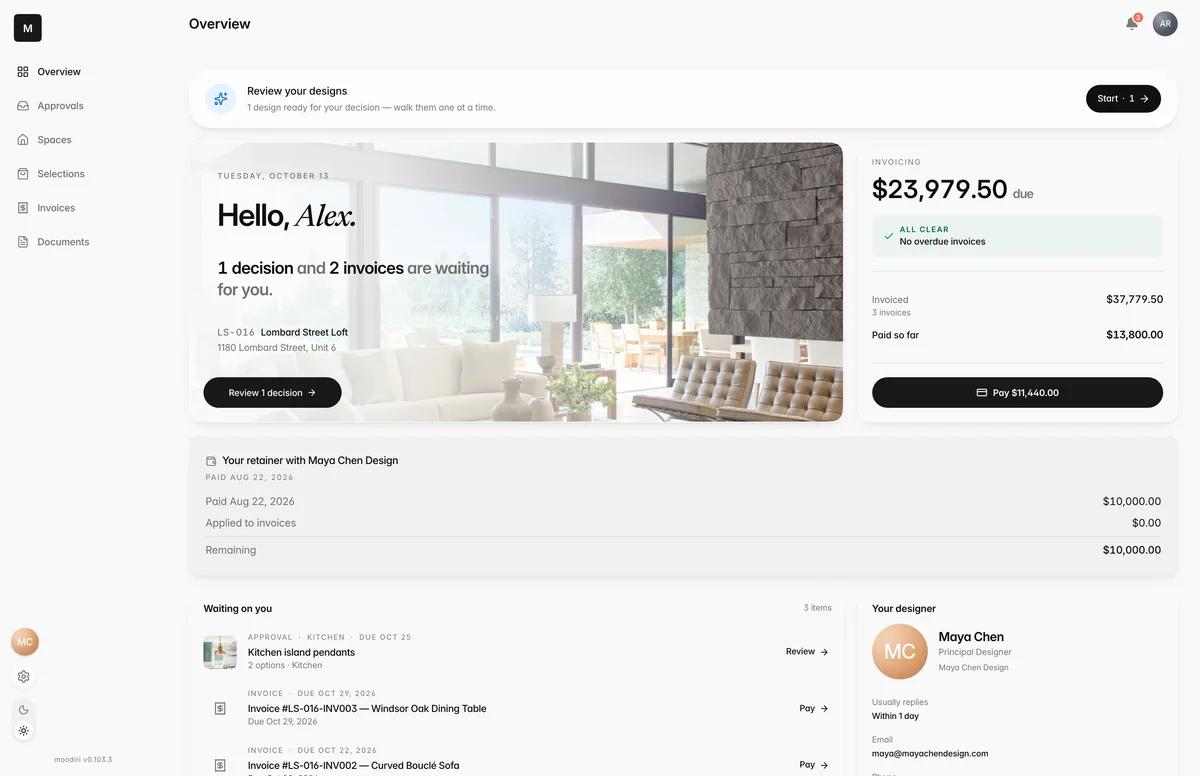
When decisions are waiting, a Review your designs card appears at the top of the Overview and of Needs your input. It shows how many designs are ready for your decision. Choose Start to go through them one at a time, without returning to the list between each.
Review your designs one at a time
Guided review shows one request at a time, with its options side by side as A, B and C and your progress, such as 2 of 3.
- Tap an option, add a note if you like, and choose Approve option A (or whichever you picked).
- To ask for something different, write what you'd like changed in Add a note for your designer and choose Request changes. The note is optional when you approve and required when you request changes.
- Not ready? Choose Skip for now. Back returns to the previous request.
After each answer you see Approved · next in 1… or Sent back · next in 1…, with Stay if you want to pause and, where it's still possible, Undo. At the end you see a short summary, such as 3 approved · 1 sent back, and Back to your portal.
Limits
- Approve stays unavailable until you've picked an option. A request with one option is picked for you.
- Request changes needs a note saying what you'd like changed.
- Asking to reopen a closed request needs a note.
- Review your designs only appears when at least one decision is waiting on you.
Questions
Where did an approval go after I approved it?
It moves to the History tab. When the choice is for one of your rooms, it also shows in Selections.
Can I change my mind?
Usually, yes. Open the approval and choose Change my decision. Once your designer has closed the request, you can ask them to reopen it instead.
What does the due date mean?
It's the date your designer needs your answer by, so orders and work can stay on schedule. Overdue requests are marked so you can spot them.