Approve or request changes
Look through the options your designer sent, then approve the one you want or tell them what you'd like changed. Your answer is saved with the project.
Why use it
Decisions made in emails and phone calls are easy to lose, and months later it's hard to remember who agreed to which fabric. Answering in the portal keeps the options, the prices and your answer together, with the date, so you and your designer always agree on what was chosen.
When to use it
- Your designer offers alternatives. Two lamps, three tiles: pick the one you want.
- A single piece needs your yes. Approve it, or ask for changes.
- Something isn't quite right. Request changes and say what you'd prefer.
For general questions that aren't about a specific choice, use chat.
Before you start
- You're signed in to your portal. See Sign in to your portal.
- Open Approvals and choose a request under Needs your input, or follow the link in your designer's email.
Steps
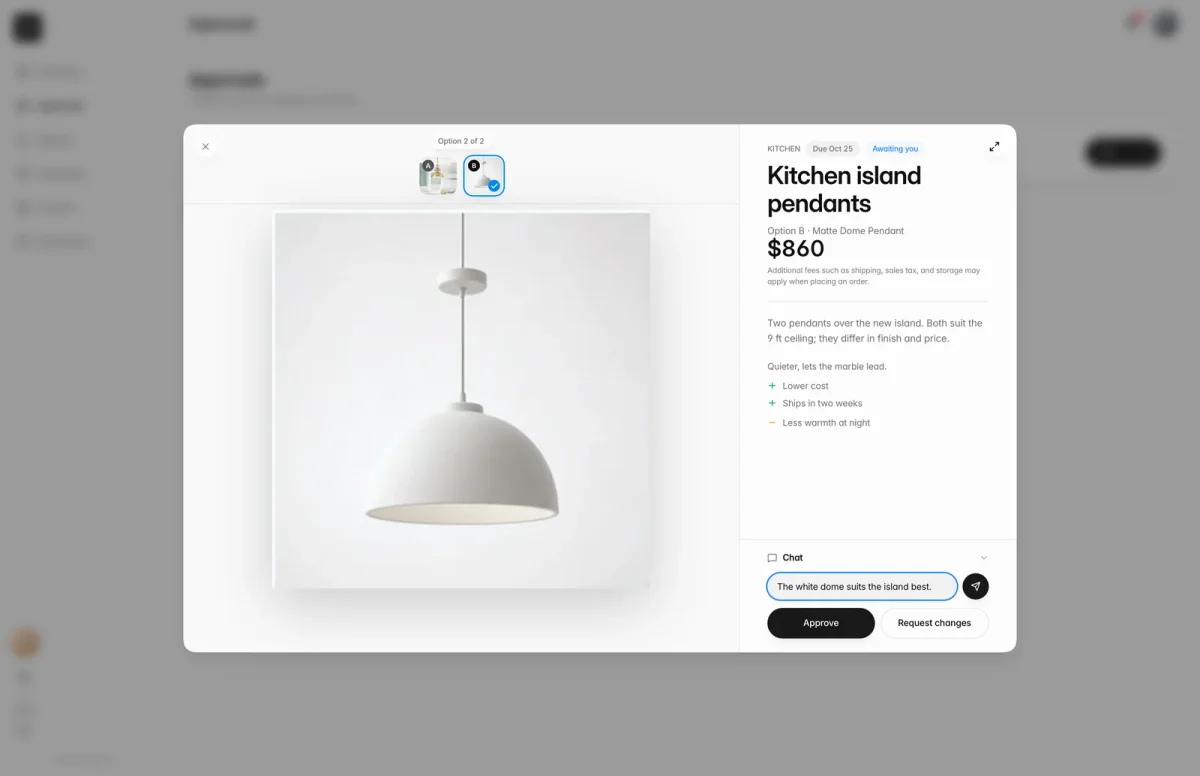
- 1Approve
- In Approvals, under Needs your input, choose the request, such as Kitchen island pendants.
- Tap Option A or Option B to look at each one. The one you tap is picked, here the Matte Dome Pendant at $860.
- Optionally type a note in the Reply to box under Chat, such as The white dome suits the island best.
- Choose Approve to confirm the option you picked. It stays unavailable until an option is picked.
- Or describe what you'd change in the message box and choose Request changes. A note is required.
What's in a request
At the top you see the room, any due date and the status. Below are the title, your designer's explanation, and the options. For each option you can see its photos, the price, and details such as notes, pros, cons, a link to the product, and attached files.
Prices are for the item itself. Shipping, sales tax and storage may be added when your designer places the order.
Choose the full-screen button at the top of the request to see the photos larger.
Talk it through first
The conversation under the options is only for this request. Type in the box (Reply to your designer) and send with the arrow, or press Enter. Your designer's replies appear in the same place.
To request changes, type your note and then choose Request changes. Pressing Enter sends the text as a normal message instead.
What happens next
- After approving, you see Option B approved and that your designer has been notified. The request moves to History. When the choice is for one of your rooms, it also shows in Selections.
- After requesting changes, you see Changes requested and your designer follows up.
- If more decisions are waiting, a Next button (for example 2 left) takes you to the next one.
- If you need to change your answer later, see Change a decision.
Limits
- Approve stays unavailable until you pick an option. With only one option, it's picked for you.
- Request changes needs a note describing what you'd like changed.
- Notes can be up to 5,000 characters.
- Once your designer closes a request, you can't change your answer; ask them to reopen it with Request reopen.
Troubleshooting
- Add a note above describing what you'd like changed before requesting changes. Type your note in the message box, then choose Request changes again.
- Due date has passed. You're changing an answer after the due date. Check with your designer, then choose Continue anyway or Cancel.
Questions
I approved the wrong option. Can I fix it?
Yes, while your designer still has the request open. Open it and choose Change my decision, then pick again.
I have a question before I decide. Where do I ask?
Type it in the message box and send it with the arrow. It goes into the request's conversation, so your designer sees exactly which choice you mean.
Do I have to pay when I approve?
No. Approving records your choice. Your designer sends any invoice separately, and the price shown may not include shipping, sales tax or storage.