Client portal (designer side)
Brand your client portal
Add your logo and brand colour so the client portal, invoices and invites look like your firm, not like software.
Why use it
Clients judge a firm by every touchpoint. A portal with your logo and colour feels like part of your service, and makes your invites and invoices instantly recognisable in a crowded inbox.
When to use it
- Before your first invite. Set your logo and colour so the first thing a client sees is on brand.
- After a rebrand. Update both in one place; the portal and invoices follow.
Before you start
- You need the Firm settings permission. The owner always has it.
- Have your logo ready as a JPEG, PNG or WebP file, ideally square.
- Open Settings and choose Branding.
Steps
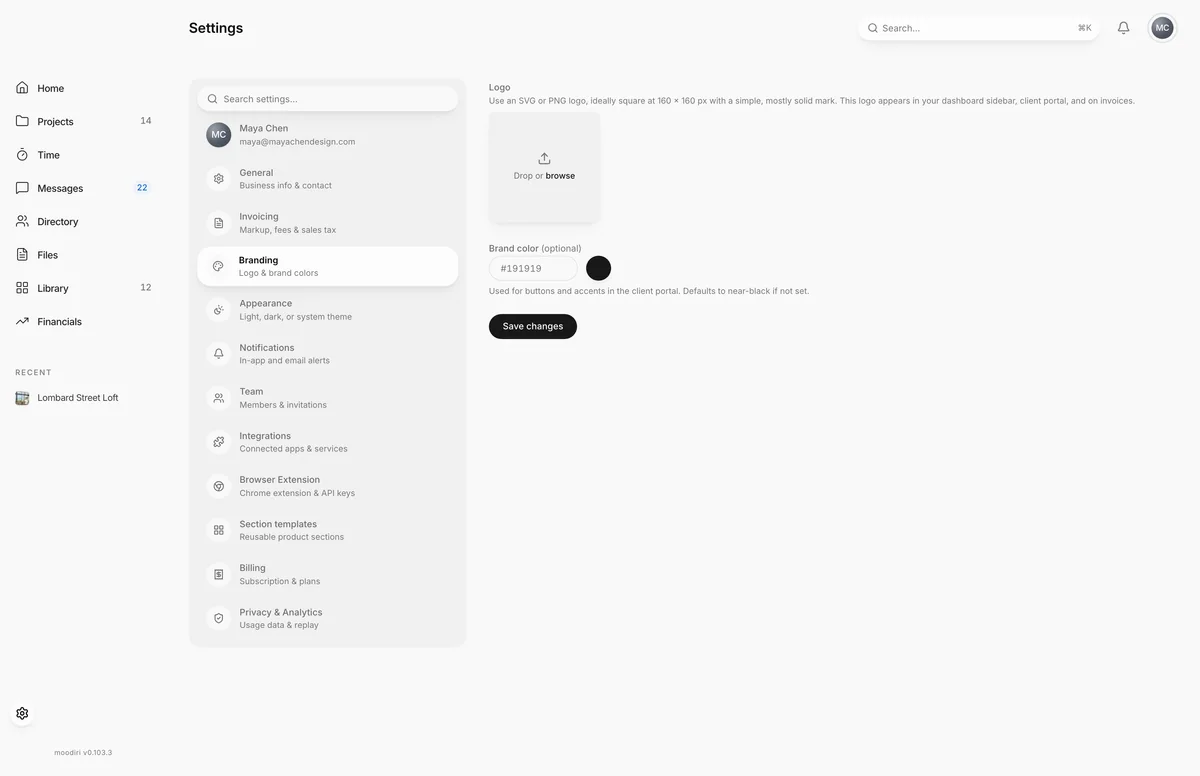
- Open Settings and choose Branding. Without the Firm settings permission the tab is read only.
- Under Logo, upload a JPEG, PNG or WebP up to 5 MB. A square 160 × 160 px mark works best.
- Type a hex colour under Brand color, such as #2F4A3A. The swatch beside it updates to match.
- Choose the swatch to pick a colour instead of typing one.
- Choose Save changes. It stays unavailable while the colour is not a valid hex value.
What happens next
- You see Branding saved.
- Your logo shows in the sidebar, the client portal and on invoices.
- The brand colour is used for buttons and accents in the client portal, and in portal invite emails.
Limits
Limits
- Logo: JPEG, PNG or WebP, up to 5 MB. Ideally square at 160 × 160 px with a simple, mostly solid mark.
- Brand color must be a hex value, such as #FF5500. It is optional and defaults to near-black.
Troubleshooting
- Enter a valid hex color (e.g. #FF5500) Type a # followed by the colour's hex code, such as #FF5500.
- Only JPEG, PNG, and WebP images are allowed. Save the logo in one of those formats and upload it again.
- Branding is read-only. Ask the owner, or an admin with Firm settings access, to make the change.
Questions
Where does my logo appear?
In your dashboard sidebar, the client portal, and on invoices.
What if I don't set a brand colour?
The portal uses near-black for buttons and accents.
Next
Your portal addressClient portal (designer side)Invite clients and manage portal accessClient portal (designer side)BrandingSettings
Was this page helpful?
Thanks, noted.