Messages workspace
One inbox for every client conversation and team channel, grouped by the project, space, product or approval each message is about.
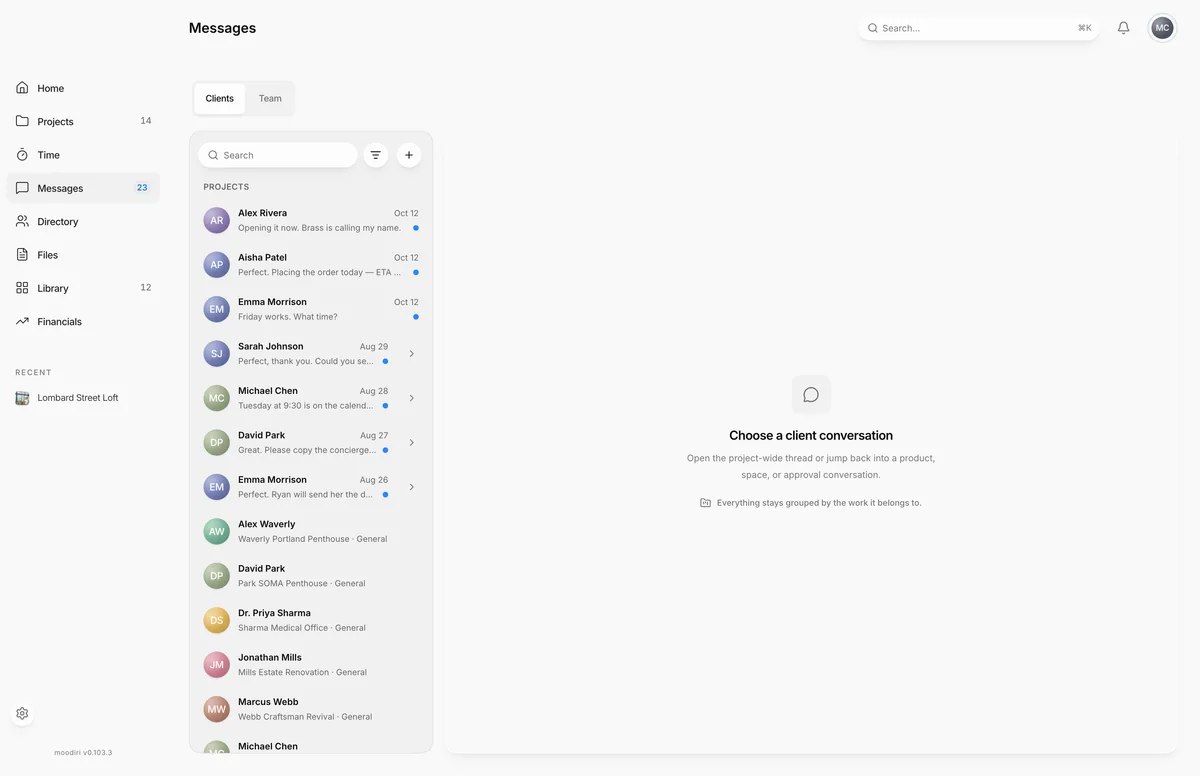
- 1Clients
- 2Team
Client messages usually end up scattered across email, texts and phone notes, with no way to tell which sofa or invoice a reply was about. Messages keeps every conversation in Moodiri, attached to the work it belongs to, and puts them all in one list so nothing waits unanswered. Open it from Messages in the sidebar; the sidebar shows how many conversations are unread.
What you see here
On the left, the list of conversations, with two tabs at the top:
- Clients: conversations with your clients, grouped by project.
- Team: firm-wide and project channels, and direct messages with teammates.
On the right, the conversation you chose, with its messages and a box to reply. On a phone, the list and the conversation take turns; choose Conversations to go back.
Client conversations (project, space, product and approval threads)
Client conversations are grouped by project. A project's main conversation with its client is labeled General, and conversations about a specific space, product or approval sit under it as their own threads. For example, Lombard Street Loft can have a General conversation with Alex Rivera and a separate thread about the kitchen island pendants. Expand a project to see its threads.
Keeping threads separate means a reply about one product never gets lost in a conversation about another. Your client replies from their portal. See Chat with your designer.
Team channels: firm-wide, project channels, direct messages
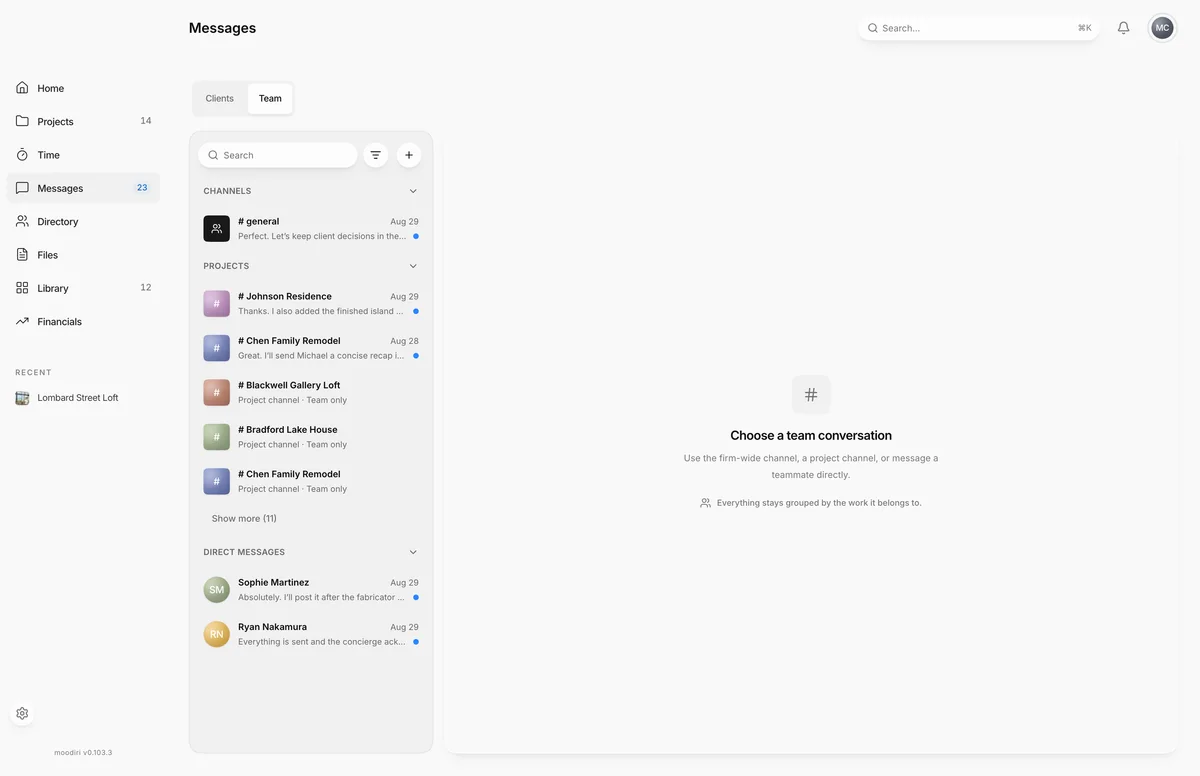
- 1Team
Choose Team to see three groups:
- Channels: # general, the firm-wide channel for everyone on your team.
- Projects: a team-only channel for each project, named after it, for example # Lombard Street Loft. Choose Open project to jump to the project.
- Direct messages: private conversations with each teammate.
Nothing in Team is ever shown to clients. Each group shows the first few conversations; choose Show more to see the rest.
Start a message
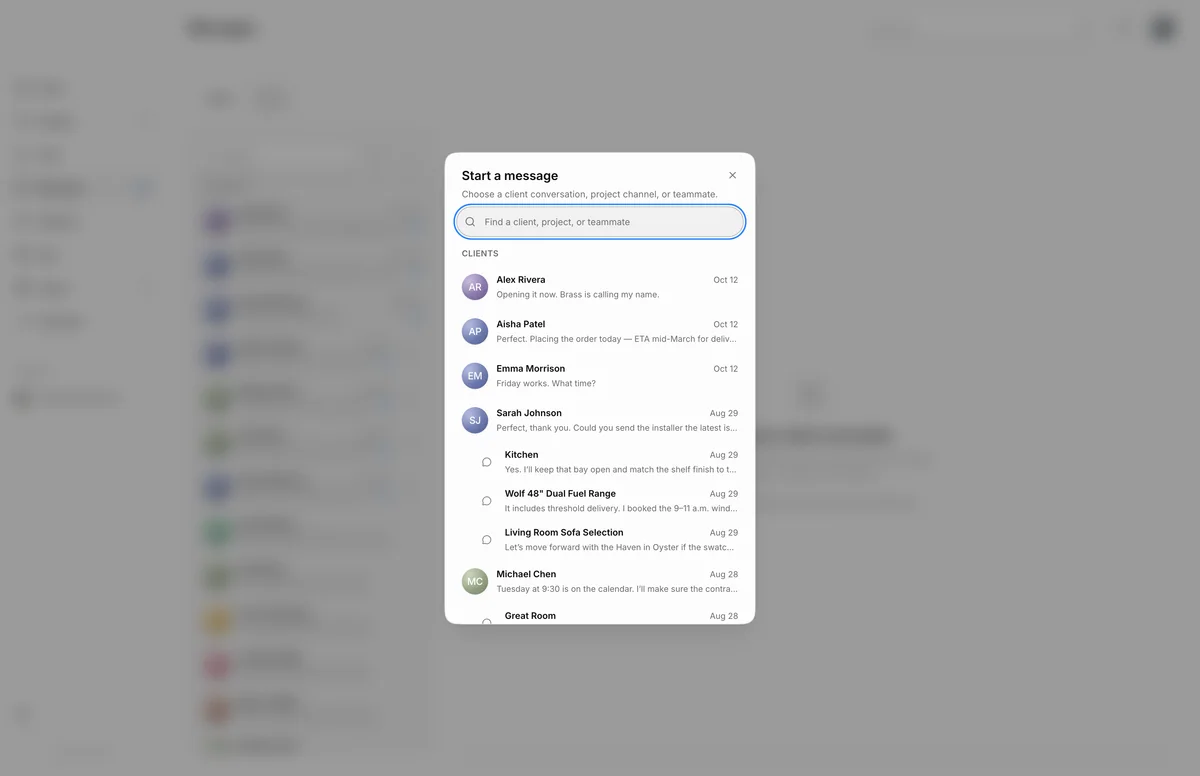
- 1Find a client, project, or teammate
Choose Start a message (the + button) to open a picker. Type in Find a client, project, or teammate, then choose a client conversation, a channel or a teammate under Clients, Channels or Direct messages.
Unread filter
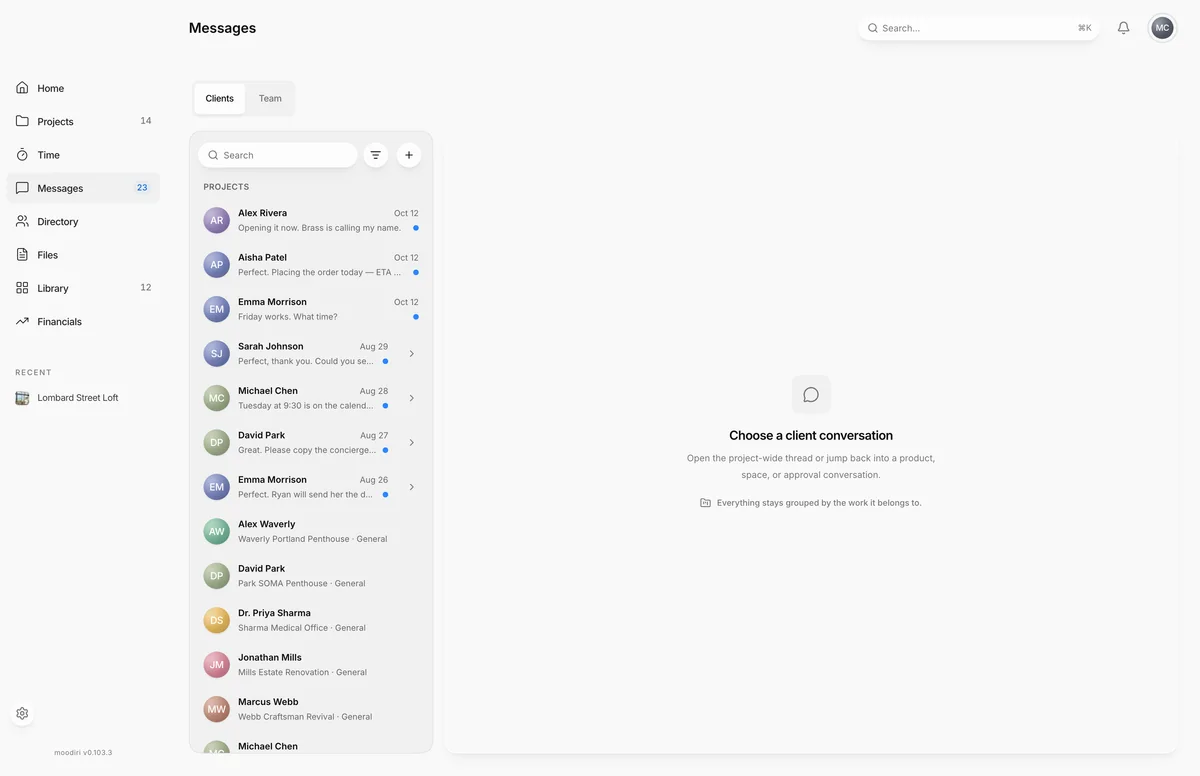
- 1Unread
Choose Unread next to search to show only conversations with messages you haven't read. Choose it again to show all conversations. Use Search to find a conversation by client, project or teammate name.
Limits
- Conversations with former teammates are read only.
- Team channels and direct messages are never visible to clients.
Questions
Can my client see team channels or direct messages?
No. Everything under Team is team only. Clients see only their own conversations with you, in their portal.
Is this a different chat from the one on the project?
No. It's the same conversations. Messages collects them all in one place; Project chat shows one project's threads.
Why can't I write to a former teammate?
Direct messages with someone who has left the firm stay readable, marked Former teammate · Read only, but you can't send new ones.