Send an invoice
Issue a draft invoice and email it to your client with a link to pay online. Check the recipient, Reply-To and teammate copies first.
Why use it
A PDF attached to an email leaves you guessing: did they open it, will they pay by check, when? Sending from Moodiri dates the invoice, emails your client a link to pay online, and tracks it from Sent to Viewed to Paid on the invoice's timeline.
When to use it
- The draft is final. Prices, quantities and the due date are right.
- You want to get paid online. Your client pays by card, bank transfer or Apple Pay from the link.
- The work was already paid for. If you recorded a payment on a draft first, send the paid copy instead. See Send a receipt or the paid invoice.
Before you start
- Only the owner and admins can send invoices.
- Stripe must be connected. See Before you start: connect Stripe.
- The client needs an email address. Without one, Send invoice shows Add an email to this client first. Add it from the client's page.
- Open Invoices and choose the draft, or send straight from the builder with Send invoice.
Steps
- 1Send invoice
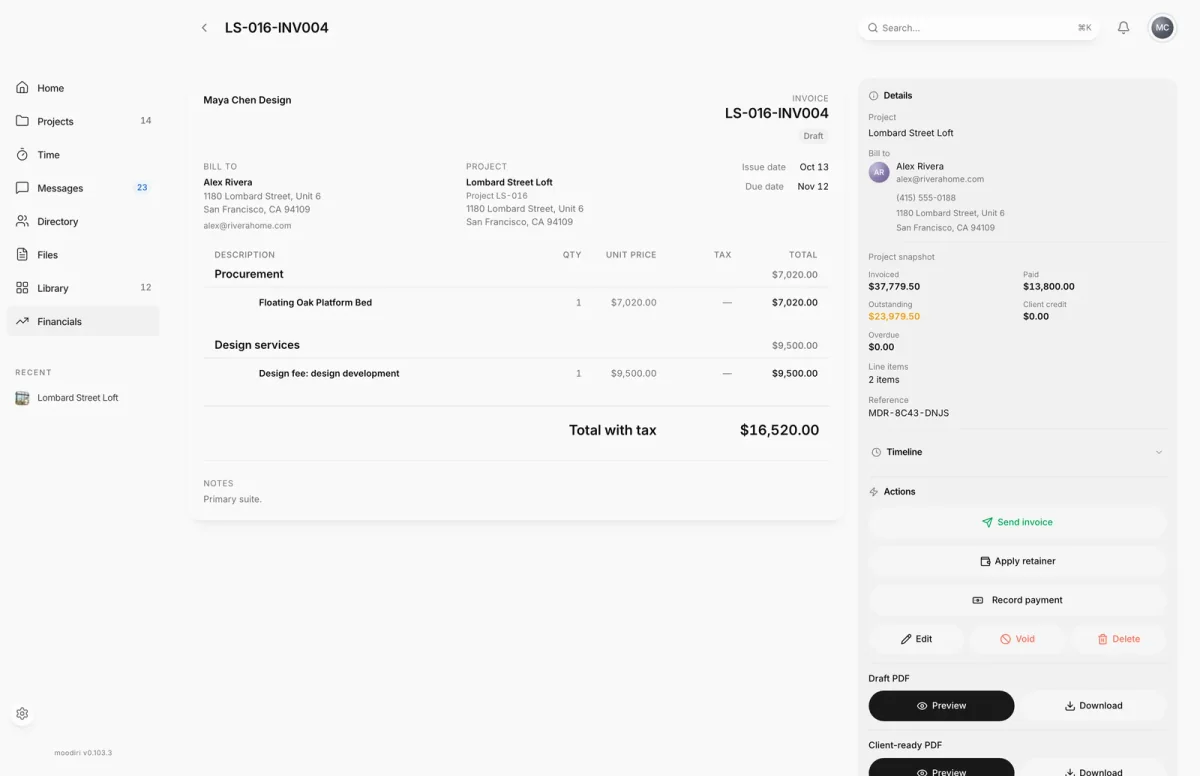
- Open the draft invoice, here LS-016-INV004, and check the lines, the total and the due date.
- In Actions, choose Send invoice.
- Check who the invoice goes to, here Alex Rivera, with the Invoice total and the Amount due.
- Check the Reply-To contact. Your client's replies go to this person.
- Under Invoice copies, keep Use configured default or choose who on your team gets a copy.
- Choose Send invoice to issue the invoice and email it to your client.
Reply-to and teammate copies
The confirmation shows a Reply-To contact: the teammate who represents your firm to this client. When your client replies to the invoice email, the reply goes to them. Set who that is in Client identity.
Invoice copies decides which teammates get a copy of this email:
- Use configured default: your firm's normal rule.
- Do not send copies.
- CC every invoice-authorized teammate or BCC every invoice-authorized teammate.
- Choose teammates: tick people and pick CC or BCC for each.
The choice applies to this send only. Copies for this send shows the final list before you confirm.
Client payment links
Once an invoice is sent and unpaid, the Actions panel shows Client payment link:
- Copy link copies the exact payment link so you can send it by text or your own email.
- Open payment page opens the page your client sees, in a new tab.
Opening the link while signed in to Moodiri as a designer does not mark the invoice as viewed. Your client's visits are tracked normally.
Reminders and resending
To nudge a client or send the email again, use Resend, or Send reminder once the invoice is overdue. See Reminders and resending.
What happens next
- Moodiri confirms with Invoice sent to your client's email, and the status moves from Draft to Sent.
- The invoice is dated when sent, and Sent appears in its Timeline.
- When your client opens it, the status moves to Viewed. When the balance is paid, it moves to Paid and you are notified.
- If the due date passes first, the invoice turns Overdue and your team is notified. Your client gets no automatic reminder.
- Your client sees the invoice in their portal too. See Invoices and paying.
Limits
- Only drafts can be sent. A sent invoice can't be edited, because your client already has that version. Choose Void & Duplicate to get an editable copy.
- Send invoice needs a connected Stripe account and a client email.
- The confirmation's Send invoice waits until Moodiri has checked the current recipients.
Troubleshooting
- The invoice was issued, but its email did not reach the client. Refresh and resend the current invoice. The invoice is sent but the email failed. Choose Resend.
- Invoice issued. The email is queued and will retry automatically. No action needed. Moodiri keeps trying to deliver the email.
- Choose at least one teammate for this send. You picked Choose teammates but ticked nobody. Tick someone or pick another option.
Questions
Can I edit an invoice after sending it?
No. Sent invoices are locked so the bill always matches what your client received. If it has no payments or credit, choose Void & Duplicate to cancel it and fix the copy. See Void, void & duplicate, delete a draft.
My client says the email never arrived. What now?
Choose Resend on the invoice, or copy the payment link and send it yourself. See Reminders and resending.