Add project products to an invoice
Pick products from the project's rooms onto an invoice, grouped by room, vendor or category, with their client prices and charges.
Why use it
Typing products onto an invoice by hand invites mistakes: an old price, a forgotten shipping charge, a sofa billed twice. Adding them from the project uses the client prices you already set, includes each product's charges, and keeps track of what has been invoiced so nothing is missed or doubled.
When to use it
- Billing a room's furniture. Group by Room and tick the whole room.
- Billing by order. Group by Vendor to invoice everything from one supplier together.
- Deposits on large orders. Add the products, then bill a percentage with Billing %.
Before you start
- The project needs products in its spaces. See Add products.
- Client prices come from each product's pricing. See Costs and client pricing.
- Only the owner and admins can create and edit invoices.
- Open the project's invoice: on Invoices, choose Create invoice, pick the project and choose Purchasing or Mixed.
Steps
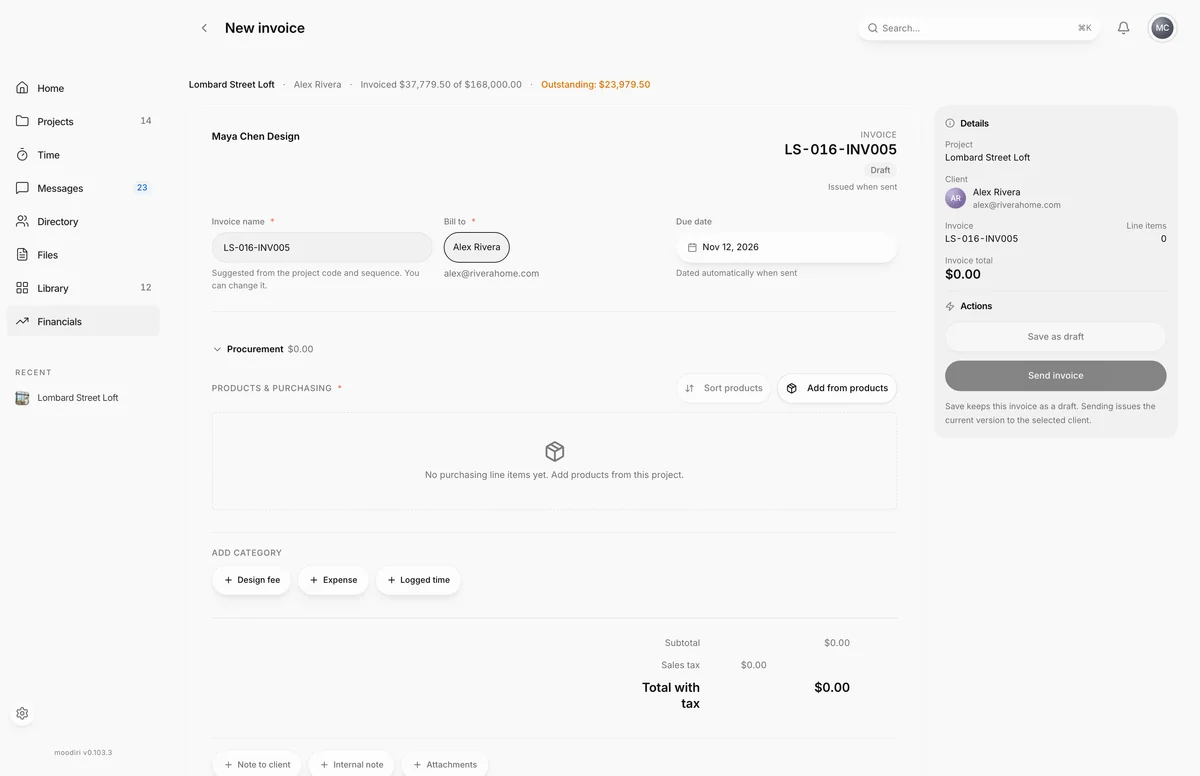
- In the invoice builder, under Procurement, choose Add from products.
- Group the list by Room, Vendor or Category. Each group shows its products and what they add.
- Search for a product or a group, for example Dining. Matching groups open so you can see what they hold.
- Tick the products you want, such as Windsor Oak Dining Table, or tick a whole group.
- For a product family, choose Review included products to see the pieces billed with it.
- Check the footer, here Adds $11,011.00 before invoice tax, then choose Add 1 selection to put it on the invoice.
How products are listed
- Grouping. Choose Room, Vendor or Category. Products without one appear under No vendor or Uncategorized.
- Fully invoiced items. Products already billed in full are shown separately and can't be picked again.
- Product families. Selecting a family includes every product in it. Sub-products come with their parent and can't be added on their own.
- Correction needed. A product that needs a correction is marked so you can fix it before billing.
Trade discounts
If a vendor trade discount on a product needs review, the line shows Trade discount needs review. Choose Confirm on the line. Moodiri won't save the invoice until every flagged line is confirmed.
What happens next
- The products appear under Procurement with their quantity, unit price and total.
- To reorder or group them on the invoice, choose Sort products. See Sort and group products.
- If a product is already on another invoice, saving asks Re-bill product already on another invoice? Choose Re-bill and save only if you mean to bill it again.
Limits
- Fully invoiced products can't be selected again. To bill one twice on purpose, confirm Re-bill and save when saving.
- Sub-products can't be selected on their own because they bill with their parent. Select the family instead.
- Add stays unavailable while amounts are refreshing, or after amounts fail to load. Retry before adding.
Troubleshooting
- Products could not be loaded. Try again. Choose Try again.
- Invoice amount unavailable. Retry before selecting this product. Choose Retry amount on that product.
Questions
Why can't I select a product?
It is already fully invoiced, or it is a sub-product that is billed together with its parent. Fully invoiced products appear under Fully invoiced items.
Do shipping and other charges come with the product?
Yes. A product's included charges are added with it. Choose the product line on the invoice to see Included charges.
Can I bill only part of a product now?
Yes, with partial billing. Add the product, then set its Billing %. See Partial billing.