Finding your way around
The sidebar takes you to each area, search finds any project, client, product, vendor or invoice, and the user menu holds settings, theme and log out.
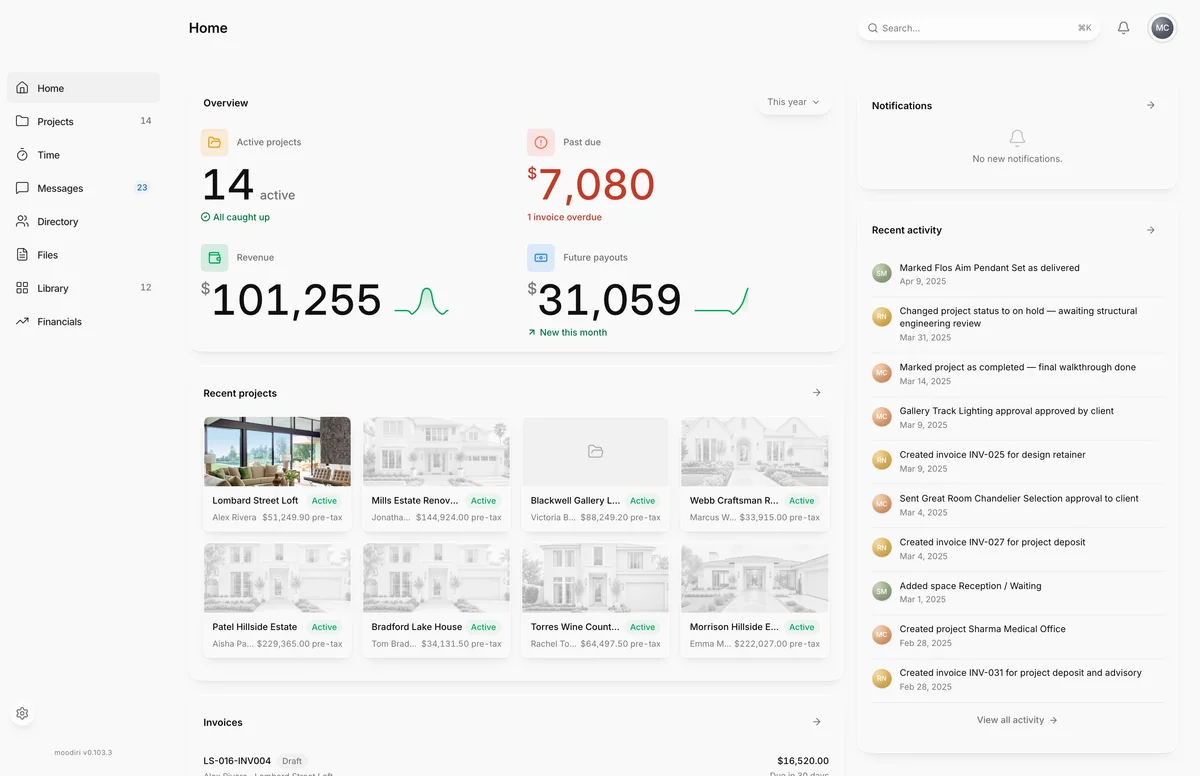
- 1User menu
- 2Settings
Every screen in Moodiri has the same frame: the sidebar on the left for moving between areas, and a header across the top with the page title, search, notifications and your user menu. Once you know these four places, you can reach anything in a couple of clicks.
The sidebar (Home, Projects, Time, Messages, Directory, Files, Library, Financials, Settings)
- Home: your dashboard of numbers, recent projects, invoices, files and activity. See Home dashboard.
- Projects: every project, with a count of active ones. See Projects list.
- Time: timers, timesheets and time reports. See Time overview and access levels.
- Messages: every client conversation and team channel, with a count of unread conversations. See Messages workspace.
- Directory: clients, vendors, companies and people. See Directory overview.
- Files: every document across your projects. See Files.
- Library: products and families you reuse. See Library.
- Financials: the Financial Hub, with invoices, collections, client funds and sales tax in its tabs. It shows a count when invoices are overdue. See Financial Hub.
- Settings: at the bottom of the sidebar. See Profile and the other Settings pages.
Choose Collapse sidebar at the bottom to shrink it to icons. A collapsed sidebar opens while you rest the pointer on it and closes when you move away. On a phone, choose Open navigation at the top left to show it.
Time appears when time tracking is on for your firm. If an area described here is missing from your sidebar, see Feature availability.
Recent and pinned projects in the sidebar
Under the main links, the sidebar lists projects for one-click access:
- Recent shows the last three projects you opened.
- Pinned keeps the projects you choose, up to eight. Hover over a project and choose the pin (Pin followed by the project name). Choose it again to unpin.
Pins are saved for you on this browser, so each teammate keeps their own.
Global search (Cmd/Ctrl+K)
Use the Search... box in the header, or press Cmd+K on a Mac or Ctrl+K on Windows to open search from anywhere. On a phone, choose Search in the header.
Search finds Projects, Clients, Products, Vendors and Invoices as you type, showing up to three of each. Choose View all under a group to see the rest. Before you type, search lists pages you opened recently under Recent. The header search also matches Settings pages, so typing markup or logo takes you to the right one.
Links inside messages
When someone references a project, space, product, approval or invoice in a message, it shows as a link chip. Choose it to open that item, wherever it lives in the project. If the item was deleted or belongs to another firm, the link shows a not-found page instead. To add a reference yourself, see Project chat.
Light, dark and system theme
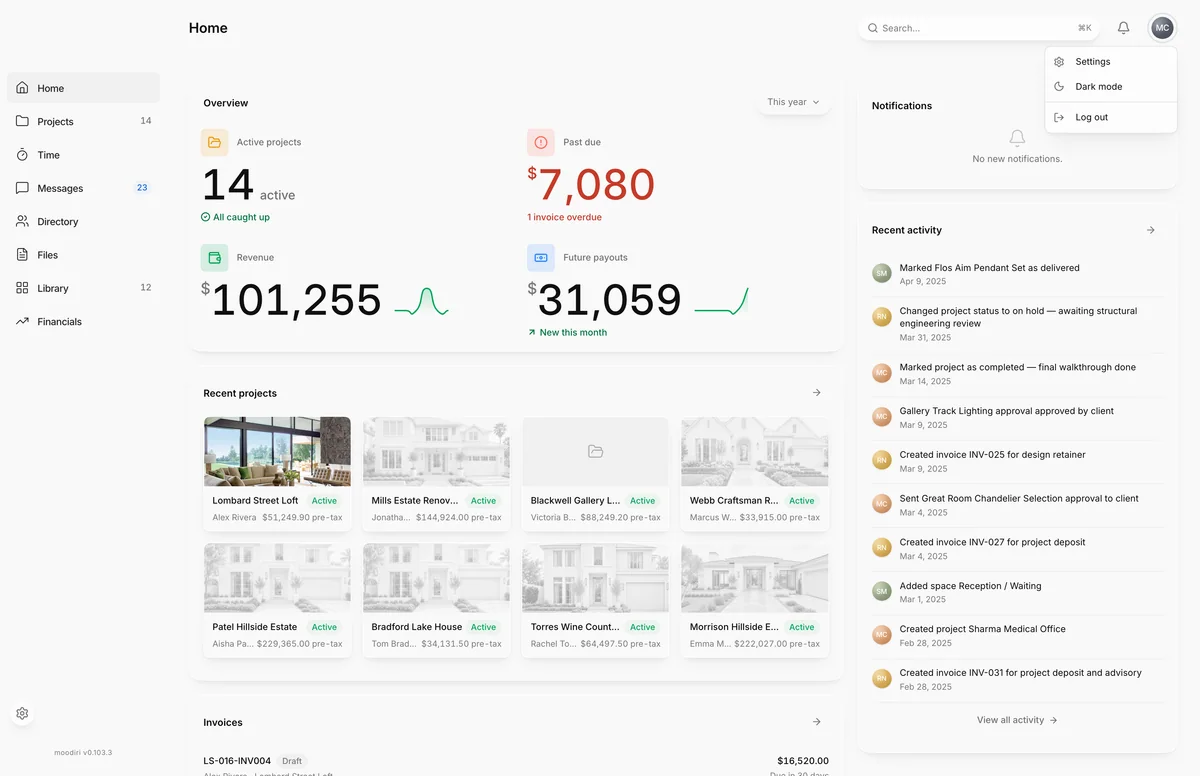
- 1Dark mode
Open the user menu (your photo at the top right) and choose Dark mode or Light mode to switch. To follow your device's setting instead, choose System in Appearance.
The user menu also has Settings and Log out.
Notifications
The bell in the header shows your latest notifications and how many are unread. See Notifications.
Questions
How do I keep a project one click away?
Pin it. Hover over the project in the sidebar's Recent list and choose the pin. It moves to Pinned and stays there until you unpin it.
The sidebar is just icons. How do I see the labels?
Rest the pointer on it and it widens to show every label. To keep it open, choose Expand sidebar at the bottom.