Project chat
Talk with your client inside the project, in threads for each space, product and approval, and leave internal notes only your team can see.
Project chat is the conversation with your client that lives on the project itself. Every thread is tied to what it's about, the whole project, one room, one product or one approval, so the question about the rug stays next to the rug. Your team can add internal notes right in the thread, without switching tools.
Open project chat
Open the project. The Chat card on the right of the project overview shows the latest messages; choose Open full chat to open project chat, or Pop out chat to keep it in a floating window while you work. The same conversations also appear in the Messages workspace.
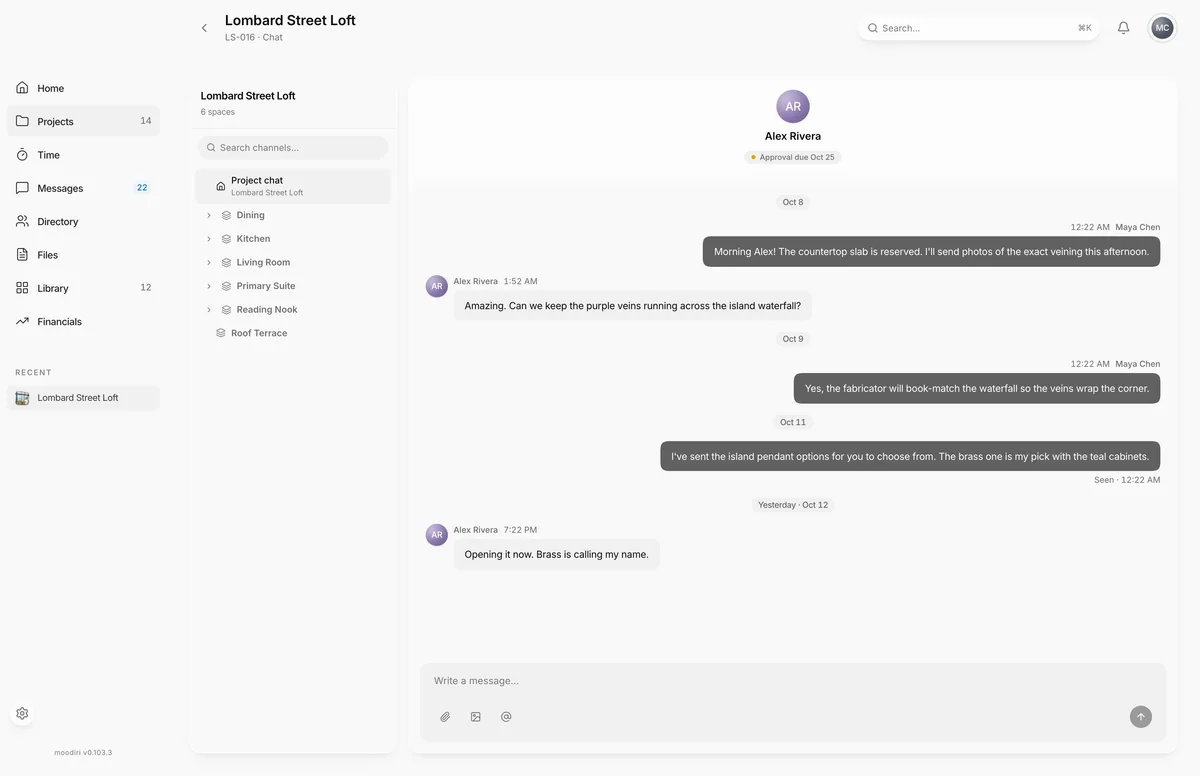
Channel navigation by space, product and approval
The channel list on the left starts with Project chat, the project's General conversation with your client. Under it, each space has its own thread, and inside each space, its products and approvals have theirs. Approvals that don't belong to a space sit under General. A dot marks threads with unread messages.
Type in Search channels… to jump to a space, product or approval by name. The header above the messages says what the thread is about, for example About Kitchen.
Internal notes (team only)
Above the message box, choose Internal note instead of Reply to your client. The box turns amber and reads Only your team sees this. Write your note and choose Post internal note. Use notes for things like pricing questions or a reminder to call the vendor, right where the client conversation happens.
Switch back to Reply to before your next client message. The box color tells you which one you're in.
Attachments, images and @mentions
- 1Attach file
- 2Insert image
- 3Mention someone
Use the buttons under the message box:
- Attach file: add PDFs, drawings, documents and other files.
- Insert image: add photos.
- Mention someone: or type @, to mention a teammate. They get a notification.
You can also drag files onto the box (it shows Drop to attach) or paste an image.
To reference something in the project, type / and pick from Projects, Spaces, Products, Approvals or Invoices. The reference shows as a link that opens the item. Press Enter to send, or Shift+Enter for a new line.
Replies and reactions
Hover over a message to react or reply. Choose Add reaction to pick from eight reactions, or Reply to quote the message above your answer. Choose Cancel reply to drop the quote.
Read receipts
Your messages show Delivered once sent. When your client has read up to your latest message, it shows Seen with the time, so you know they've caught up without asking.
Limits
- Images up to 10 MB, other files up to 20 MB, and up to 10 attachments per message.
- A message can hold up to 5,000 characters and reference up to 20 people or items.
Troubleshooting
- You can attach up to 10 files per message.: send the rest in a second message.
- A message can reference at most 20 people or items. Remove one to add another.: split the message, or remove a mention or reference.
- Failed to send: the message didn't go through. Check your connection and send it again.
Questions
Will my client ever see an internal note?
No. Internal notes are shown only to your team, in a highlighted style, inside the same thread as your client messages.
How do I point my client at a specific product?
Open the product's thread in the channel list and write there, or type / in any message and pick the product. It shows as a link your client can open.
Can my client mention people?
No. Mentions are for your team. Clients can still attach files and reference items they can see.