Create an approval request
Put up to three options in front of your client and get one clear answer back: the option they approve, or the changes they want.
Why use it
Client decisions usually happen over email: photos in one thread, prices in another, and a "the second one, please" buried in a reply. Weeks later, when an order is questioned, nobody can find who agreed to what. An approval request keeps the options, the prices and your client's answer together on the project, with the date and who decided.
When to use it
- Choosing between alternatives. Two pendants, three fabrics, a tile in two finishes.
- Before you spend money. Get a recorded yes on price and finish before you order.
- A single item that needs a yes. Send one option; your client approves it or asks for changes.
For open discussion with no decision to make, use project chat instead.
Before you start
- A project with a client who has an email address. Moodiri sends the request by email.
- Open the project and choose New request (+) in its Approvals section. To start with a room already chosen, choose New request on that space's Approvals card.
Steps
- 1Save draft
- 2Send
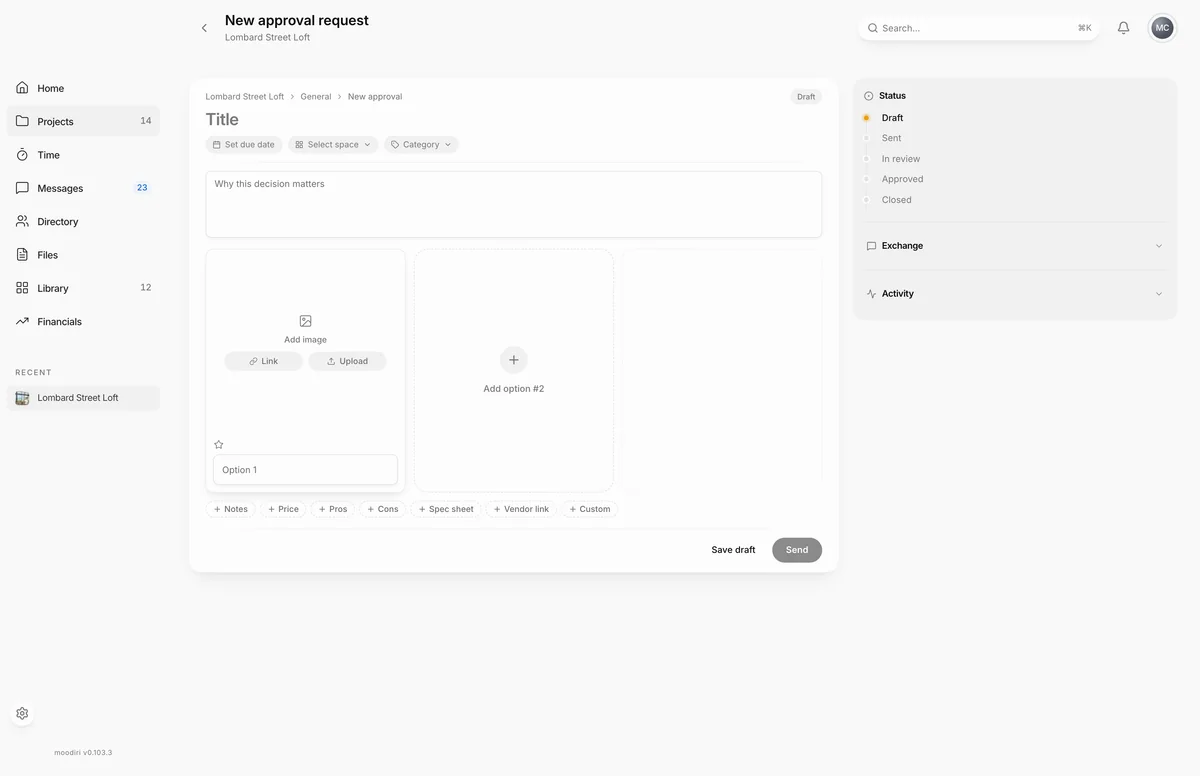
- Give the request a Title your client will recognise, like Kitchen island pendants.
- Choose Select space and pick the room, such as Kitchen. A due date and a category are optional too.
- Under Why this decision matters, say what your client is choosing and what to weigh.
- Name the first option, such as Brass Harbor Pendant, and add its image with Link or Upload.
- Name your second option, such as Matte black dome pendant. A request holds up to three options.
- Enter a Client price for each option, such as $485 and $360.
- Choose the star on an option to mark it as your Designer's pick.
- Choose Send to email your client, or Save draft to finish later.
Add options (image, price, notes, pros/cons, vendor link, spec sheet, custom fields)
Each option is a card with an image, a name and the details your client needs to choose. Add the image from a product link with Link, which fills in what it can from the page, or upload a photo with Upload. A request holds up to three options; send one when you only need a yes or no.
The chips under the options turn fields on for every option: Notes, Price, Pros, Cons, Spec sheet and Vendor link. Choose Custom to add a field of your own, such as Lead time. Mark one option as Designer's pick to show your client which one you recommend.
Save a draft or send
Save draft keeps the request private to your team. Send opens Send for approval?, which shows who it goes to, the title, the number of options and the due date. Choose Send there to email your client a link to the request in their portal.
If the request looks like a product, for example a furniture or fixture category or a linked product page, Moodiri asks first. Choose Move to product so that approving creates a real product in the space, or Keep as a general request.
Not ready to send? Choose Save draft and the request stays in Draft until you come back to it.
What happens next
- Your client gets an email with a Review and respond button that opens the request in their client portal.
- When they open it, the request shows Viewed by and their name, and its status moves from Sent to In review, so you know it has been seen.
- They pick one option and approve it, or ask for changes, with a comment. Follow-up questions go in the request's Chat, not your inbox.
- If you set a due date, it turns amber when it is a week away or less and red once it is overdue. Your client also gets a reminder email in that last week. Due dates show the same calendar day everywhere: on cards, in the portal and in emails.
- An approval is stamped with the date and who made it. If you moved the request to product mode, the approved option is added to its space as a product.
Limits
- Up to three options per request.
- Up to five pros and five cons per option.
- Option images can be up to 5 MB. Spec sheets must be PDF files.
- The due date can't be in the past.
- Send stays unavailable until the request has a title and at least one option.
- Sending needs a client email on the project.
- To save the approved option as a product, the request needs a space and a product category.
- After your client asks for changes, a general request can be resent by email. Requests made from a product section or a product cannot.
Troubleshooting
- This project's client has no email address. Add one before sending the approval. Add an email to the project's client, then send again. See Clients on a project.
- Pick a space to save as a product. Product mode needs a space. Choose one in the space pill at the top, or keep it as a general request.
Questions
Can I edit a request after sending it?
Yes, until your client responds. After that the options are locked, so the decision always matches what they saw. To nudge them, choose Resend.
My client said yes on the phone. Do they still have to click?
No. Choose Select as final under the option they chose and add a note. The record shows the decision came from you, not the client. See Decide on behalf of the client.
Can my client change their mind?
Yes. They can change their answer until you close the request, and they can ask you to reopen a closed one.