Product page
Everything about one product in one place: photos, costs and client price, quotes, order status, sharing and chat.
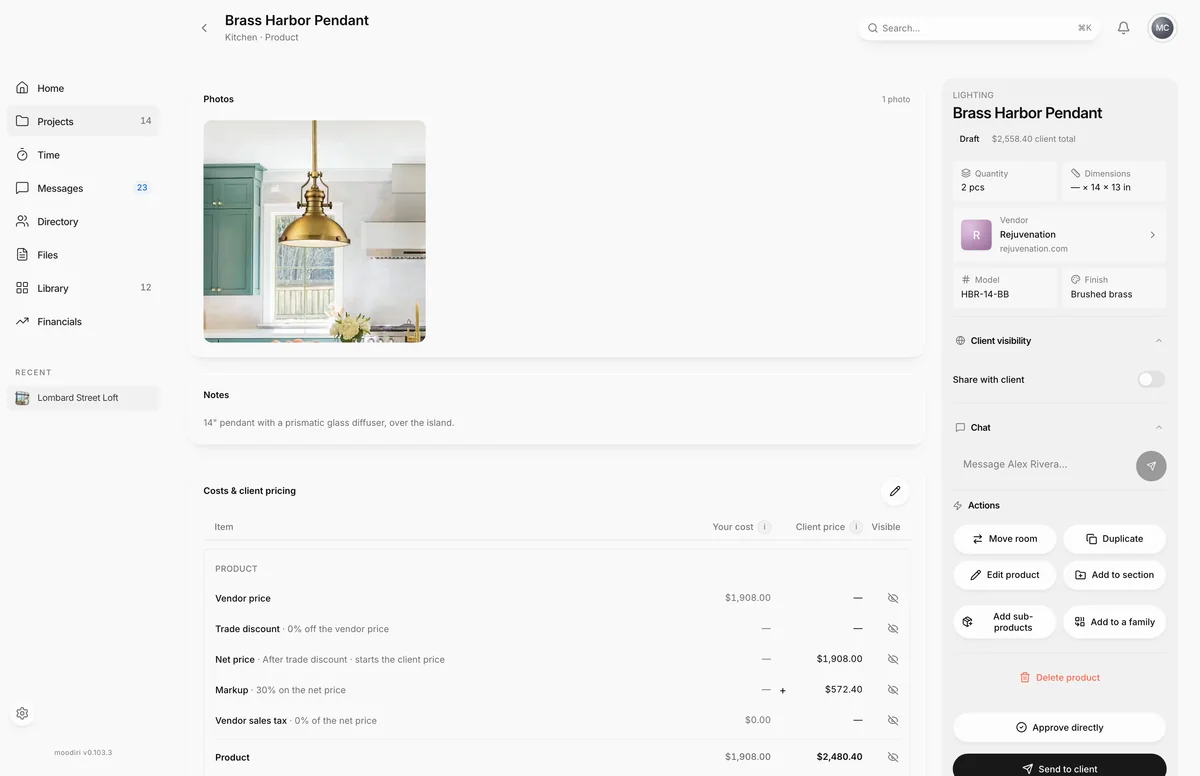
- 1Costs & client pricing
- 2Edit product
The product page is the record for a single product, for example the pendant over the island at Lombard Street Loft. It keeps what you paid, what your client pays, the paperwork and the order status together, so nobody has to dig through email to answer "what did we order and for how much?".
Open it by selecting a product card on the room's products page.
What you see here
- Photos, Notes, Costs & client pricing, Procurement & receiving and Quotes & receipts in the main column.
- A side panel with the product's name, category, status and client total, then its quantity, dimensions, vendor, model, finish and brand.
- Client visibility, Chat and Actions further down the side panel, and Linked invoices once the product is on an invoice.
- For a product in a family, a Family section with its quantity per set. See Product families.
Photos and notes
Photos shows the product's gallery and how many photos it has. Notes shows the product's description, when it has one. To change either, choose Edit product in Actions, then add or remove photos and edit Description.
Costs and client pricing
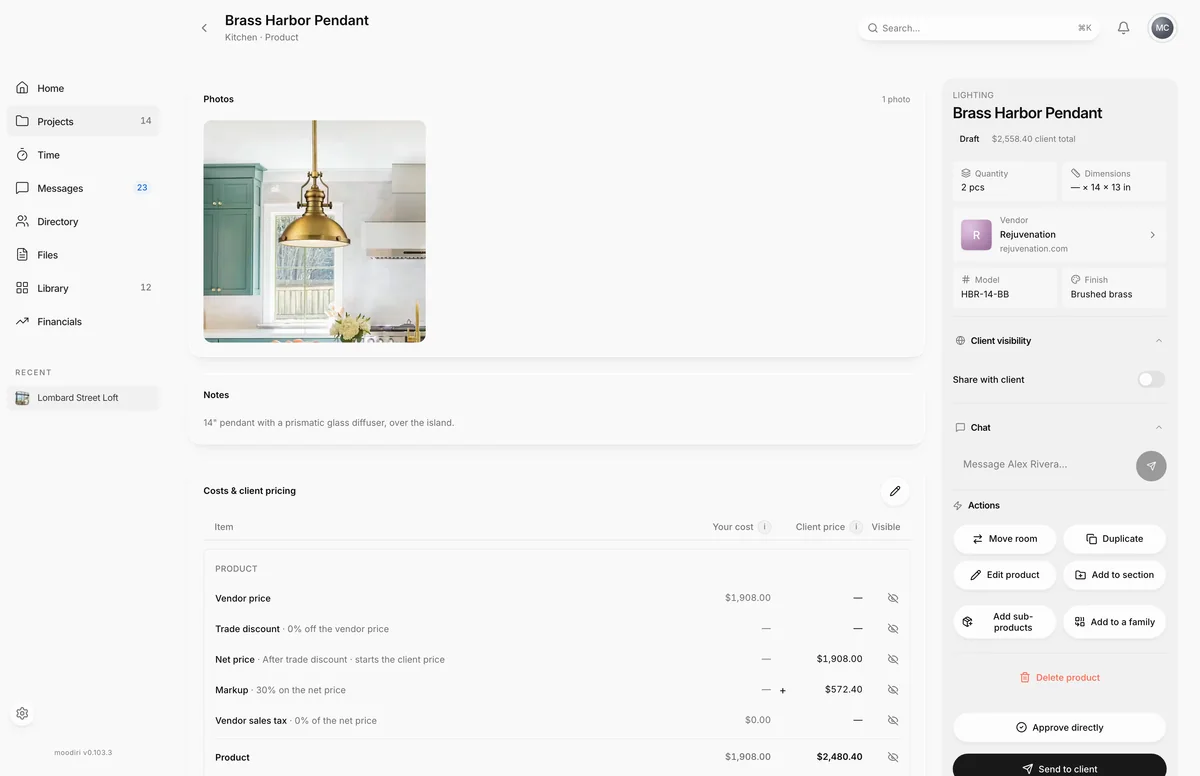
- 1Costs & client pricing
This card shows how the client price is built, line by line, with your cost beside the client amount and whether each line is visible to the client.
- Product starts from the Vendor price, takes off any Trade discount, adds your Markup, and shows vendor sales tax.
- Included in product price holds costs folded into the product line and hidden from the client. Choose Add to add one.
- Invoice shows what your client is charged, in invoice order: the Product price, then any additional charges. Choose Add charge for a separate line, or New group to bill several charges as one line.
- Sales tax comes from the project's sales-tax settings. Admins can choose Review sales tax when a product's tax needs a decision.
- Est. gross profit estimates your margin once every cost is recorded.
Choose Edit pricing (the pencil) to change the trade discount, markup and charges in place. After a price change, the card can show Price updated with the previous and new price, and offer Notify client or Don’t notify. If the product is already invoiced, it also shows the difference left to reconcile. To bill the product, see Add a product to an invoice.
Quotes and receipts
Upload the vendor's quote or receipt as a PDF in Quotes & receipts, by choosing the upload area or dropping the file on it. Each file is internal until you choose Share with client; Make internal only hides it again. Remove quote takes it off the product.
Client visibility settings
Turn on Share with client to show the product in your client's portal. Once it is shared, two more switches decide what comes with it:
- Product link: the vendor product page.
- Vendor: the vendor's name.
A sub-product follows its parent. If the parent is hidden, the sub-product is hidden too, and the page offers Open parent visibility.
Product chat
Chat is a conversation with your client about this product. Messages and replies show here, so a question about the finish stays with the product instead of in your inbox. For whole-project conversations, use project chat.
Actions
Actions holds the product's management buttons: Move room, Duplicate, Edit product, Add to section and Delete product, plus the next step: Approve directly, Move to sections and Send to client. See Move, duplicate, edit or delete a product and Send a product for approval or approve it directly.
Limits
- Photos must be JPEG, PNG or WebP, up to 5 MB each.
- Quotes must be PDF files.
- Product link and Vendor switches appear only while the product is shared. A hidden parent hides its sub-products.
- Client sales tax is set by the project's sales-tax settings, not by a sales-tax charge on the product.
Questions
Can my client see my cost or markup?
No. Your costs, markup and internal notes are never shown in the client portal.
Why don't I see Procurement & receiving?
It appears once the product is a final selection and has order details, such as a status other than Not Ordered or an order number.