Products and selections · Product sections and options
Send options for approval
Send a section's one to three options to your client, who picks one in their portal. Send updated options if things change.
Why use it
Sending a section turns your shortlist into one clear request. Your client sees the options side by side in their portal, with the prices and notes you chose to show, and their answer comes back to the section with a date. No more piecing together a decision from email replies.
When to use it
- A real choice. Two or three options for one slot, such as three dining chairs.
- A single yes. Send one option when you only need approval on price and finish.
- A revised shortlist. Your client asked for changes and you found alternatives.
To ask your client about something that is not a product, such as a layout, create an approval request instead.
Before you start
- A section with one to three options. See Add options to a section.
- A client on the project with an email address. See Clients on a project.
Steps
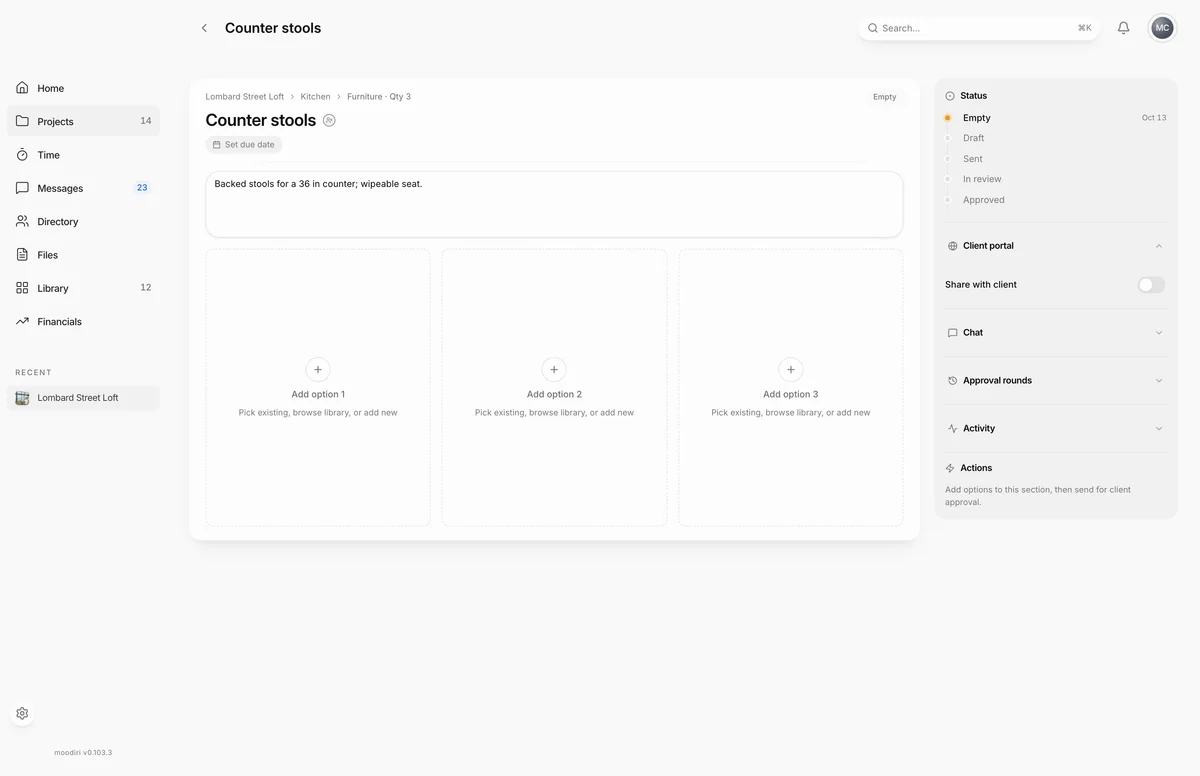
- Fill the section with one to three options first. Send only appears once there is at least one.
- Choose Set due date if you need an answer by a certain day. It saves as soon as you pick a day.
- Check Actions. Send appears once your section has options.
What happens next
- Moodiri shows Approval sent to client. Your client is emailed right away, with a link to review and respond in their portal.
- The section's status moves to Sent, then In review once your client opens it. Each request is listed under Approval rounds.
- Your client approves one option or asks for changes. Their comment shows on the section, and you can reply in the section's Chat.
- When your client approves, the chosen option becomes the section's selection and moves to the room's Final selection.
- To follow up, use Resend. See Reopen a decision, resend, archive.
Limits
Limits
- Sending needs one to three options in the section.
- Send updated options replaces the open request. The earlier one stays in the history.
- Options added while a request is out stay private until you send updated options.
Troubleshooting
- Add at least one option to send. The section is empty. Add an option first.
- Remove down to 3 options to send. The section has more than three options. Remove the extras.
Questions
I added a better option after sending. What now?
Add it to the section, then choose Send updated options. The new request replaces the earlier review, which stays in the history.
Can I change the due date after sending?
Yes. Change it on the section page while your client has not decided yet.
Next
Product sections and optionsProducts and selectionsApproval detailsApprovalsHow approvals workApprovals
Was this page helpful?
Thanks, noted.