Products and selections · Product sections and options
Add options to a section
Fill a product section with up to three options: from a link, from products you already have, or by hand.
Why use it
Options are what your client chooses between. Putting them in one section, with the same fields shown for each, makes the comparison fair and quick. You can mix sources: a new find from a vendor site next to a Library staple and a piece already in another room.
When to use it
- From a link. You found it online. Moodiri fills in the details. See Add a product from a link.
- From existing products. It is already in this project, or saved in your Library. See Add a product from the Library.
- Manually. A custom or trade-only piece with no web page.
Before you start
- A product section in the room. See Add a product section.
- Open the room's products page and select the section's card.
Steps
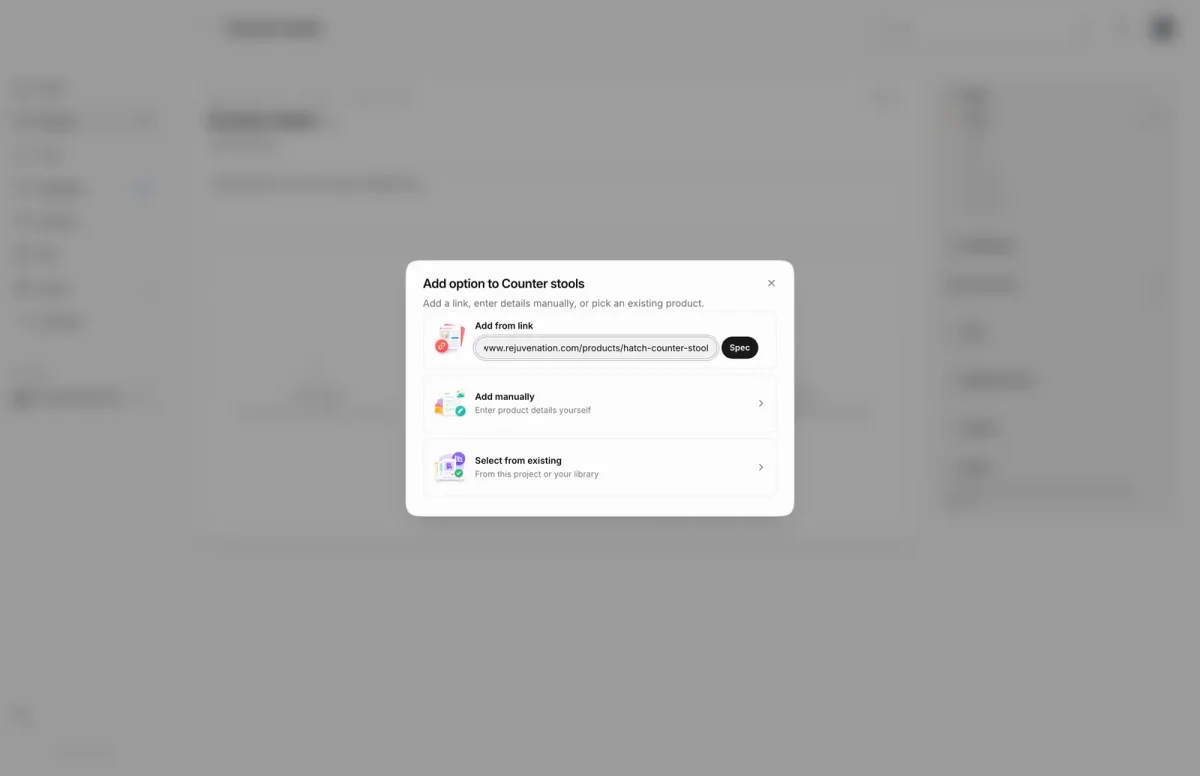
- 1Select from existing
- 2Add manually
- In the Counter stools section, choose an empty Add option card.
- To use a product page, paste its address under Add from link and choose Spec.
- To reuse a product, choose Select from existing, then pick from this room, Other spaces or the Library.
- To enter the details yourself, choose Add manually.
- Type the option's title, for example Hatch counter stool. Then pick a Category and enter the Product cost.
- Choose Add product. It joins the section as an option. Repeat for the next one; up to three fit in an approval.
What happens next
- Each option appears as a card in the section, with its photo, name and price.
- Turn on comparison fields and send the section. See Compare options and Send options for approval.
- If a request is already out, new options stay private until you choose Send updated options.
Limits
Limits
- Existing products come from this room, Other spaces in the project, or the Library.
- An approval holds up to three options. With three in place, the next card asks you to remove one before adding another.
- Options cannot be added once the section is approved or decided. Reopen the decision first.
Questions
Does picking a product from another room move it?
No. The same product becomes an option here and stays in its own room. To move a product between rooms, use Move room on its product page.
How do I remove an option?
Use the remove button on the option card. Admins can delete the product outright; members remove it from the section and the product stays in the room.
Next
Send options for approvalProducts and selectionsProduct sections and optionsProducts and selectionsAdd a product from a linkProducts and selections
Was this page helpful?
Thanks, noted.