Import past invoices
Bring invoices you issued before Moodiri into the right projects from their PDFs, so your history and reports are complete. Clients aren't emailed.
Why use it
When you start using Moodiri mid-project, your earlier invoices live in another tool. Without them, project totals, outstanding balances and reports start from zero. Importing the PDFs puts that history on each project, so Invoiced, Paid and Outstanding are right from day one.
When to use it
- Moving to Moodiri with active projects. Import the invoices already sent for them.
- Tracking unpaid old invoices. Import them as Sent or Overdue so they count toward what you're owed.
- Keeping a complete record. Import paid invoices with their Date paid so collections land in the right period.
Before you start
- Only the owner and admins can import invoices.
- Every invoice needs a project with a client. If none exist, you see Add a project before importing or Assign a client before importing. Only projects with an assigned client are offered.
- Have the invoice PDFs ready. Text-based PDFs fill in fastest; for a scanned PDF you enter the details yourself.
Steps
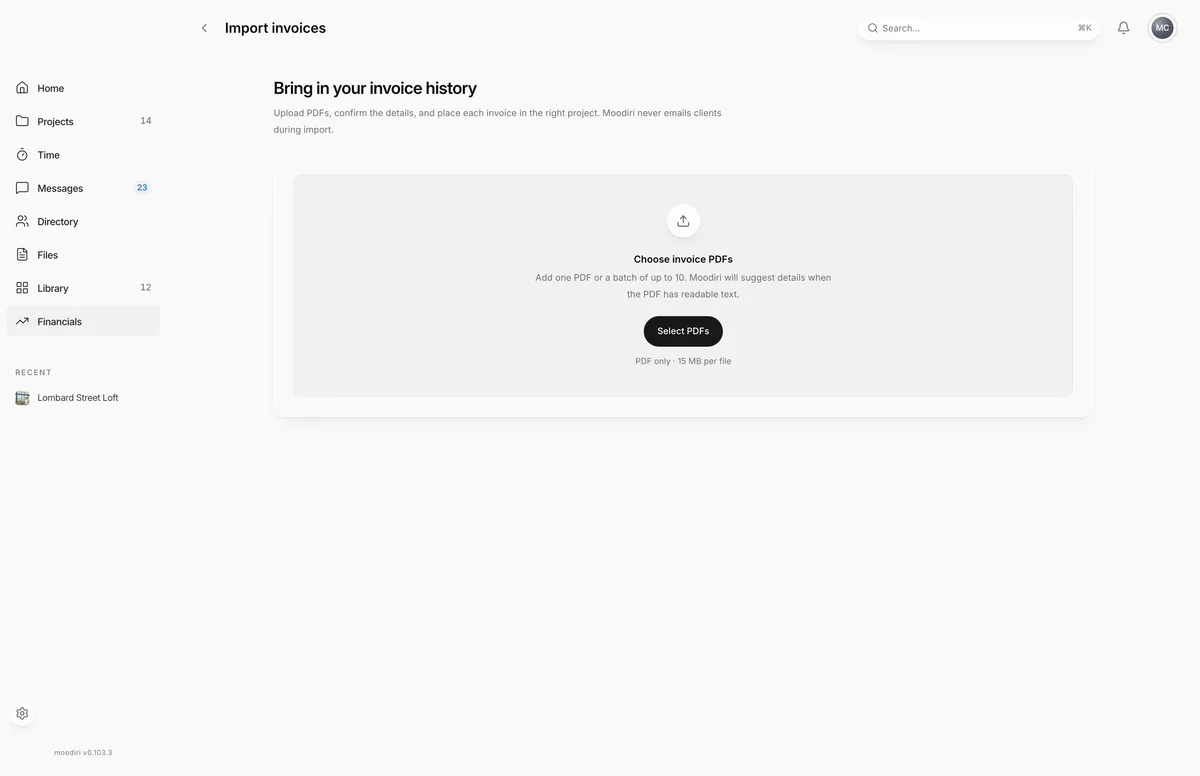
- 1Import invoices
- 2Upload area
- On Invoices, choose Import invoices to open Bring in your invoice history.
- Drop your invoice PDFs on the upload area, or choose Select PDFs. Add up to 10 at a time, 15 MB each.
- Pick an invoice in the Import queue. Check the Invoice number, Total amount and optional Description against the PDF.
- Choose the Project and the Client the invoice belongs to.
- Set the Status, the Invoice date and the Due date. For a paid invoice, add the Date paid.
- Optionally choose Add an internal note, then choose Import invoice.
Statuses for imported invoices
Choose the status the invoice has today: Draft, Sent, Viewed, Paid, Overdue or Void.
- Draft stays internal. Every other status shows the invoice in your client's portal.
- Overdue needs a due date in the past.
- Paid needs a Date paid. It sets the collection period in your reports.
What happens next
- The queue marks each file Imported, and you can choose View invoice to open it.
- The invoice appears on the invoices list and in the project's totals.
- Its original PDF is the invoice document your team and client see.
Limits
- Up to 10 PDFs per batch.
- PDF only, up to 15 MB and 250 pages per file.
- Up to $9,999,999.99 per imported invoice.
- The invoice date can't be in the future, and the due date can't be before it.
- The date paid can't be before the invoice date or in the future.
- Import never emails clients.
Troubleshooting
- No selectable text was found. Enter the details manually. The PDF is a scan or image. Type the details in from the PDF.
- Some files were skipped. Use non-empty PDFs up to 15 MB each. Check the skipped files' size and type.
- Review the highlighted fields before importing. A required field is missing or doesn't fit the status. Fix the highlighted fields.
- Needs a new PDF: Moodiri couldn't use the file. Choose Remove, then add a valid PDF.
Questions
Will my clients be emailed about imported invoices?
No. Moodiri never emails clients during import, and an imported paid invoice gets no receipt or notification.
Does Moodiri change my PDF?
No. The PDF stays as it is. The fields you confirm decide where it appears in Moodiri. Because the PDF is the original document, an imported invoice keeps its name and can't be renamed.
My invoices are in QuickBooks. Is there a faster way?
Yes. See Import from QuickBooks.