Refund items: keep as client credit or refund to the client
Refund lines on a paid invoice, then keep the money as client credit or record the refund you paid back, in one step.
Why use it
When a client returns something they already paid for, you need three things to agree: the invoice, the client's balance, and the money you hand back. This dialog handles all three at once, with a reason on record for later.
When to use it
- Keep as client credit. The client is staying with you and the money goes toward the next invoice.
- Refund to client. You are paying the money back, for example by check, and want it recorded with a receipt.
To understand what happens to the original invoice, see Refunds and corrections.
Before you start
- Only the owner and admins can refund items.
- The invoice must be Paid in full.
- If you are recording a refund you already made, have the method, date and reference ready.
- To email a receipt, the client needs an email address.
Steps
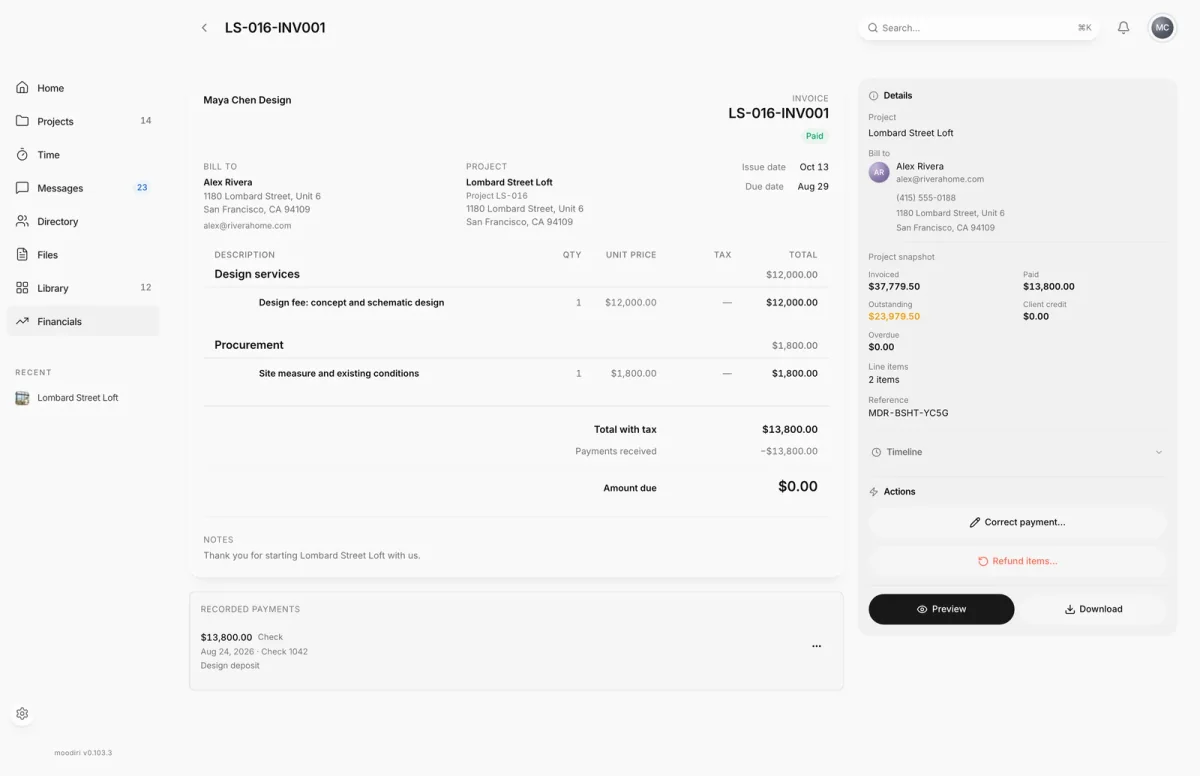
- 1Refund items…
- Open the paid invoice, here LS-016-INV001 for $13,800.00, and in Actions choose Refund items….
- Under 1. Choose items to refund, tick each line to refund, such as Site measure and existing conditions. A product's sales tax is refunded with it.
- Choose Review refund to see what changes before anything is saved.
- Check the preview: here a Refunded amount of $1,800.00 and a Replacement invoice total of $12,000.00.
- Under What happens to the money?, choose Keep as client credit or Refund to client.
- Enter the Reason, for example Site measure was waived, and an optional note.
- Choose Refund to client, or Refund and issue credit if you kept the money as credit.
Refund details
When you choose Refund to client, fill in:
- How was it refunded?: Check, Zelle, Venmo, PayPal, Wire, ACH, Cash, Card (outside Moodiri) or Other.
- Refund date: today or earlier.
- Reference (optional): a check number or confirmation.
- Note to client (optional): printed on the receipt.
- Internal note (optional): only your team sees it.
- Proof of refund: a photo of the check, a transfer screenshot or a PDF. Tick Share with client to show it in their portal.
What happens next
- Moodiri confirms with the refunded amount and what was returned to client credit.
- The original invoice is marked Corrected, and a replacement invoice takes its place. See Replacement invoices and invoice history.
- With Refund to client, the refund appears under Refunded to client on the invoice, with its receipt. See Refunds paid back to clients.
Limits
- Refund to client is only offered when the correction creates new credit. Otherwise, refund later from that credit.
- The Reason is required, up to 500 characters. The note is up to 2,000.
- Proof files can be up to 100 MB.
Troubleshooting
- Select at least one line item to continue. Tick a line before choosing Review refund.
- Reason is required. Fill in the Reason.
- Prices refreshed. Review the updated preview before confirming. Prices changed while you worked. Check the new preview and confirm again.
- The items were refunded, but we couldn't confirm the refund to the client was recorded. Choose Retry recording refund. Retrying never records it twice.
Questions
Why is Refund to client unavailable?
It is only offered when the correction creates new client credit. If the refund returns money to credit the client already held, record the refund from that credit afterwards, on Financials.
Does choosing Refund to client move money?
No. Moodiri records the refund you made by check, Zelle or another method. If you refunded a card in Stripe, don't record it here; Moodiri picks it up automatically.
Can I refund the whole invoice?
Yes. Tick every line. Moodiri notes that this refunds the entire invoice and creates a $0 replacement record.