My time
Your week in one place: log time, run a timer, accept calendar suggestions, fix overlaps and submit the week for approval.
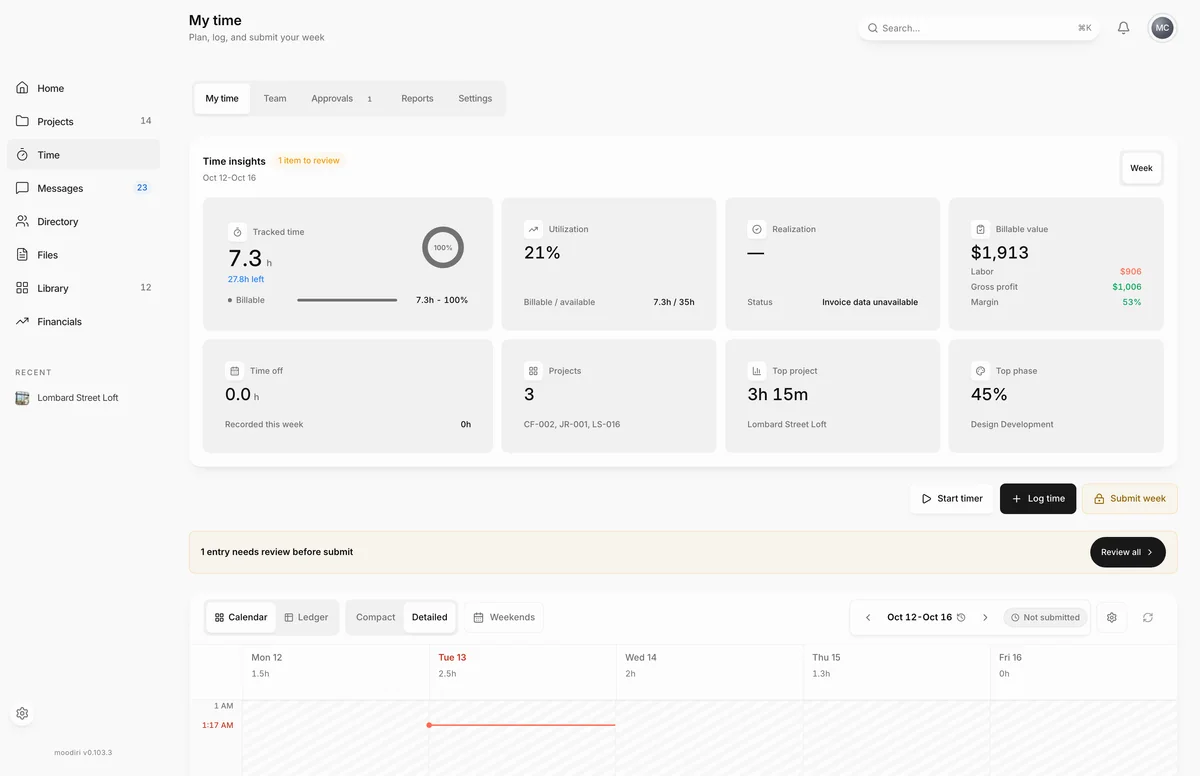
- 1Log time
- 2Start timer
- 3Submit week
My time is your timesheet for one week at a time. Everything you record lands here first: time you log by hand, timers you stop, and events you accept from your calendar. When the week is complete, you submit it for approval. Open it from Time in the sidebar.
What you see here
- The week summary at the top, with your tracked hours for the period.
- Week actions: Start timer, Log time and Submit week. Once a week is submitted, Recall submission takes its place.
- The week picker. Use the arrows to move a week, or choose the dates to jump to an earlier week. The week's status (Not submitted, Submitted, Returned or Approved) sits beside it.
- The timesheet, as a calendar or a ledger, with a capacity strip showing your hours against your weekly capacity.
Approved weeks are locked: the Start timer and Log time buttons go away until the week is reopened.
Calendar and Ledger views, display options (density, weekends, work hours, project colors)
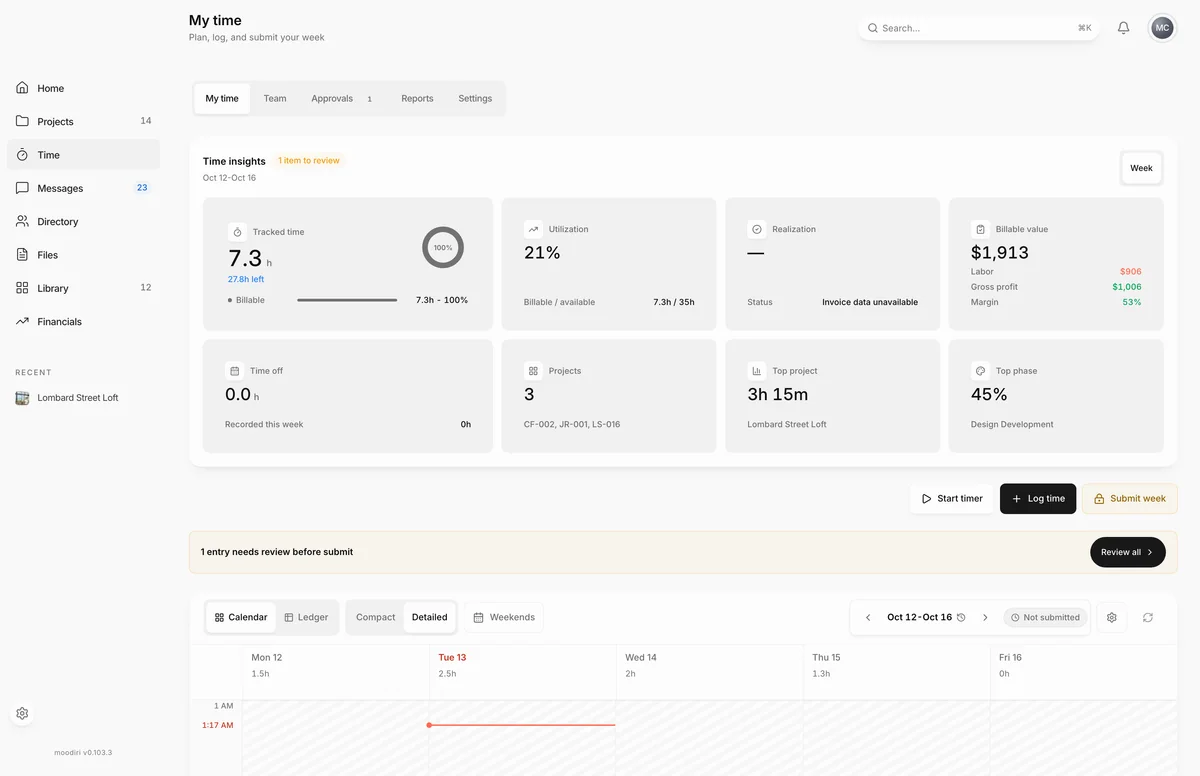
- 1Calendar
- 2Ledger
- 3Weekends
- Calendar draws each entry as a block at its time of day. Choose an empty slot to log time there.
- Ledger lists entries as rows by day, which is quicker for checking totals.
- Compact and Detailed change how much each entry shows.
- Weekends shows or hides Saturday and Sunday.
Open Sources & sync (the settings button beside the week picker) for two more options:
- Work hours shades time outside your working day. Set Start and End, optionally hatch all of Saturday and Sunday, and choose Save work hours.
- Project colors sets the color a project uses on the timesheet. The color is saved on the project, so your teammates see it too.
Choose any entry to see its details, change it, or choose Delete entry.
Suggested events: accept, dismiss, review all
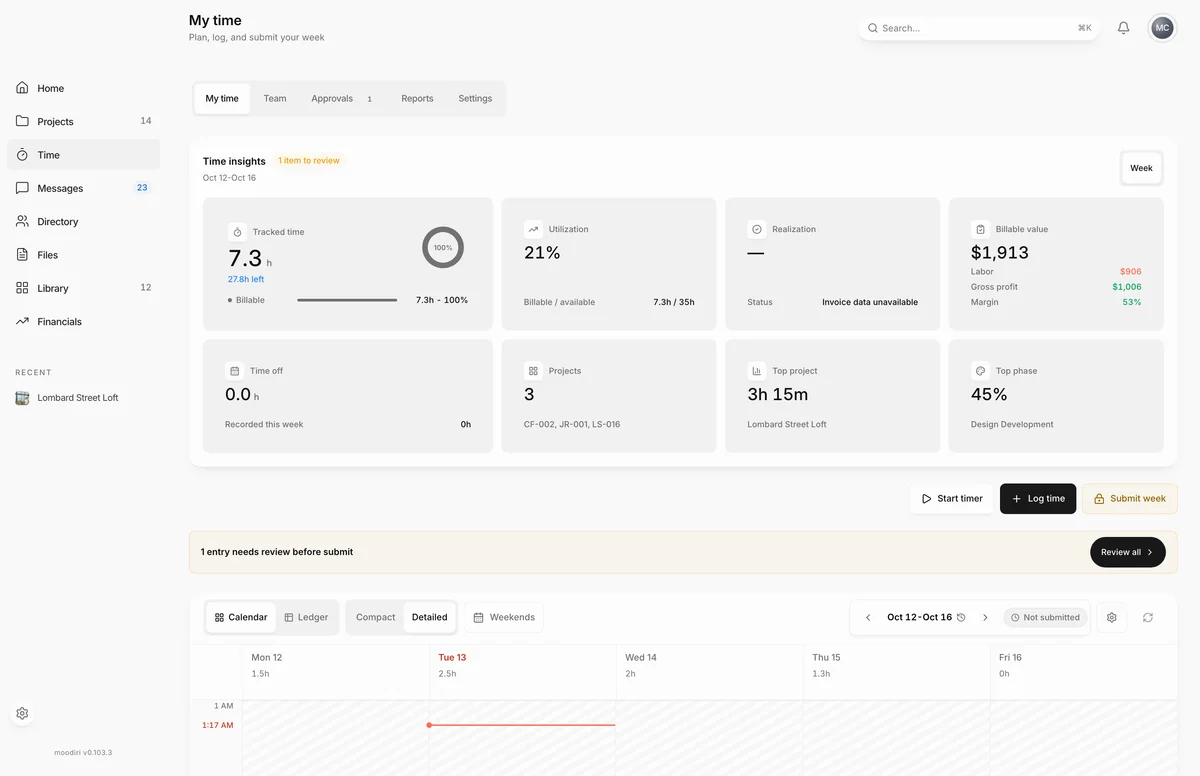
- 1Review all
When Google Calendar sync is on, events from your calendar show on the timesheet as suggestions. They do not count as time until you accept them.
- Choose a suggestion to open its details, then choose Accept event to record it. If it has not happened yet, accepting it opens Schedule event so you can plan it instead.
- When suggested entries need checking, a banner says how many need review before submit. Choose Review all to step through them one at a time and choose Accept or Decline for each.
- The Source line shows where a suggestion came from and how confident the match is.
Resolve overlaps
If two recorded entries cover the same minutes, Moodiri opens Resolve overlapping time and shows both on a timeline. Pick how the time should be recorded:
- Adjust or split time. Divide the overlap between the two tasks. Set the earlier task's share as a percentage.
- Link to existing entry. They describe the same work, so the existing entry counts once.
- Keep as calendar event. Keep the appointment visible without recording its hours.
- Record duration only. Extra work with no known clock time. Confirm it was separate work before saving.
Choose Apply resolution, or Review later to leave it for now. Your Google Calendar is never changed. A week cannot be submitted while an overlap is unresolved.
Related tasks
Limits
- Work hours are saved in this browser only. Set them again on another device.
- You can't submit a week while a timer is running or entries still need review. Stop the timer and choose Review all first.
- A locked week must be reopened before you can add or change time in it.
Questions
Why is Submit week amber or locked?
Something still needs you: entries waiting for review, a running timer, or a week with no recorded time. Hover the button to see which. Future weeks open for submission when they begin.
Do my display settings affect my teammates?
View, density and weekends are yours. Work hours are saved in this browser only. Project colors are saved on the project, so everyone who logs to it sees the same color.