Schedule an event
Plan future work on your timesheet, like a client meeting or a site visit, without counting it as recorded time.
Why use it
A week rarely goes to plan, but it helps to see the plan. Scheduling a meeting or a site visit puts it on your timesheet ahead of time, so you can see how full the week is. Because planned time never counts as worked time, your hours stay honest: you record what actually happened once it has.
When to use it
- Client meetings and site visits you know are coming.
- Repeating commitments, like a weekly studio review or a monthly supplier visit.
- Calendar events not yet happened. Turn a future Google Calendar event into a planned block.
For time already worked, log time instead.
Before you start
- Open Time. You land on My time.
- The week must be open, not submitted or approved.
- To plan from your calendar, connect Google Calendar so your events show as suggestions.
Steps
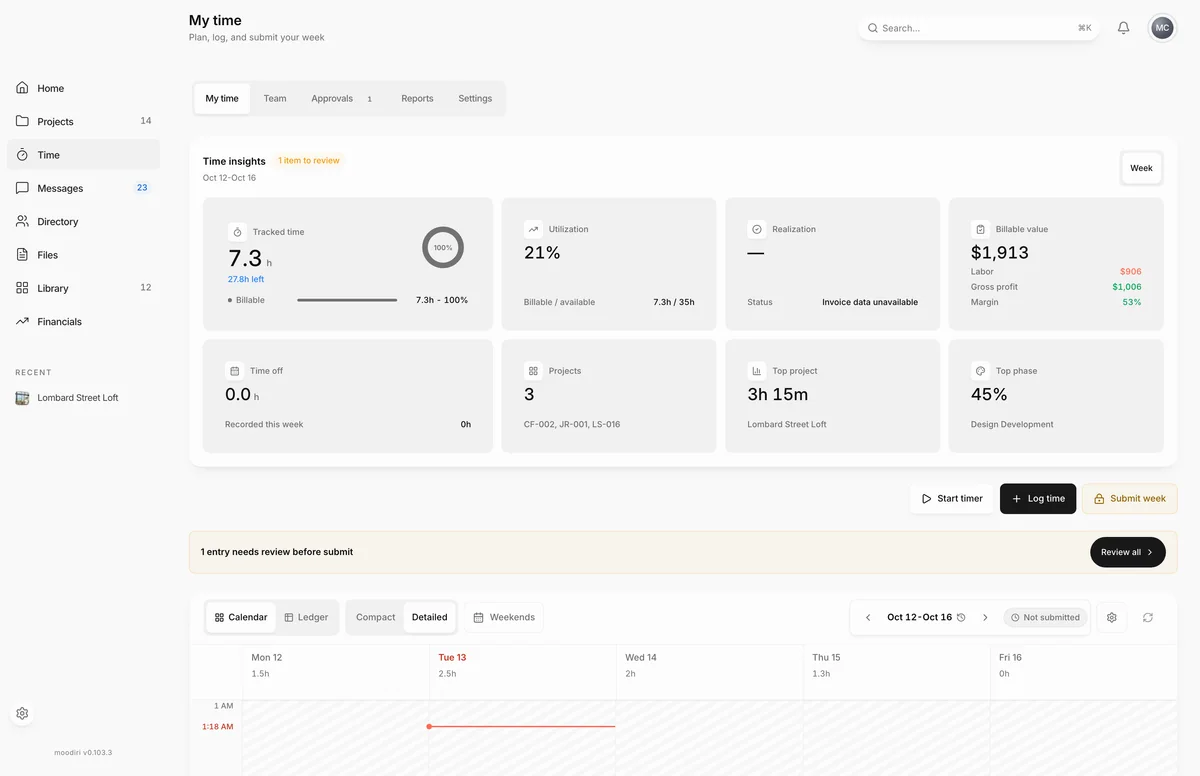
- On My time, choose Log time. An entry that starts later than now is saved as planned work.
- Choose the Choose manually tab.
- Pick the Project, here Lombard Street Loft. Its current Phase fills in.
- Add a Description, for example Site walkthrough.
- Pick a Day that has not happened yet, such as later this week.
- Pick a Start time and a Duration, here 10 AM for 1h 30m. The preview marks it Scheduled.
- Open More details and set the Activity, such as Site visit, to add a location and who is coming.
- Choose Log time. Moodiri saves a planned block, not recorded time.
Schedule a suggested calendar event
Choose a suggested Google Calendar event on your timesheet, then choose Schedule event. The window fills in the Title, Date, End date, From and To from the event. Set Repeat to Does not repeat, Every week or Every month, pick the Project (or General office for studio work) and any linked tasks, and choose the event type: Solo work or break, Meeting or Site visit. Meetings and site visits take attendees and a location. Choose Schedule event to add it to your timesheet.
What happens next
- The event appears on your timesheet as a planned block. Its details read Scheduled · not recorded.
- After it ends, open it and choose Log actual time. Moodiri opens Log time with the details filled in, so you only adjust what changed.
- Log actual time stays unavailable until the event has ended, and while the week is locked.
Limits
- Planned hours stay separate from recorded time. They never count toward your week, reports or invoices.
- An event needs a title and an end after its start, within 24 hours.
- Future duration-only work needs a start time so it can be scheduled.
Questions
Does a planned event count toward my hours?
No. Planned hours stay separate from recorded time. After the event, open it and choose Log actual time to record what really happened.
How do I remove a planned event?
Choose it on your timesheet and choose Remove event. For a repeating event, the button reads Remove recurring series.