Submit and recall a week
Send your finished week to your approver, pull it back while it waits, and resubmit it after changes are requested.
Why use it
Submitting a week tells your approver your hours are complete and ready to check. Once approved, the week is locked, so the hours behind your invoices and reports cannot quietly change afterwards.
When to use it
- At the end of each week, once every entry is in.
- After a returned week has been fixed, to send it back with your reply.
Before you start
- Open Time. You land on My time.
- The week needs some recorded time or time off.
- Stop or discard any running timer, accept or decline suggested entries, and resolve overlaps.
- Future weeks open for submission when the week begins.
Steps
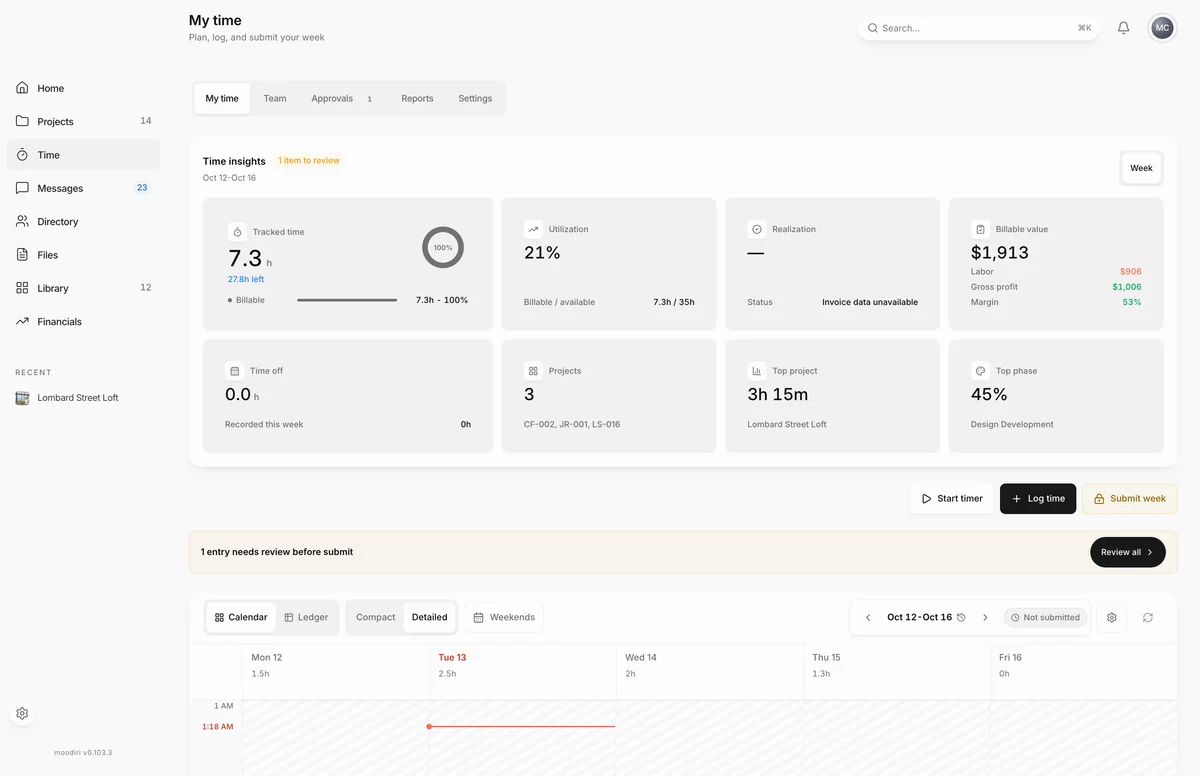
- On My time, open the week you want to submit and check its entries and daily totals.
- If a banner says entries need review, choose Review all.
- Choose Accept to record each suggestion, or Decline to drop it. Moodiri moves to the next one.
- Review every suggestion with Accept or Decline and clear any other blockers to unlock Submit week.
Recall a submission
While the week shows Submitted and nobody has decided yet, choose Recall submission. The week returns to Not submitted so you can change it, then submit again.
When a week is returned
The week shows Returned and a Week returned with comments panel with your approver's notes. Fix the entries, add a reply if you like, and choose Resubmit.
What happens next
- The week shows Submitted. Your approver is notified. If you have no assigned approver, the owner and admins with the Time tracking permission are notified instead.
- Your approver approves the week, or returns it for changes with comments.
- An approved week shows Approved by and the date, and is locked.
- If you can review time, the week is approved immediately and nobody else is notified.
Limits
- The owner, admins with the Time tracking permission, and anyone who approves a teammate's time approve their own week on submit.
- A week you approved on submit can be reopened by you with Reopen week. A week someone else approved can only be reopened by the owner or an admin with the Time tracking permission.
- Recall submission is only available while the week is waiting for a decision.
Troubleshooting
- Stop or discard the active timer before submitting this week. Stop the timer, then submit.
- Resolve overlapping recorded time before submitting. Fix the overlap in Resolve overlaps.
Questions
I submitted too early. Can I take it back?
Yes, while it is still waiting for a decision. Choose Recall submission and the week goes back to Not submitted.
My approver returned my week. What do I do?
Read the comments under Week returned with comments, fix your entries, add a reply if you like, and choose Resubmit.
I approve time. Why did my own week skip the queue?
Approvers never wait on a second approver for their own week. It approves on submit. If you need to change it, choose Reopen week.