Start a timer
Time work as you do it. Pick the project, start the timer, and stop it when you are done to record the entry.
Why use it
Estimating hours afterwards tends to undercount the small jobs: a quick call, a supplier email, ten minutes on a drawing. A timer records the real time while you work, so your timesheet and your invoices match what you actually did.
When to use it
- Focused work. A design session, a drawing set or a sourcing run.
- Billable calls. Start it when the call starts, stop it when you hang up.
- Work that gets interrupted. Pause and resume instead of guessing the total.
For time that has already happened, log it instead.
Before you start
- Open Time. You land on My time.
- You can only time projects you are assigned to, unless you are the owner or an admin with the Time tracking permission.
- The current week must be open, not submitted or approved.
Steps
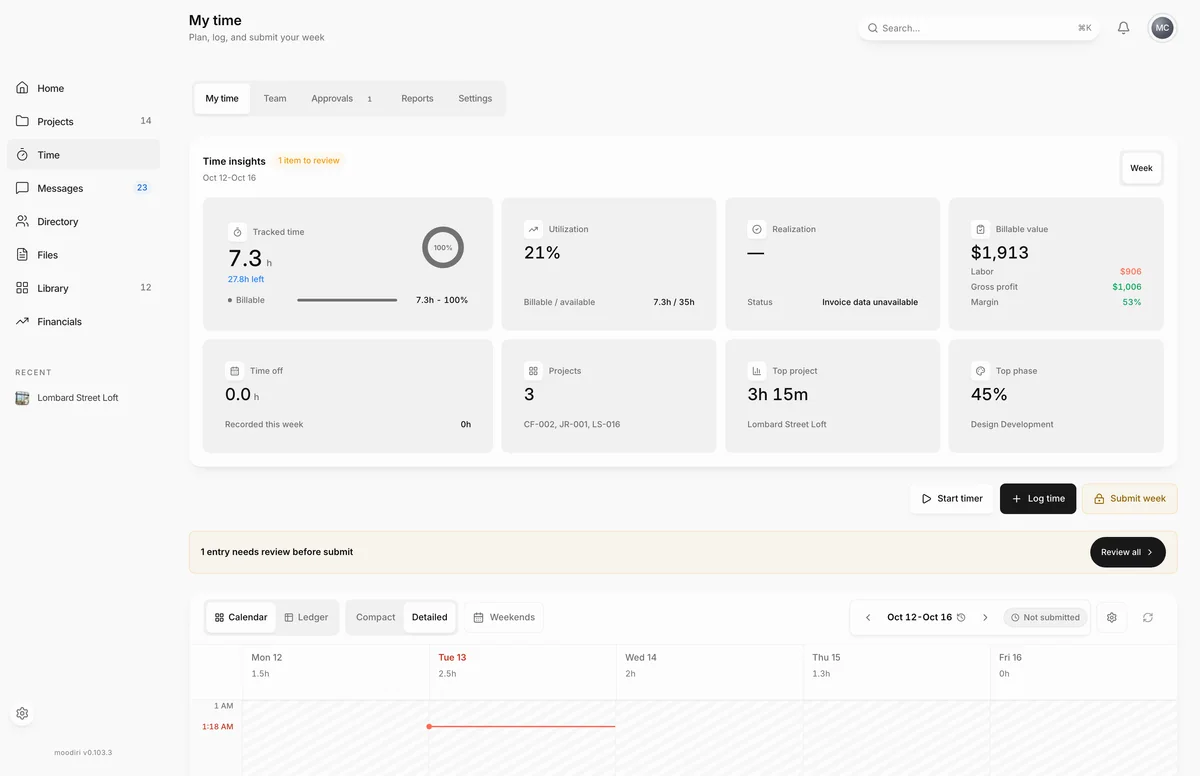
- On My time, choose Start timer to open the timer window.
- Choose the Choose manually tab to pick the work yourself.
- Pick the Project you are working on, here Lombard Street Loft.
- Pick the Phase, here Design Development, then a Task if the phase has them.
- Add a Description, for example Sourcing pendants. The preview shows the entry the timer will make.
- Choose Start timer. It starts counting now; choose Stop on the timer when you finish.
Control a running timer
Choose the timer pill to open it. From there you can change the project or phase, edit what you are working on, choose Pause or Resume, and choose Stop. Collapse it again to keep it out of the way.
What happens next
- Stop turns the timer into a time entry on today's date, from when you started to when you stopped, minus any paused time.
- The entry appears on your timesheet and your weekly total updates.
- If the timer asks about idle time, Discard throws the timer away without recording anything.
Limits
- One timer per person at a time.
- Submit week stays locked while a timer is running. Stop or discard it first.
- Stopping a timer records into today's week, which must still be open.
Questions
Can I pause the timer?
Yes. Open the timer and choose Pause, then Resume when you are back. Paused time is not counted.
Can I run two timers at once?
No. You have one timer at a time. While it runs, the button reads Timer running. Stop it before starting another.
I forgot to stop the timer. What now?
Stop it, then choose the new entry on your timesheet and correct its time. If the timer notices you have been idle, it asks whether to Keep the time or Discard the timer.