Log time
Record time you have already worked: pick the project, phase and task, the day, start and duration, and whether it is billable.
Why use it
Hours you meant to write down at the end of the day are usually gone by Friday. Logging time against the right project and phase as you go means your timesheet is complete, your billable hours are ready to invoice, and your reports show where the work really went.
When to use it
- After a block of work. A site visit, a client meeting or an afternoon on drawings.
- Catching up. Fill in a day you missed before submitting the week.
- Time off. Record PTO, a holiday or a sick day so your week adds up.
For work you are about to start, start a timer instead.
Before you start
- Open Time. You land on My time.
- You need to be assigned to the project, unless you are the owner or an admin with the Time tracking permission. Ask them to add you in Time settings.
- The week must not be submitted or approved. Recall or reopen it first.
Steps
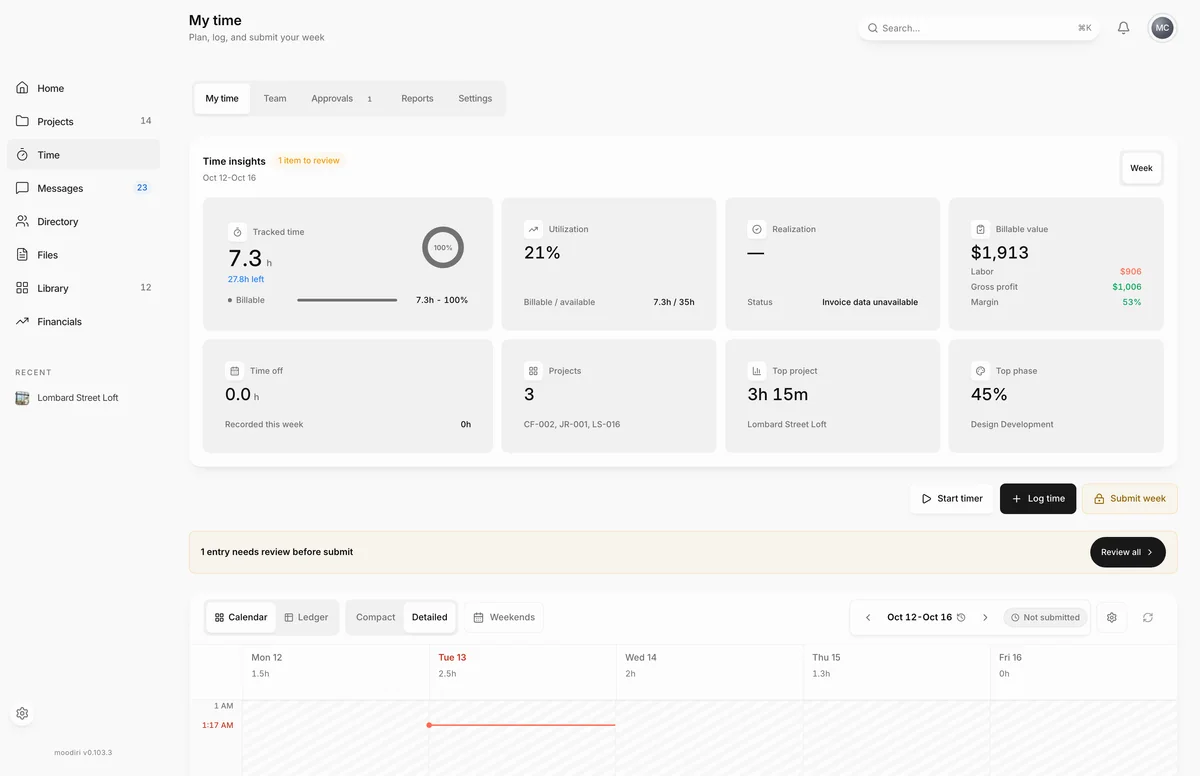
- On My time, choose Log time to open the entry window.
- Choose the Choose manually tab to fill in the details yourself.
- Pick the Project. Moodiri fills in its current Phase; pick a Task if the phase has them.
- Add a Description of the work, for example Kitchen lighting plan.
- Check the Day and Start, then pick a Duration, here 2h. The preview shows the card.
- Set Billing to Billable, Non-billable or Time off. Time off asks for a Category.
- Open More details to set the Activity, such as a meeting or site visit, and add Notes.
- Choose Log time to save the entry to your timesheet.
Billing and time off
Billing decides whether the time can be invoiced. Billable time feeds Unbilled time once the week is approved. Non-billable time still counts toward your hours and reports. Time off asks for a Category instead of a project.
Meetings, calls and site visits
Under More details, choose an Activity such as Meeting, Call or Site visit to add who was there and where. Other activities include Solo work, Office work, Travel and Documentation.
What happens next
- The entry appears on your timesheet and your weekly total updates.
- If it overlaps another recorded entry, Moodiri asks you to resolve the overlap.
- When the week is complete, submit it.
Limits
- Log time stays unavailable until the entry has a project (or office work), a duration, a confirmed day and billing.
- Office work with no project cannot be billable.
- Future duration-only work needs a start time so it can be scheduled.
Troubleshooting
- This project is missing its time catalog. Refresh the page or choose the details manually. Refresh the page and try again.
- Office work cannot be billable. Choose billing to continue. Pick Non-billable, or choose a project.
Questions
Can I change or delete an entry later?
Yes, while the week is open. Choose the entry on your timesheet to change it, or choose Delete entry. Once a week is approved it is locked until reopened.
Why can't I pick Billable?
Office work with no project cannot be billable. Choose a project, or pick Non-billable.
What if I log a time that is still in the future?
Moodiri saves it as planned work, not recorded time. Log the actual time once it has happened. See Schedule an event.